> ## Documentation Index
> Fetch the complete documentation index at: https://docs.openlayer.com/llms.txt
> Use this file to discover all available pages before exploring further.
# Google BigQuery
> Connect your BigQuery tables to Openlayer for data quality monitoring
 Openlayer integrates with [Google BigQuery](https://cloud.google.com/bigquery) so you
can run data quality tests directly on your BigQuery tables.
## Authentication methods
Openlayer supports two ways to authenticate with BigQuery:
| Method | How it works | Best for |
| --------------------------------- | ------------------------------------------------------------------------ | ------------------------------------------------------------------------ |
| **Service Account Impersonation** | Openlayer impersonates a service account you own — no keys are exchanged | Organizations that prefer keyless, auditable access (Google-recommended) |
| **Service Account Key** | You upload a service account key JSON file directly to Openlayer | Teams that already manage service account keys or need a quicker setup |
If you are unsure which method to choose, **Service Account Impersonation** is
Google's recommended approach because it avoids long-lived credentials.
## Prerequisites
Both methods require:
* A GCP project with BigQuery enabled
* A service account with the [required BigQuery roles](#step-1-create-a-service-account-and-grant-roles)
* An [Openlayer project](/workspace-and-projects/creating-and-loading-projects) with monitoring mode enabled
## Setup Guide
### Step 1: Create a service account and grant roles
Create a dedicated service account in your GCP project for Openlayer to use:
```bash theme={null}
# Set your project ID
export PROJECT_ID="your-project-id"
# Create the service account
gcloud iam service-accounts create openlayer-bigquery \
--project=$PROJECT_ID \
--description="BigQuery access for Openlayer" \
--display-name="Openlayer BigQuery Access"
```
Grant the following roles to the new service account:
* `roles/bigquery.jobUser`: run queries
* `roles/bigquery.dataViewer`: read table data
* `roles/bigquery.metadataViewer`: read metadata
```bash theme={null}
gcloud projects add-iam-policy-binding $PROJECT_ID \
--member="serviceAccount:openlayer-bigquery@$PROJECT_ID.iam.gserviceaccount.com" \
--role="roles/bigquery.jobUser"
gcloud projects add-iam-policy-binding $PROJECT_ID \
--member="serviceAccount:openlayer-bigquery@$PROJECT_ID.iam.gserviceaccount.com" \
--role="roles/bigquery.dataViewer"
gcloud projects add-iam-policy-binding $PROJECT_ID \
--member="serviceAccount:openlayer-bigquery@$PROJECT_ID.iam.gserviceaccount.com" \
--role="roles/bigquery.metadataViewer"
```
### Step 2: Configure authentication and connect
In your Openlayer workspace, go to **Data sources**, select **BigQuery**, and click **Connect**.
Choose your authentication method and follow the corresponding tab:
#### Allow Openlayer to impersonate your service account
Grant Openlayer's service account permission to impersonate yours:
```bash theme={null}
gcloud iam service-accounts add-iam-policy-binding \
openlayer-bigquery@$PROJECT_ID.iam.gserviceaccount.com \
--member="serviceAccount:impersonator@unbox-ai.iam.gserviceaccount.com" \
--role="roles/iam.serviceAccountTokenCreator"
```
This ensures Openlayer can act as your service account **without exchanging keys**.
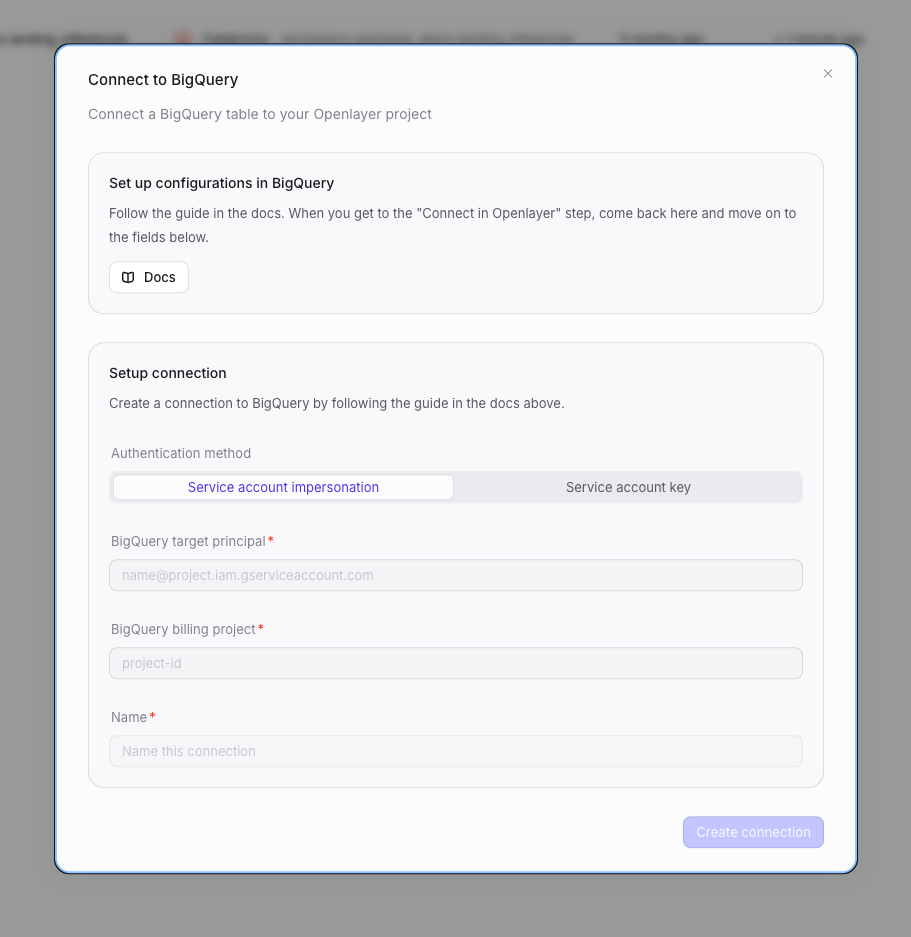
#### Fill in the connection fields
* **BigQuery target principal**: your service account email
(e.g. `openlayer-bigquery@your-project-id.iam.gserviceaccount.com`)
* **BigQuery billing project**: your GCP project ID (where query costs are billed)
* **Name**: a descriptive label for this connection
Openlayer integrates with [Google BigQuery](https://cloud.google.com/bigquery) so you
can run data quality tests directly on your BigQuery tables.
## Authentication methods
Openlayer supports two ways to authenticate with BigQuery:
| Method | How it works | Best for |
| --------------------------------- | ------------------------------------------------------------------------ | ------------------------------------------------------------------------ |
| **Service Account Impersonation** | Openlayer impersonates a service account you own — no keys are exchanged | Organizations that prefer keyless, auditable access (Google-recommended) |
| **Service Account Key** | You upload a service account key JSON file directly to Openlayer | Teams that already manage service account keys or need a quicker setup |
If you are unsure which method to choose, **Service Account Impersonation** is
Google's recommended approach because it avoids long-lived credentials.
## Prerequisites
Both methods require:
* A GCP project with BigQuery enabled
* A service account with the [required BigQuery roles](#step-1-create-a-service-account-and-grant-roles)
* An [Openlayer project](/workspace-and-projects/creating-and-loading-projects) with monitoring mode enabled
## Setup Guide
### Step 1: Create a service account and grant roles
Create a dedicated service account in your GCP project for Openlayer to use:
```bash theme={null}
# Set your project ID
export PROJECT_ID="your-project-id"
# Create the service account
gcloud iam service-accounts create openlayer-bigquery \
--project=$PROJECT_ID \
--description="BigQuery access for Openlayer" \
--display-name="Openlayer BigQuery Access"
```
Grant the following roles to the new service account:
* `roles/bigquery.jobUser`: run queries
* `roles/bigquery.dataViewer`: read table data
* `roles/bigquery.metadataViewer`: read metadata
```bash theme={null}
gcloud projects add-iam-policy-binding $PROJECT_ID \
--member="serviceAccount:openlayer-bigquery@$PROJECT_ID.iam.gserviceaccount.com" \
--role="roles/bigquery.jobUser"
gcloud projects add-iam-policy-binding $PROJECT_ID \
--member="serviceAccount:openlayer-bigquery@$PROJECT_ID.iam.gserviceaccount.com" \
--role="roles/bigquery.dataViewer"
gcloud projects add-iam-policy-binding $PROJECT_ID \
--member="serviceAccount:openlayer-bigquery@$PROJECT_ID.iam.gserviceaccount.com" \
--role="roles/bigquery.metadataViewer"
```
### Step 2: Configure authentication and connect
In your Openlayer workspace, go to **Data sources**, select **BigQuery**, and click **Connect**.
Choose your authentication method and follow the corresponding tab:
#### Allow Openlayer to impersonate your service account
Grant Openlayer's service account permission to impersonate yours:
```bash theme={null}
gcloud iam service-accounts add-iam-policy-binding \
openlayer-bigquery@$PROJECT_ID.iam.gserviceaccount.com \
--member="serviceAccount:impersonator@unbox-ai.iam.gserviceaccount.com" \
--role="roles/iam.serviceAccountTokenCreator"
```
This ensures Openlayer can act as your service account **without exchanging keys**.
#### Fill in the connection fields
* **BigQuery target principal**: your service account email
(e.g. `openlayer-bigquery@your-project-id.iam.gserviceaccount.com`)
* **BigQuery billing project**: your GCP project ID (where query costs are billed)
* **Name**: a descriptive label for this connection
 #### Generate a service account key
Create a JSON key for the service account you created in Step 1:
```bash theme={null}
gcloud iam service-accounts keys create openlayer-bigquery-key.json \
--iam-account=openlayer-bigquery@$PROJECT_ID.iam.gserviceaccount.com
```
Service account keys are long-lived credentials. Follow these best practices:
* **Do not** commit the key file to version control.
* **Rotate** the key regularly (Google recommends at most every 90 days).
* **Delete** the local file after pasting it into Openlayer.
* If a key is compromised, [revoke it immediately](https://cloud.google.com/iam/docs/keys-create-delete#deleting) in the GCP console.
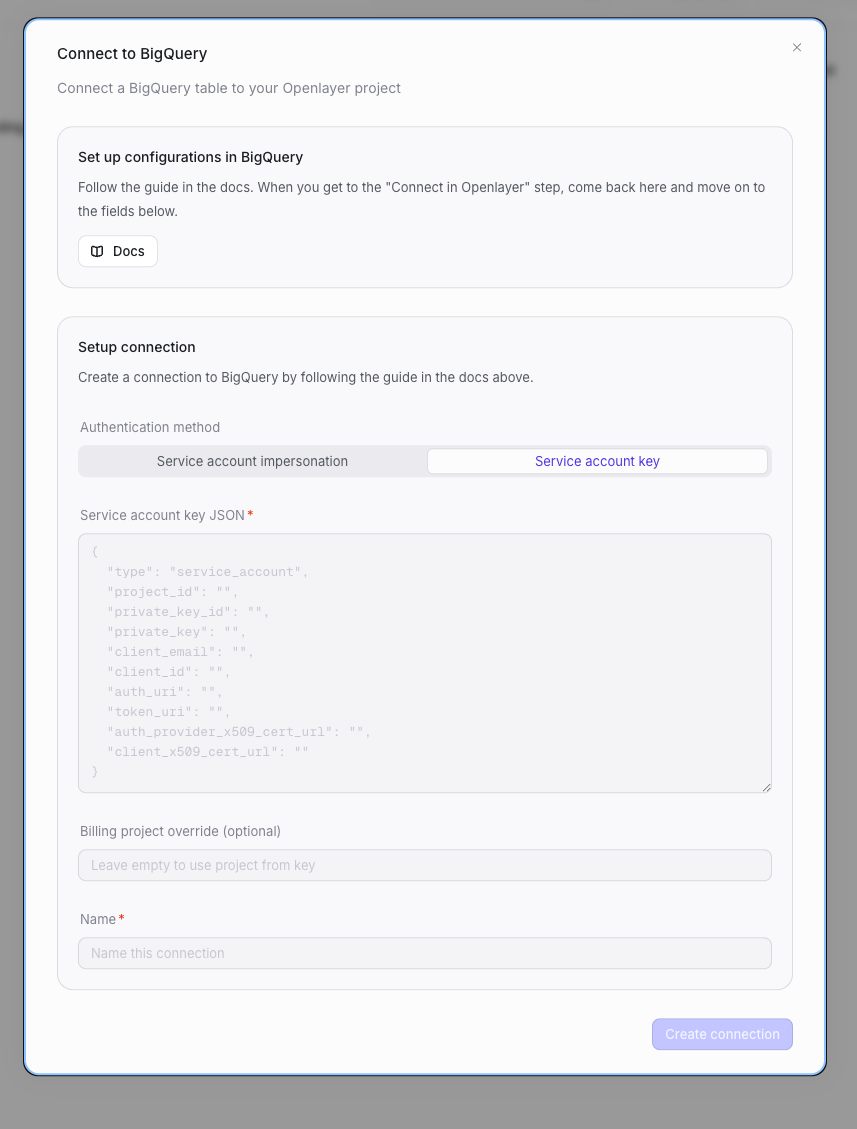
#### Fill in the connection fields
* **Service account key JSON**: paste the contents of the JSON key file you generated above
* **Billing project override** (optional): a GCP project ID for billing — leave empty to use the project from the key
* **Name**: a descriptive label for this connection
#### Generate a service account key
Create a JSON key for the service account you created in Step 1:
```bash theme={null}
gcloud iam service-accounts keys create openlayer-bigquery-key.json \
--iam-account=openlayer-bigquery@$PROJECT_ID.iam.gserviceaccount.com
```
Service account keys are long-lived credentials. Follow these best practices:
* **Do not** commit the key file to version control.
* **Rotate** the key regularly (Google recommends at most every 90 days).
* **Delete** the local file after pasting it into Openlayer.
* If a key is compromised, [revoke it immediately](https://cloud.google.com/iam/docs/keys-create-delete#deleting) in the GCP console.
#### Fill in the connection fields
* **Service account key JSON**: paste the contents of the JSON key file you generated above
* **Billing project override** (optional): a GCP project ID for billing — leave empty to use the project from the key
* **Name**: a descriptive label for this connection
 ### Step 3: Configure your table
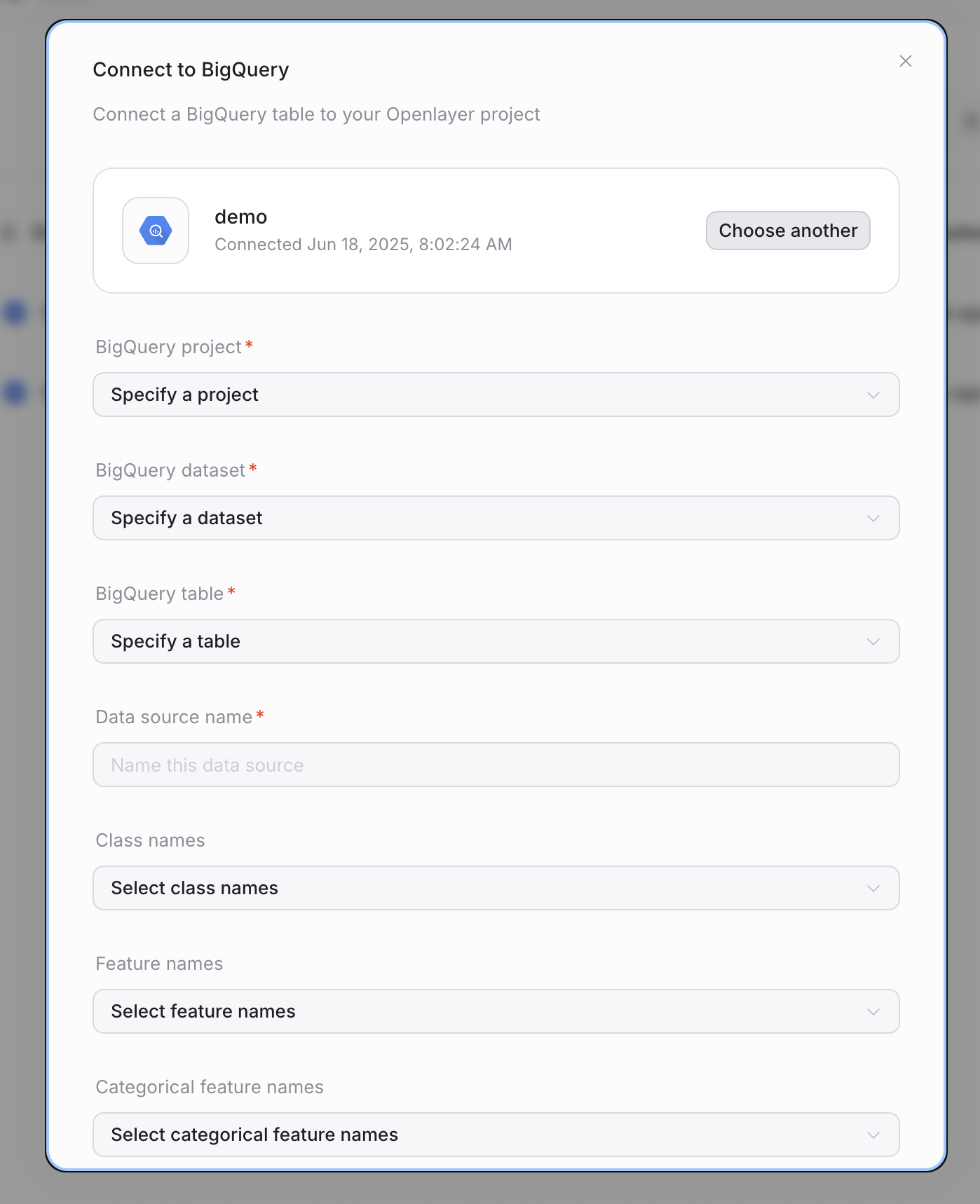
After the connection is created, configure the table you want to monitor:
* **Project**: GCP project containing the table
* **Dataset**: dataset name
* **Table**: table name
* **Data source name**: a descriptive name for this table in Openlayer
### Step 3: Configure your table
After the connection is created, configure the table you want to monitor:
* **Project**: GCP project containing the table
* **Dataset**: dataset name
* **Table**: table name
* **Data source name**: a descriptive name for this table in Openlayer
 #### Optional: ML-specific settings
If the table contains ML outputs, you can provide additional context:
* Class names
* Feature names
* Categorical feature names
These let Openlayer run model-aware tests, such as drift or performance monitoring.
## Multiple connections
You can create multiple BigQuery connections in the same Openlayer workspace — each
with its own authentication method, billing project, and service account. This is
useful when:
* Different teams own different GCP projects
* You want to isolate billing across data sources
* Different tables require different access permissions
Each connection is independent, so you can mix Service Account Impersonation and
Service Account Key connections as needed.
## Security considerations
**No keys exchanged** — Openlayer never holds long-lived credentials for your project.
**Auditable** — every impersonated action is logged in [Cloud Audit Logs](https://cloud.google.com/logging/docs/audit) under both the impersonator and target accounts.
**Revocable** — remove the `serviceAccountTokenCreator` role to revoke access instantly.
**Encrypted at rest** — uploaded keys are encrypted and stored securely in Openlayer's infrastructure.
**Rotate regularly** — set a reminder to rotate keys at least every 90 days.
**Least privilege** — only grant the three BigQuery roles listed above. Avoid `roles/owner` or `roles/editor`.
**Revoke if compromised** — delete the key in the GCP console and generate a new one.
## Troubleshooting
* **Permission errors** → confirm the roles above are granted to your service account.
* **Impersonation errors** → ensure `roles/iam.serviceAccountTokenCreator` is granted to Openlayer's service account (`impersonator@unbox-ai.iam.gserviceaccount.com`).
* **Invalid key errors** → verify the uploaded JSON file is the correct service account key and has not been revoked.
* **Billing errors** → check that the billing project ID is correct and that the service account has `bigquery.jobUser` on that project.
#### Optional: ML-specific settings
If the table contains ML outputs, you can provide additional context:
* Class names
* Feature names
* Categorical feature names
These let Openlayer run model-aware tests, such as drift or performance monitoring.
## Multiple connections
You can create multiple BigQuery connections in the same Openlayer workspace — each
with its own authentication method, billing project, and service account. This is
useful when:
* Different teams own different GCP projects
* You want to isolate billing across data sources
* Different tables require different access permissions
Each connection is independent, so you can mix Service Account Impersonation and
Service Account Key connections as needed.
## Security considerations
**No keys exchanged** — Openlayer never holds long-lived credentials for your project.
**Auditable** — every impersonated action is logged in [Cloud Audit Logs](https://cloud.google.com/logging/docs/audit) under both the impersonator and target accounts.
**Revocable** — remove the `serviceAccountTokenCreator` role to revoke access instantly.
**Encrypted at rest** — uploaded keys are encrypted and stored securely in Openlayer's infrastructure.
**Rotate regularly** — set a reminder to rotate keys at least every 90 days.
**Least privilege** — only grant the three BigQuery roles listed above. Avoid `roles/owner` or `roles/editor`.
**Revoke if compromised** — delete the key in the GCP console and generate a new one.
## Troubleshooting
* **Permission errors** → confirm the roles above are granted to your service account.
* **Impersonation errors** → ensure `roles/iam.serviceAccountTokenCreator` is granted to Openlayer's service account (`impersonator@unbox-ai.iam.gserviceaccount.com`).
* **Invalid key errors** → verify the uploaded JSON file is the correct service account key and has not been revoked.
* **Billing errors** → check that the billing project ID is correct and that the service account has `bigquery.jobUser` on that project.