> ## Documentation Index
> Fetch the complete documentation index at: https://docs.openlayer.com/llms.txt
> Use this file to discover all available pages before exploring further.
# Databricks AI/BI Genie
> Discover your Databricks AI/BI Genie spaces and monitor their conversations in Openlayer
 Openlayer connects to [Databricks AI/BI Genie](https://www.databricks.com/product/ai-bi) to keep an
inventory of the Genie spaces in your Databricks workspace and to import the conversations people
have with them. Each question-and-answer turn becomes a trace you can inspect, evaluate, and alert
on — with no SDK, proxy, or change to your Genie spaces.
Genie is a fully managed service, so there is no process of yours in which to configure an
OpenTelemetry exporter. Openlayer therefore reads the
[Genie Conversation API](https://docs.databricks.com/aws/en/genie-agents/conversation-api) directly,
which is the interface Databricks documents for third-party tools.
All access is **read-only**. Openlayer never writes to your Databricks
workspace, never runs a Genie space, and never changes anyone's permissions
there.
This page covers Genie **conversations**. To run data quality tests against
Databricks **tables** through a SQL warehouse, see
[Databricks](/integrations/databricks) instead. The two are independent — you
can use either or both.
## How it works
Once connected, Openlayer:
1. **Inventories your Genie spaces** — enumerates every space the integration identity can see and
records its title, description, and warehouse. A space that stops appearing is marked no longer
visible rather than deleted, so a permission change reads as a coverage gap instead of silently
shrinking your inventory
2. **Applies a registration policy** — each newly discovered space is auto-registered, parked for
approval, or ignored, according to the policy you set on the connection
3. **Creates a project per registered space** — a project and inference pipeline are created and
attached, or you can point the space at an existing pair
4. **Imports conversations** — walks each registered space's conversations and writes one trace per
turn, keyed on space + conversation + message, so repeated polls never duplicate a turn
5. **Reports coverage** — every space carries a coverage state saying whether conversations are
actually flowing and, when they are not, what to do about it
***
## Prerequisites
Before connecting, you need:
* A Databricks workspace with at least one **Genie space**.
* The **workspace URL**, for example `https://dbc-1234abcd-5678.cloud.databricks.com`.
* A Databricks **personal access token** for the identity Openlayer should use.
* **CAN MANAGE** on each Genie space you want to monitor (see below).
* An Openlayer workspace where you are an **admin**. Connecting, changing the policy, registering a
space, and disconnecting are all admin-only actions.
### Why CAN MANAGE matters
Openlayer sees exactly what the token's identity sees, and the two permission levels do different
things:
| Permission | What Openlayer can do |
| -------------- | ---------------------------------------------------------------------------- |
| **CAN VIEW** | Inventory the space — title, description, warehouse — and nothing else |
| **CAN MANAGE** | Also read the space's conversations **across all users**, which is the point |
Listing another user's conversations requires at least CAN MANAGE on the space, so a space granted
only CAN VIEW appears in the inventory and reports **Missing CAN MANAGE** rather than importing
anything.
Use a dedicated service principal rather than a personal identity. A token
tied to a person stops working when they leave, and it scopes your monitoring
to the spaces that one person happens to have access to.
***
## Setup guide
### Step 1: Open the integration
In Openlayer, go to **Settings → Integrations**, find **Databricks AI/BI Genie**, and click
**Enable**.
Openlayer connects to [Databricks AI/BI Genie](https://www.databricks.com/product/ai-bi) to keep an
inventory of the Genie spaces in your Databricks workspace and to import the conversations people
have with them. Each question-and-answer turn becomes a trace you can inspect, evaluate, and alert
on — with no SDK, proxy, or change to your Genie spaces.
Genie is a fully managed service, so there is no process of yours in which to configure an
OpenTelemetry exporter. Openlayer therefore reads the
[Genie Conversation API](https://docs.databricks.com/aws/en/genie-agents/conversation-api) directly,
which is the interface Databricks documents for third-party tools.
All access is **read-only**. Openlayer never writes to your Databricks
workspace, never runs a Genie space, and never changes anyone's permissions
there.
This page covers Genie **conversations**. To run data quality tests against
Databricks **tables** through a SQL warehouse, see
[Databricks](/integrations/databricks) instead. The two are independent — you
can use either or both.
## How it works
Once connected, Openlayer:
1. **Inventories your Genie spaces** — enumerates every space the integration identity can see and
records its title, description, and warehouse. A space that stops appearing is marked no longer
visible rather than deleted, so a permission change reads as a coverage gap instead of silently
shrinking your inventory
2. **Applies a registration policy** — each newly discovered space is auto-registered, parked for
approval, or ignored, according to the policy you set on the connection
3. **Creates a project per registered space** — a project and inference pipeline are created and
attached, or you can point the space at an existing pair
4. **Imports conversations** — walks each registered space's conversations and writes one trace per
turn, keyed on space + conversation + message, so repeated polls never duplicate a turn
5. **Reports coverage** — every space carries a coverage state saying whether conversations are
actually flowing and, when they are not, what to do about it
***
## Prerequisites
Before connecting, you need:
* A Databricks workspace with at least one **Genie space**.
* The **workspace URL**, for example `https://dbc-1234abcd-5678.cloud.databricks.com`.
* A Databricks **personal access token** for the identity Openlayer should use.
* **CAN MANAGE** on each Genie space you want to monitor (see below).
* An Openlayer workspace where you are an **admin**. Connecting, changing the policy, registering a
space, and disconnecting are all admin-only actions.
### Why CAN MANAGE matters
Openlayer sees exactly what the token's identity sees, and the two permission levels do different
things:
| Permission | What Openlayer can do |
| -------------- | ---------------------------------------------------------------------------- |
| **CAN VIEW** | Inventory the space — title, description, warehouse — and nothing else |
| **CAN MANAGE** | Also read the space's conversations **across all users**, which is the point |
Listing another user's conversations requires at least CAN MANAGE on the space, so a space granted
only CAN VIEW appears in the inventory and reports **Missing CAN MANAGE** rather than importing
anything.
Use a dedicated service principal rather than a personal identity. A token
tied to a person stops working when they leave, and it scopes your monitoring
to the spaces that one person happens to have access to.
***
## Setup guide
### Step 1: Open the integration
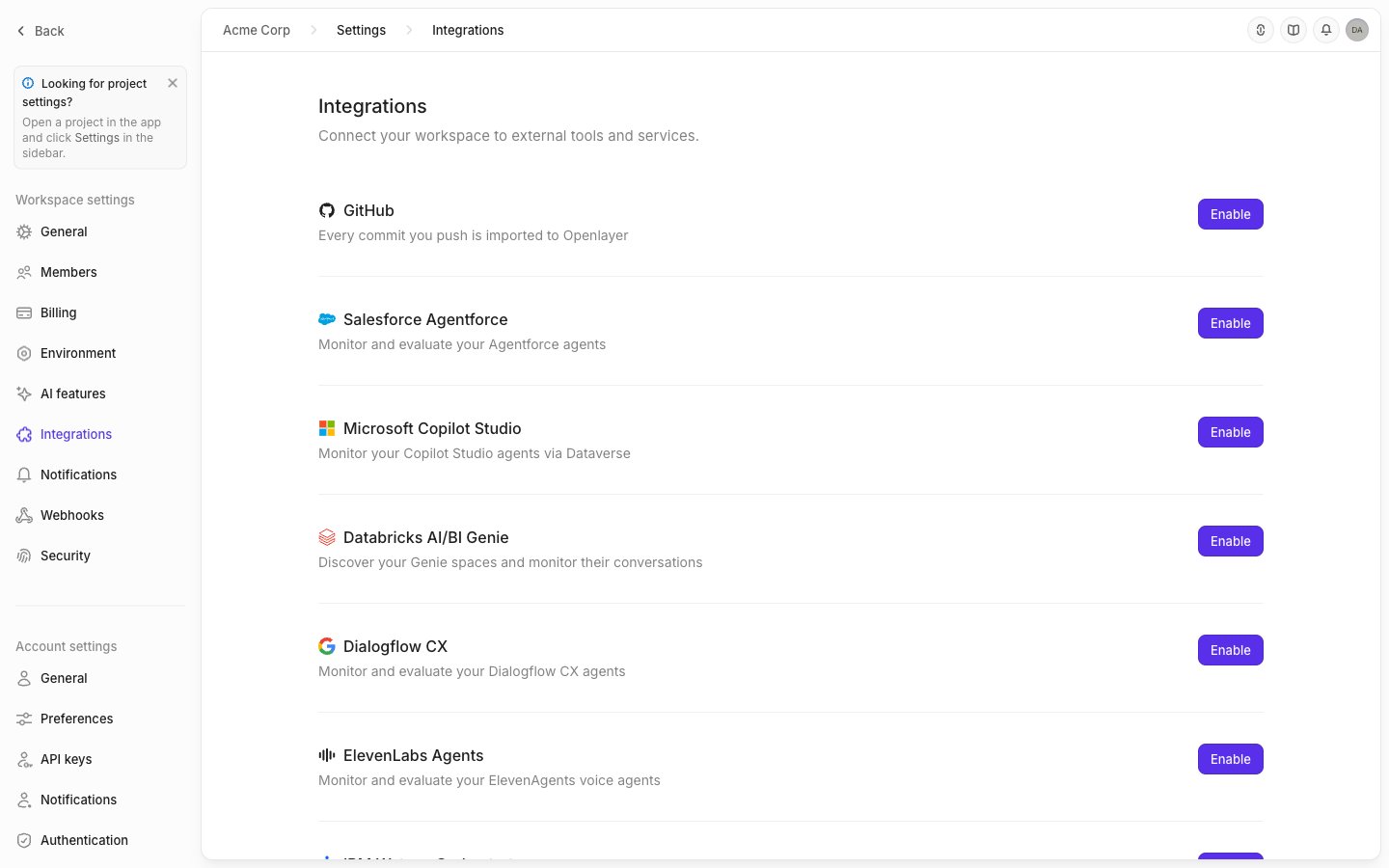
In Openlayer, go to **Settings → Integrations**, find **Databricks AI/BI Genie**, and click
**Enable**.
 ### Step 2: Create a Databricks access token
In Databricks, go to **User Settings → Developer → Access Tokens** and generate a token for the
identity Openlayer should use. Copy it — Databricks shows it only once. See the
[Databricks documentation](https://docs.databricks.com/en/dev-tools/auth/pat.html) for details.
Then share each Genie space you want monitored with that identity at the **CAN MANAGE** level.
### Step 3: Connect
Enter your **Databricks workspace URL** and the **access token**, and choose what should happen when
a new Genie space is discovered.
### Step 2: Create a Databricks access token
In Databricks, go to **User Settings → Developer → Access Tokens** and generate a token for the
identity Openlayer should use. Copy it — Databricks shows it only once. See the
[Databricks documentation](https://docs.databricks.com/en/dev-tools/auth/pat.html) for details.
Then share each Genie space you want monitored with that identity at the **CAN MANAGE** level.
### Step 3: Connect
Enter your **Databricks workspace URL** and the **access token**, and choose what should happen when
a new Genie space is discovered.
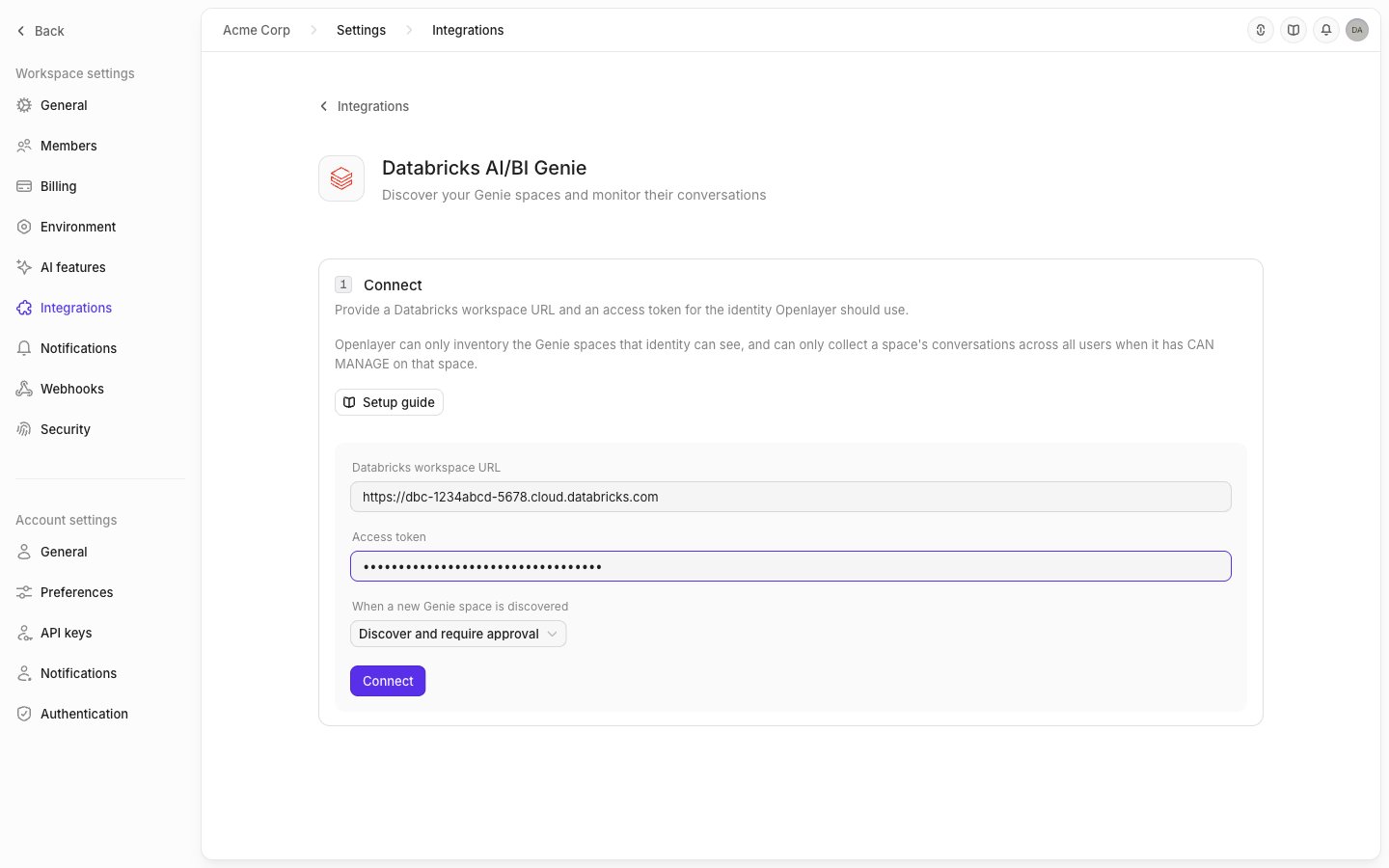 Click **Connect**. Openlayer validates the credentials against Databricks before storing anything —
if the URL is wrong or the token is rejected, nothing is saved. A first inventory scan starts
immediately, so you do not wait for the next scheduled run to see your spaces.
### Step 4: Review coverage
The **Coverage** panel is the answer to "how much of my Genie estate is actually monitored?" — how
many spaces the last scan could see, how many are registered, how many are waiting on someone, and
when conversations last synced.
Click **Connect**. Openlayer validates the credentials against Databricks before storing anything —
if the URL is wrong or the token is rejected, nothing is saved. A first inventory scan starts
immediately, so you do not wait for the next scheduled run to see your spaces.
### Step 4: Review coverage
The **Coverage** panel is the answer to "how much of my Genie estate is actually monitored?" — how
many spaces the last scan could see, how many are registered, how many are waiting on someone, and
when conversations last synced.
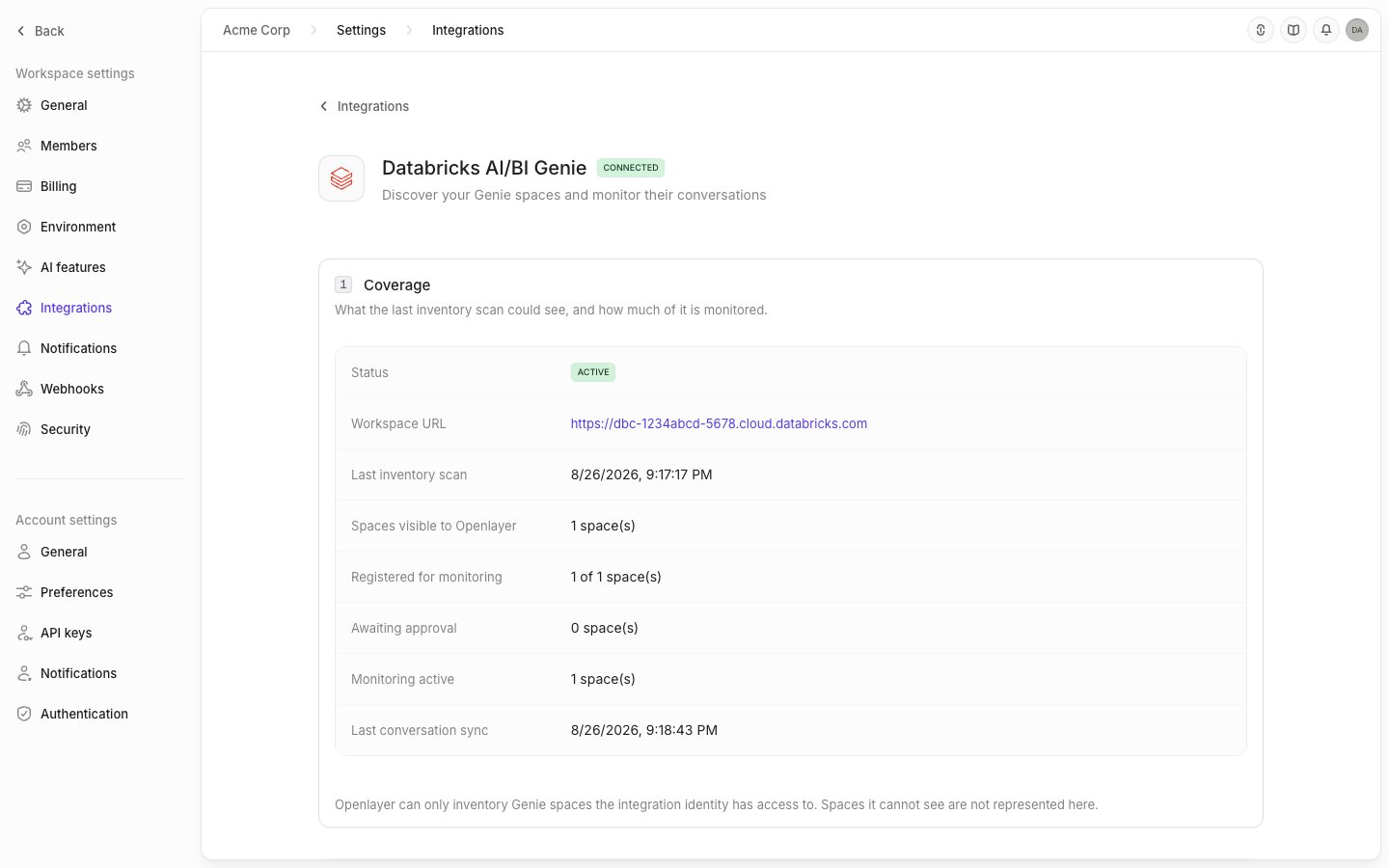 Openlayer can only report on spaces the integration identity can see. Spaces it cannot see are not
represented here at all — which is why the identity's permissions are worth getting right.
### Step 5: Register your spaces
Every space the scan found appears under **Genie spaces**, registered or not. Click **Register** on
a space to start monitoring it: Openlayer creates a project named
`Databricks Genie - ` with a `default` pipeline, and conversation collection begins on
the next run.
Openlayer can only report on spaces the integration identity can see. Spaces it cannot see are not
represented here at all — which is why the identity's permissions are worth getting right.
### Step 5: Register your spaces
Every space the scan found appears under **Genie spaces**, registered or not. Click **Register** on
a space to start monitoring it: Openlayer creates a project named
`Databricks Genie - ` with a `default` pipeline, and conversation collection begins on
the next run.
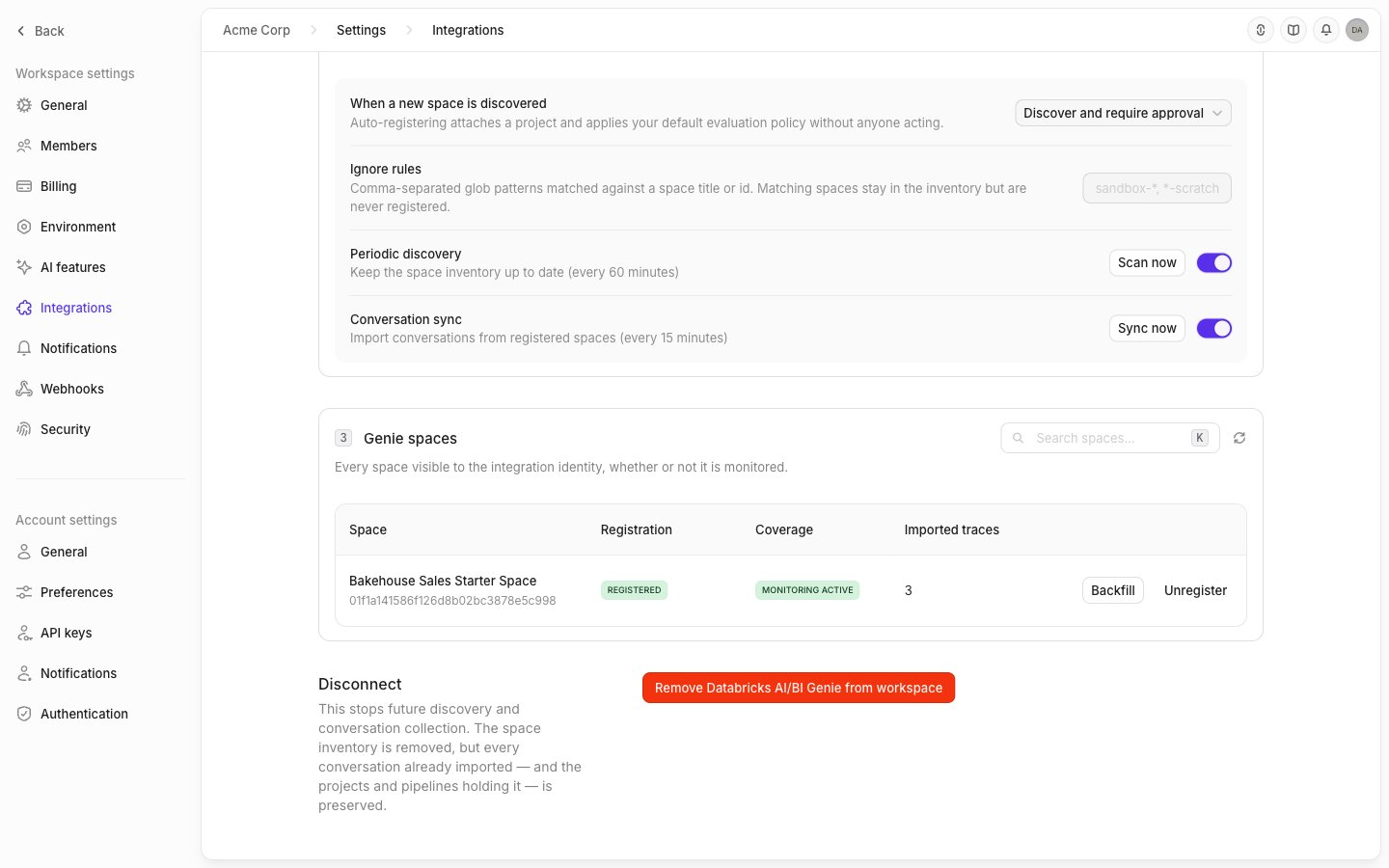 Use **Sync now** to pull conversations immediately rather than waiting for the next scheduled run.
***
## Governance policy
The registration policy decides what happens to a space the moment it is discovered — including
spaces created in Databricks long after you connected.
| Policy | What happens to a newly discovered space |
| --------------------------------------------- | ---------------------------------------------------------------------------- |
| **Auto-register and apply default policy** | Registered without anyone acting; a project is created and monitoring starts |
| **Discover and require approval** *(default)* | Inventoried and parked in **Awaiting approval** until an admin registers it |
| **Discover only, never register** | Inventoried and left alone |
Changing the policy re-evaluates the spaces already sitting in your backlog, so switching to
auto-register picks up everything that was awaiting approval. Unregistering a space is remembered:
a later policy sweep will not re-register something a person deliberately opted out of.
**Ignore rules** are comma-separated glob patterns (`sandbox-*, *-scratch`) matched
case-insensitively against each space's title and id. A matching space stays in the inventory —
so it is still visible and auditable — but is never registered.
Auto-registration can also clone a template project's production tests onto
every newly registered space, so a new Genie space arrives already evaluated
rather than merely monitored. This is set through the API, on the connection's
`defaultPolicyProjectId`.
***
## What gets synced
A Genie **space** becomes an Openlayer project, a **conversation** becomes a session, and each
**question-and-answer turn** becomes one trace:
| Genie | Openlayer step | What it carries |
| ------------------------ | ----------------- | ------------------------------------------------------ |
| The turn | Trace root | The user's question and the final answer |
| The space | `agent` | The agent that handled the turn, named after the space |
| `genie.reasoning` | `chat_completion` | The model's reasoning between tool calls |
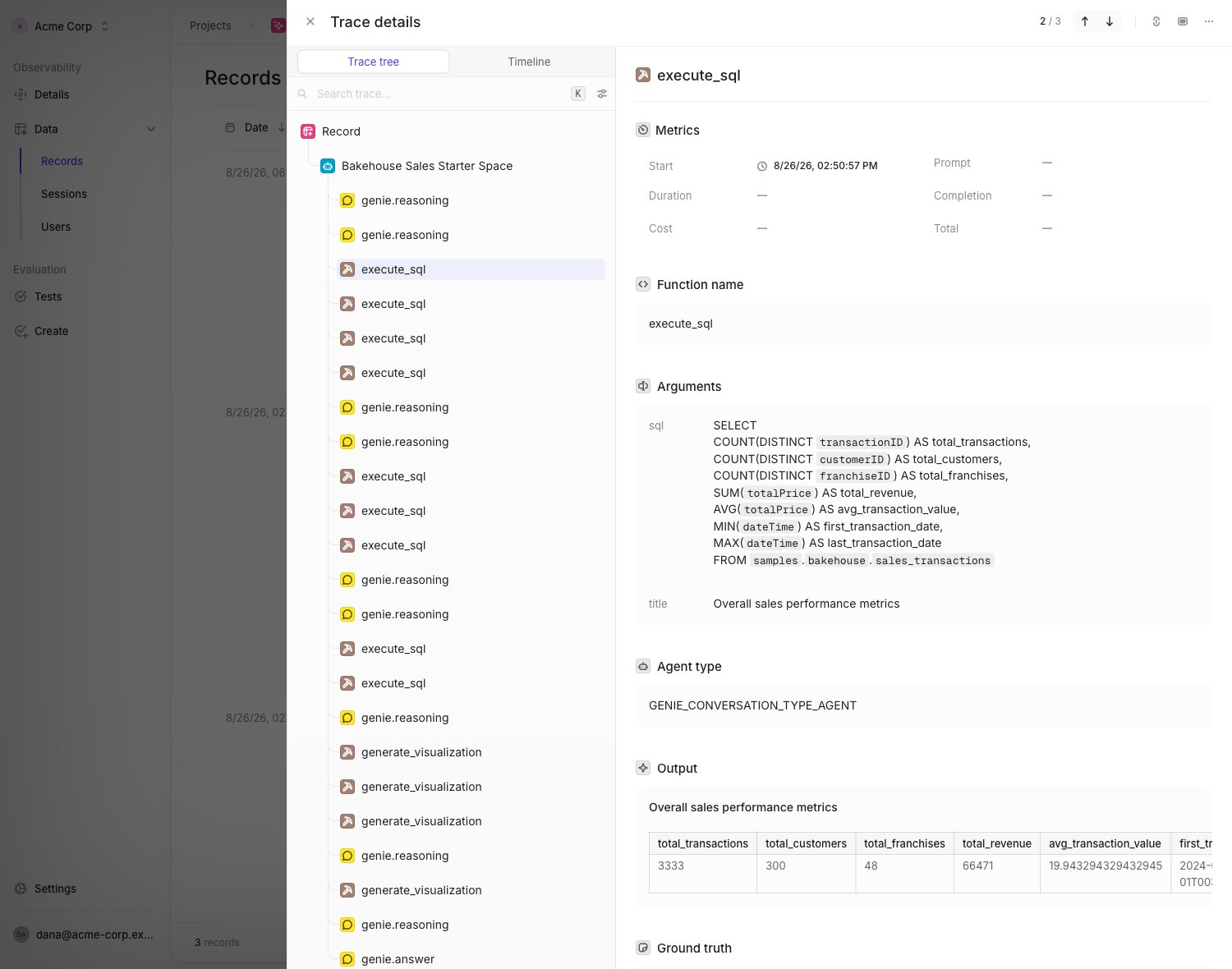
| `execute_sql` | `tool` | The generated SQL, its title, and the result rows |
| `generate_visualization` | `tool` | The chart's title and the id of the query it renders |
| `genie.answer` | `chat_completion` | The natural-language answer Genie returned |
Query results are also projected into the trace's `context` — one document per query the turn ran —
which is what [context-based evaluations](/tests/browse) such as groundedness and hallucination
read. A turn that ran no SQL has no context.
Genie exposes no endpoint that returns a chart image or spec, so a
`generate_visualization` step records **which query the chart was built from**
rather than the chart itself. The underlying data is already in the
corresponding `execute_sql` step.
Use **Sync now** to pull conversations immediately rather than waiting for the next scheduled run.
***
## Governance policy
The registration policy decides what happens to a space the moment it is discovered — including
spaces created in Databricks long after you connected.
| Policy | What happens to a newly discovered space |
| --------------------------------------------- | ---------------------------------------------------------------------------- |
| **Auto-register and apply default policy** | Registered without anyone acting; a project is created and monitoring starts |
| **Discover and require approval** *(default)* | Inventoried and parked in **Awaiting approval** until an admin registers it |
| **Discover only, never register** | Inventoried and left alone |
Changing the policy re-evaluates the spaces already sitting in your backlog, so switching to
auto-register picks up everything that was awaiting approval. Unregistering a space is remembered:
a later policy sweep will not re-register something a person deliberately opted out of.
**Ignore rules** are comma-separated glob patterns (`sandbox-*, *-scratch`) matched
case-insensitively against each space's title and id. A matching space stays in the inventory —
so it is still visible and auditable — but is never registered.
Auto-registration can also clone a template project's production tests onto
every newly registered space, so a new Genie space arrives already evaluated
rather than merely monitored. This is set through the API, on the connection's
`defaultPolicyProjectId`.
***
## What gets synced
A Genie **space** becomes an Openlayer project, a **conversation** becomes a session, and each
**question-and-answer turn** becomes one trace:
| Genie | Openlayer step | What it carries |
| ------------------------ | ----------------- | ------------------------------------------------------ |
| The turn | Trace root | The user's question and the final answer |
| The space | `agent` | The agent that handled the turn, named after the space |
| `genie.reasoning` | `chat_completion` | The model's reasoning between tool calls |
| `execute_sql` | `tool` | The generated SQL, its title, and the result rows |
| `generate_visualization` | `tool` | The chart's title and the id of the query it renders |
| `genie.answer` | `chat_completion` | The natural-language answer Genie returned |
Query results are also projected into the trace's `context` — one document per query the turn ran —
which is what [context-based evaluations](/tests/browse) such as groundedness and hallucination
read. A turn that ran no SQL has no context.
Genie exposes no endpoint that returns a chart image or spec, so a
`generate_visualization` step records **which query the chart was built from**
rather than the chart itself. The underlying data is already in the
corresponding `execute_sql` step.
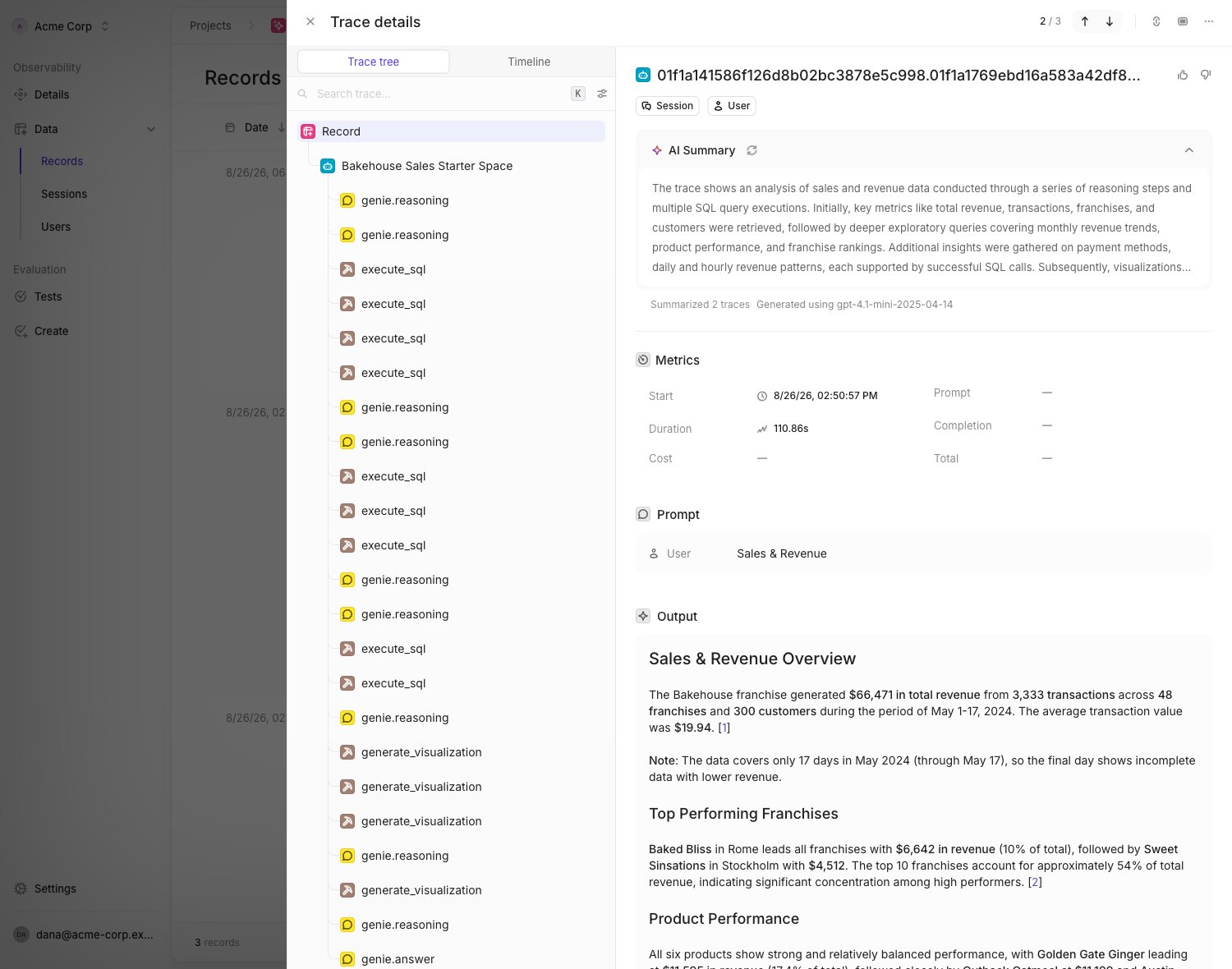 Each trace carries the Genie **space**, **conversation**, **message**, the **Databricks user** who
asked, the message **status**, the number of SQL queries in the turn, and the **thumbs up/down
rating** the user left in Genie — so you can filter for the turns people actually complained about.
Opening a tool step shows the SQL Genie generated and the rows it came back with:
Each trace carries the Genie **space**, **conversation**, **message**, the **Databricks user** who
asked, the message **status**, the number of SQL queries in the turn, and the **thumbs up/down
rating** the user left in Genie — so you can filter for the turns people actually complained about.
Opening a tool step shows the SQL Genie generated and the rows it came back with:
 **Genie reports no token counts, no cost, and no model name.** Databricks
chooses the model internally and exposes none of this on any conversation
endpoint, so those columns are left empty rather than written as zeros — an
empty cell reads as "unknown", a zero would read as "this turn was free".
Latency is measured on the turn itself; Genie times the turn but not the steps
inside it, so per-step durations are left unset rather than invented.
***
## Coverage states
Registration answers "is this space under management?". Coverage answers "are its conversations
actually arriving?" — they are shown side by side because a space can be registered and still have
no coverage.
| Coverage state | What it means | What to do |
| ----------------------------- | ----------------------------------------------------------------------- | ----------------------------------------------------- |
| **Monitoring active** | Conversations are importing normally | Nothing |
| **Not monitored** | The space is inventoried but not registered | Register it |
| **Missing CAN MANAGE** | The identity can see the space but not other users' conversations in it | Grant it CAN MANAGE on the space in Databricks |
| **Chat sharing disabled** | Genie is withholding query results and final answers | Enable Genie chat sharing for the space in Databricks |
| **Partial conversation data** | Some turns imported without their answers or results | Open a trace to see which part is missing and why |
| **Authentication error** | Databricks rejected the stored token | Reconnect with a valid token |
| **No longer visible** | The space was deleted, or its permissions changed | Nothing — traces already imported are kept |
| **Ignored by policy** | The space matches an ignore rule | Remove the matching rule to make it eligible |
Hover a coverage tag in the spaces table to see its remediation text inline.
A sync that imports nothing does not report "all good". It has no evidence
about the content of conversations, so an existing data-level gap is left
standing rather than flapping back to healthy on the next poll.
***
## Settings
| Setting | Default | What it does |
| ---------------------- | ---------------- | ------------------------------------------------------------ |
| **Periodic discovery** | Every 60 minutes | Keeps the space inventory current |
| **Conversation sync** | Every 15 minutes | Imports conversations from registered spaces |
| **Ignore rules** | None | Glob patterns that keep a space inventoried but unregistered |
Each has a toggle to pause it and a button — **Scan now**, **Sync now** — to run it immediately.
The first sync for a space reaches back **7 days**. Every sync after that resumes from the space's
own cursor with a rolling overlap, because a Genie turn keeps filling in after it is created: a turn
still waiting on its warehouse gains its SQL, results, and answer later. Openlayer imports a turn
only once it has reached a final status, and re-reads the overlap to catch the ones that settled
late.
### Backfilling history
To re-read a window that has already been polled — or one older than the first sync's reach — click
**Backfill** on a space's row. Backfill runs alongside normal polling, so recent conversations keep
arriving while history fills in behind them. Turns already imported are recognized and not
duplicated, so re-running a backfill is safe.
### Disconnecting
Removing the integration stops future discovery and conversation collection and removes the space
inventory. Every conversation already imported — and the projects and pipelines holding it — is
preserved.
***
## Troubleshooting
**No spaces appear after connecting.**
The integration identity cannot see any Genie space. Genie's spaces endpoint returns only what the
identity has a permission on, with no error when the list is empty. Share the spaces with the
identity in Databricks and click **Scan now**.
**A space shows Missing CAN MANAGE.**
The identity has CAN VIEW, which is enough to inventory the space but not to read other users'
conversations in it. Open the space in Databricks, click **Share**, and set the identity's
permission to **Can manage**.
**A registered space shows zero imported traces.**
Confirm the space has conversations inside the sync window — the first sync reaches back 7 days, and
Genie writes nothing until someone actually asks a question. Use **Backfill** to reach further back,
and **Sync now** to avoid waiting for the next scheduled run.
**Connecting fails with an unreachable-host error.**
Check the workspace URL. It must be the full origin, `https://dbc-1234abcd-5678.cloud.databricks.com`,
with no trailing path. The connect check fails fast on a bad host rather than retrying for minutes.
**Traces arrive but Cost and token columns are empty.**
This is expected. Genie exposes no usage or model metadata on any conversation endpoint, so
Openlayer leaves those fields unset rather than reporting zeros.
**Some turns show as partial.**
Private conversations and expired query results both produce turns that import without every part.
The question and whatever else was available are still imported — open the trace to see which piece
is missing and why.
**Genie reports no token counts, no cost, and no model name.** Databricks
chooses the model internally and exposes none of this on any conversation
endpoint, so those columns are left empty rather than written as zeros — an
empty cell reads as "unknown", a zero would read as "this turn was free".
Latency is measured on the turn itself; Genie times the turn but not the steps
inside it, so per-step durations are left unset rather than invented.
***
## Coverage states
Registration answers "is this space under management?". Coverage answers "are its conversations
actually arriving?" — they are shown side by side because a space can be registered and still have
no coverage.
| Coverage state | What it means | What to do |
| ----------------------------- | ----------------------------------------------------------------------- | ----------------------------------------------------- |
| **Monitoring active** | Conversations are importing normally | Nothing |
| **Not monitored** | The space is inventoried but not registered | Register it |
| **Missing CAN MANAGE** | The identity can see the space but not other users' conversations in it | Grant it CAN MANAGE on the space in Databricks |
| **Chat sharing disabled** | Genie is withholding query results and final answers | Enable Genie chat sharing for the space in Databricks |
| **Partial conversation data** | Some turns imported without their answers or results | Open a trace to see which part is missing and why |
| **Authentication error** | Databricks rejected the stored token | Reconnect with a valid token |
| **No longer visible** | The space was deleted, or its permissions changed | Nothing — traces already imported are kept |
| **Ignored by policy** | The space matches an ignore rule | Remove the matching rule to make it eligible |
Hover a coverage tag in the spaces table to see its remediation text inline.
A sync that imports nothing does not report "all good". It has no evidence
about the content of conversations, so an existing data-level gap is left
standing rather than flapping back to healthy on the next poll.
***
## Settings
| Setting | Default | What it does |
| ---------------------- | ---------------- | ------------------------------------------------------------ |
| **Periodic discovery** | Every 60 minutes | Keeps the space inventory current |
| **Conversation sync** | Every 15 minutes | Imports conversations from registered spaces |
| **Ignore rules** | None | Glob patterns that keep a space inventoried but unregistered |
Each has a toggle to pause it and a button — **Scan now**, **Sync now** — to run it immediately.
The first sync for a space reaches back **7 days**. Every sync after that resumes from the space's
own cursor with a rolling overlap, because a Genie turn keeps filling in after it is created: a turn
still waiting on its warehouse gains its SQL, results, and answer later. Openlayer imports a turn
only once it has reached a final status, and re-reads the overlap to catch the ones that settled
late.
### Backfilling history
To re-read a window that has already been polled — or one older than the first sync's reach — click
**Backfill** on a space's row. Backfill runs alongside normal polling, so recent conversations keep
arriving while history fills in behind them. Turns already imported are recognized and not
duplicated, so re-running a backfill is safe.
### Disconnecting
Removing the integration stops future discovery and conversation collection and removes the space
inventory. Every conversation already imported — and the projects and pipelines holding it — is
preserved.
***
## Troubleshooting
**No spaces appear after connecting.**
The integration identity cannot see any Genie space. Genie's spaces endpoint returns only what the
identity has a permission on, with no error when the list is empty. Share the spaces with the
identity in Databricks and click **Scan now**.
**A space shows Missing CAN MANAGE.**
The identity has CAN VIEW, which is enough to inventory the space but not to read other users'
conversations in it. Open the space in Databricks, click **Share**, and set the identity's
permission to **Can manage**.
**A registered space shows zero imported traces.**
Confirm the space has conversations inside the sync window — the first sync reaches back 7 days, and
Genie writes nothing until someone actually asks a question. Use **Backfill** to reach further back,
and **Sync now** to avoid waiting for the next scheduled run.
**Connecting fails with an unreachable-host error.**
Check the workspace URL. It must be the full origin, `https://dbc-1234abcd-5678.cloud.databricks.com`,
with no trailing path. The connect check fails fast on a bad host rather than retrying for minutes.
**Traces arrive but Cost and token columns are empty.**
This is expected. Genie exposes no usage or model metadata on any conversation endpoint, so
Openlayer leaves those fields unset rather than reporting zeros.
**Some turns show as partial.**
Private conversations and expired query results both produce turns that import without every part.
The question and whatever else was available are still imported — open the trace to see which piece
is missing and why.