> ## Documentation Index
> Fetch the complete documentation index at: https://docs.openlayer.com/llms.txt
> Use this file to discover all available pages before exploring further.
# Great Expectations
> Learn how to use Great Expectations with Openlayer
 [Great expectations](https://greatexpectations.io/) (GX) is an open-source Python
library that allows you to define and check expectations for your data.
Openlayer integrates with GX and you can use any GX expectation as an Openlayer test.
Refer to the [GX expectations gallery](https://greatexpectations.io/expectations)
to check all the expectations supported.
## Creating GX tests
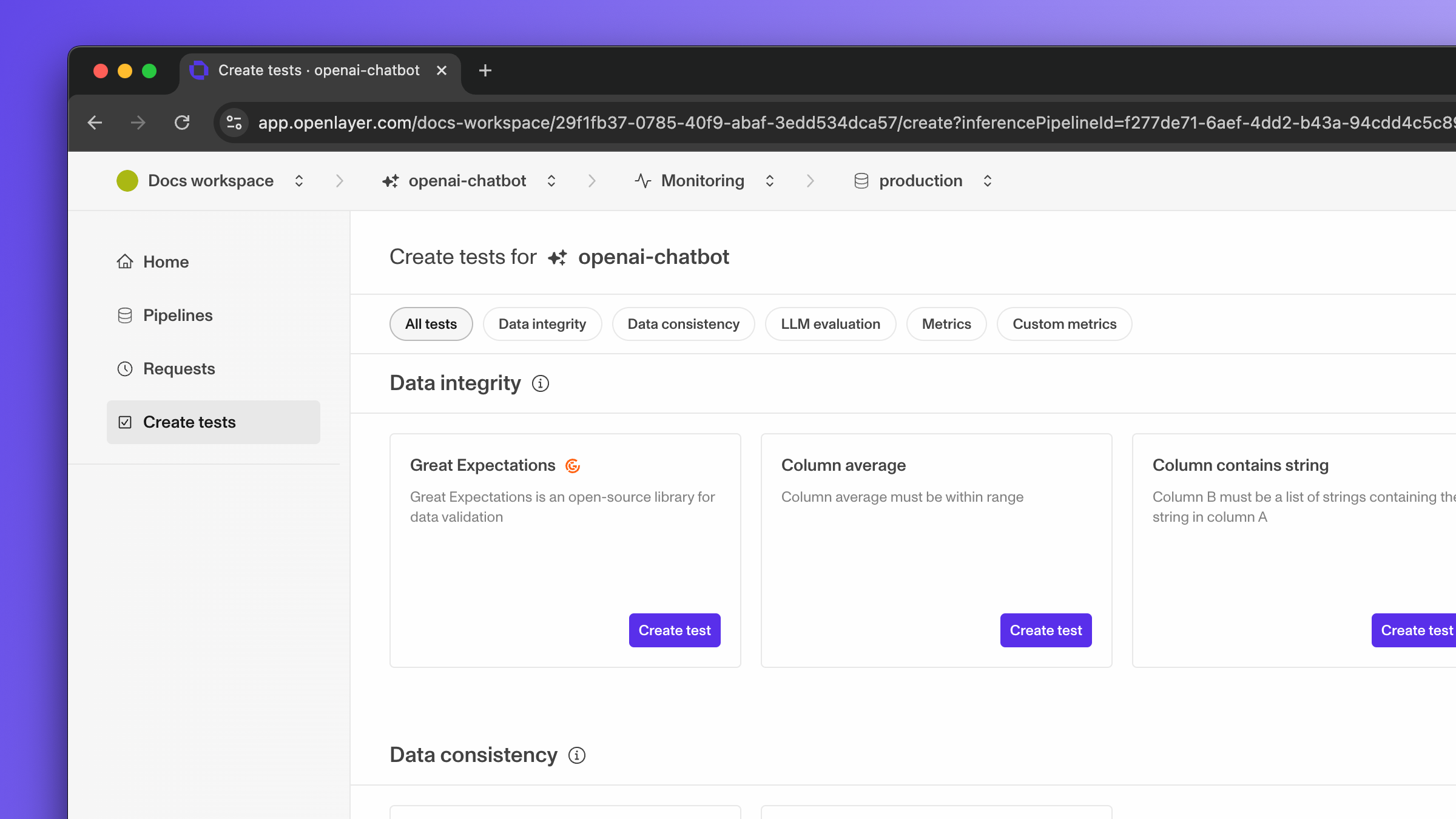
To create a GX test, click on "Create test" under the "Great expectations" test.
[Great expectations](https://greatexpectations.io/) (GX) is an open-source Python
library that allows you to define and check expectations for your data.
Openlayer integrates with GX and you can use any GX expectation as an Openlayer test.
Refer to the [GX expectations gallery](https://greatexpectations.io/expectations)
to check all the expectations supported.
## Creating GX tests
To create a GX test, click on "Create test" under the "Great expectations" test.
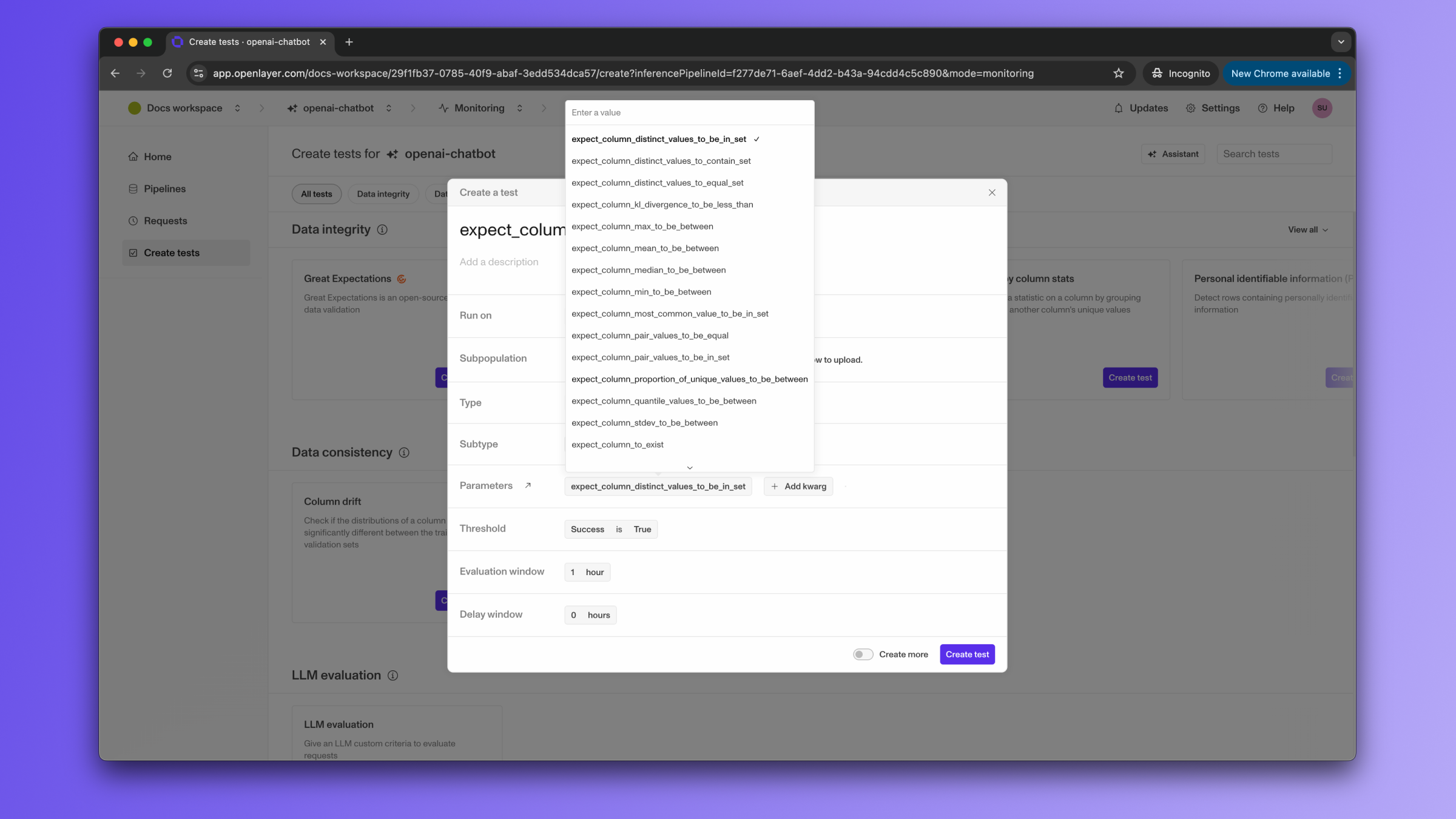
 Then, after the modal is open, select the expectation you are interested in from the dropdown.
For example, let's select the `expect_column_mean_to_be_between`.
Then, after the modal is open, select the expectation you are interested in from the dropdown.
For example, let's select the `expect_column_mean_to_be_between`.
 Now, you need to provide the arguments required by the expectation. You can click
the link next to "Parameters" to see the documentation for the expectation selected.
In this case, the expectation requires a `column`, with the name of the column,
a `min_value`, and a `max_value`. You can provide these arguments by clicking on "Add kwarg".
Now, you need to provide the arguments required by the expectation. You can click
the link next to "Parameters" to see the documentation for the expectation selected.
In this case, the expectation requires a `column`, with the name of the column,
a `min_value`, and a `max_value`. You can provide these arguments by clicking on "Add kwarg".
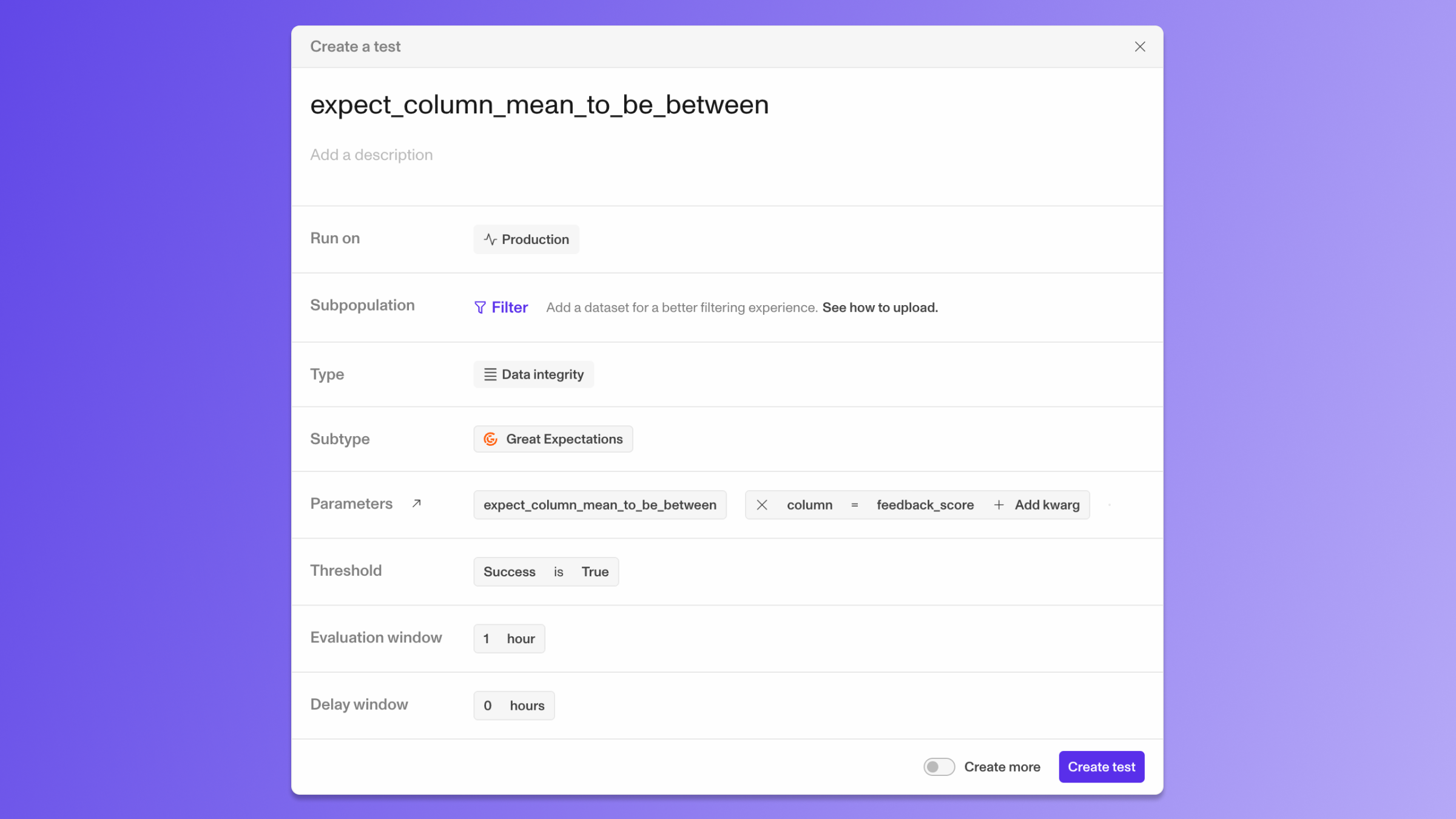 The "Threshold" should be kept as "Success is True," as the expectation will return `True` if the expectation is met
(in this case, if the column mean is between the `min_value` and the `max_value`).
Once you have added all the arguments, you can click on "Create test" to create the test.
Refer to the [GX expectations gallery](https://greatexpectations.io/expectations)
to check all the expectations supported.
The "Threshold" should be kept as "Success is True," as the expectation will return `True` if the expectation is met
(in this case, if the column mean is between the `min_value` and the `max_value`).
Once you have added all the arguments, you can click on "Create test" to create the test.
Refer to the [GX expectations gallery](https://greatexpectations.io/expectations)
to check all the expectations supported.