> ## Documentation Index
> Fetch the complete documentation index at: https://docs.openlayer.com/llms.txt
> Use this file to discover all available pages before exploring further.
# Label Studio
> Learn how to export data from Openlayer and import it into Label Studio
 Label Studio is an open-source data labeling platform. It supports multiple data and
annotation modalities and can be used to add human feedback to model responses, label
data for LLM fine-tuning or model training, and more.
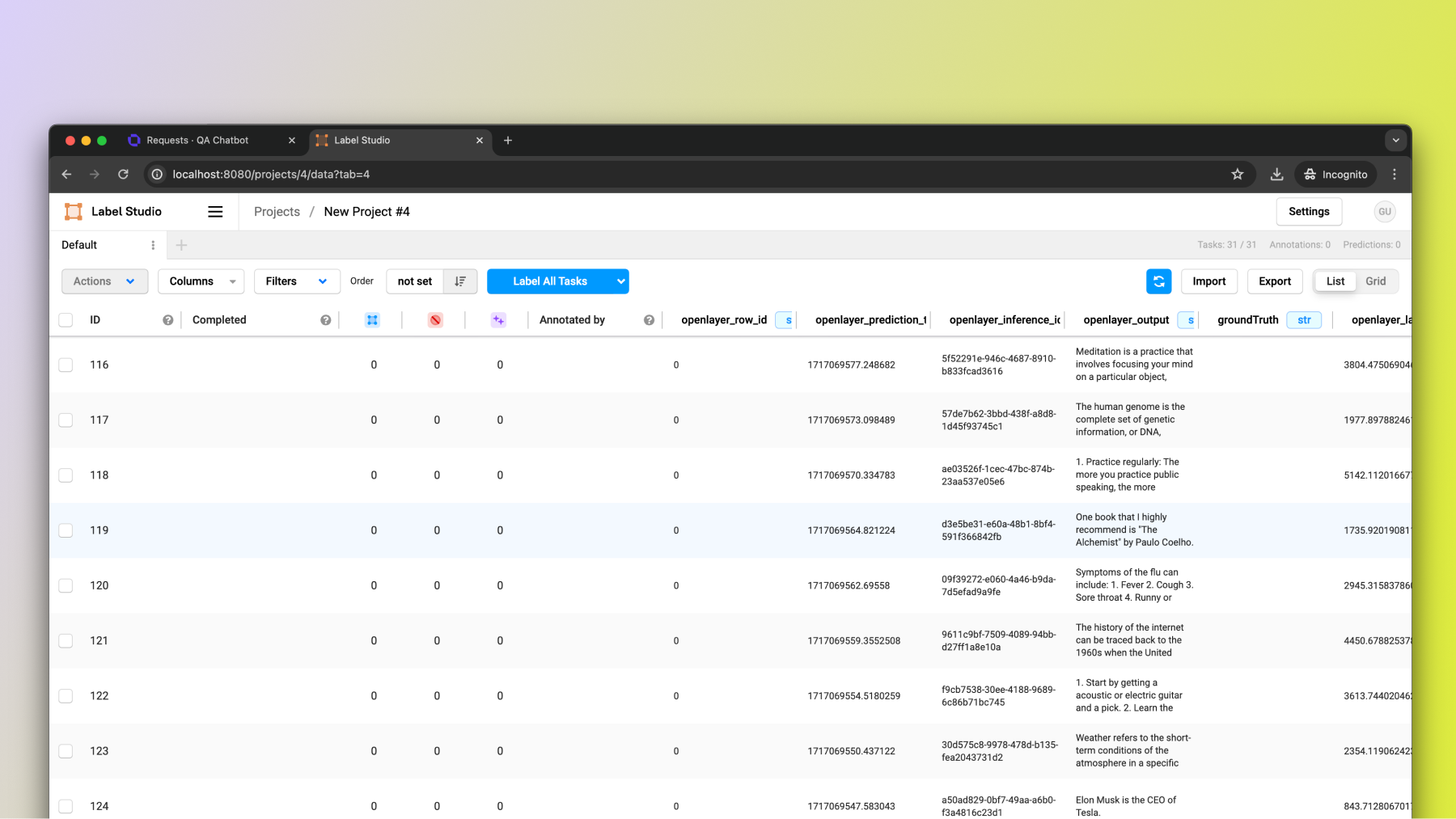
Openlayer integrates with Label Studio and allows you to **export data
from an Openlayer inference pipeline to a Label Studio project**.
We are actively working on deeper integrations between Openlayer and Label
Studio to keep the **data in both places in sync**.
In the
future, as you stream data to Openlayer, it will also be sent to Label Studio.
Then, when you annotate the data on Label Studio, it will get updated on
Openlayer as well.
## Export data from Openlayer
First, export your data from your Openlayer inference pipeline.
Use the [export](/api-reference/cli/commands/export) command from the [Openlayer CLI](/api-reference/cli).
To use the `openlayer export` command, you must be logged in via the CLI.
You can check if you are already logged in with the [whoami](/api-reference/cli/commands/whoami) command. If
you are not yet logged in, log in with the [login](/api-reference/cli/commands/login) command.
Run:
```json theme={null}
openlayer export [Openlayer inference pipeline id] [start] [end]
```
This will export the data from your inference pipeline. In the downloaded folder, you should see a `dataset.json` file with your data.
Navigate to the “Requests” page of your inference pipeline.
Label Studio is an open-source data labeling platform. It supports multiple data and
annotation modalities and can be used to add human feedback to model responses, label
data for LLM fine-tuning or model training, and more.
Openlayer integrates with Label Studio and allows you to **export data
from an Openlayer inference pipeline to a Label Studio project**.
We are actively working on deeper integrations between Openlayer and Label
Studio to keep the **data in both places in sync**.
In the
future, as you stream data to Openlayer, it will also be sent to Label Studio.
Then, when you annotate the data on Label Studio, it will get updated on
Openlayer as well.
## Export data from Openlayer
First, export your data from your Openlayer inference pipeline.
Use the [export](/api-reference/cli/commands/export) command from the [Openlayer CLI](/api-reference/cli).
To use the `openlayer export` command, you must be logged in via the CLI.
You can check if you are already logged in with the [whoami](/api-reference/cli/commands/whoami) command. If
you are not yet logged in, log in with the [login](/api-reference/cli/commands/login) command.
Run:
```json theme={null}
openlayer export [Openlayer inference pipeline id] [start] [end]
```
This will export the data from your inference pipeline. In the downloaded folder, you should see a `dataset.json` file with your data.
Navigate to the “Requests” page of your inference pipeline.
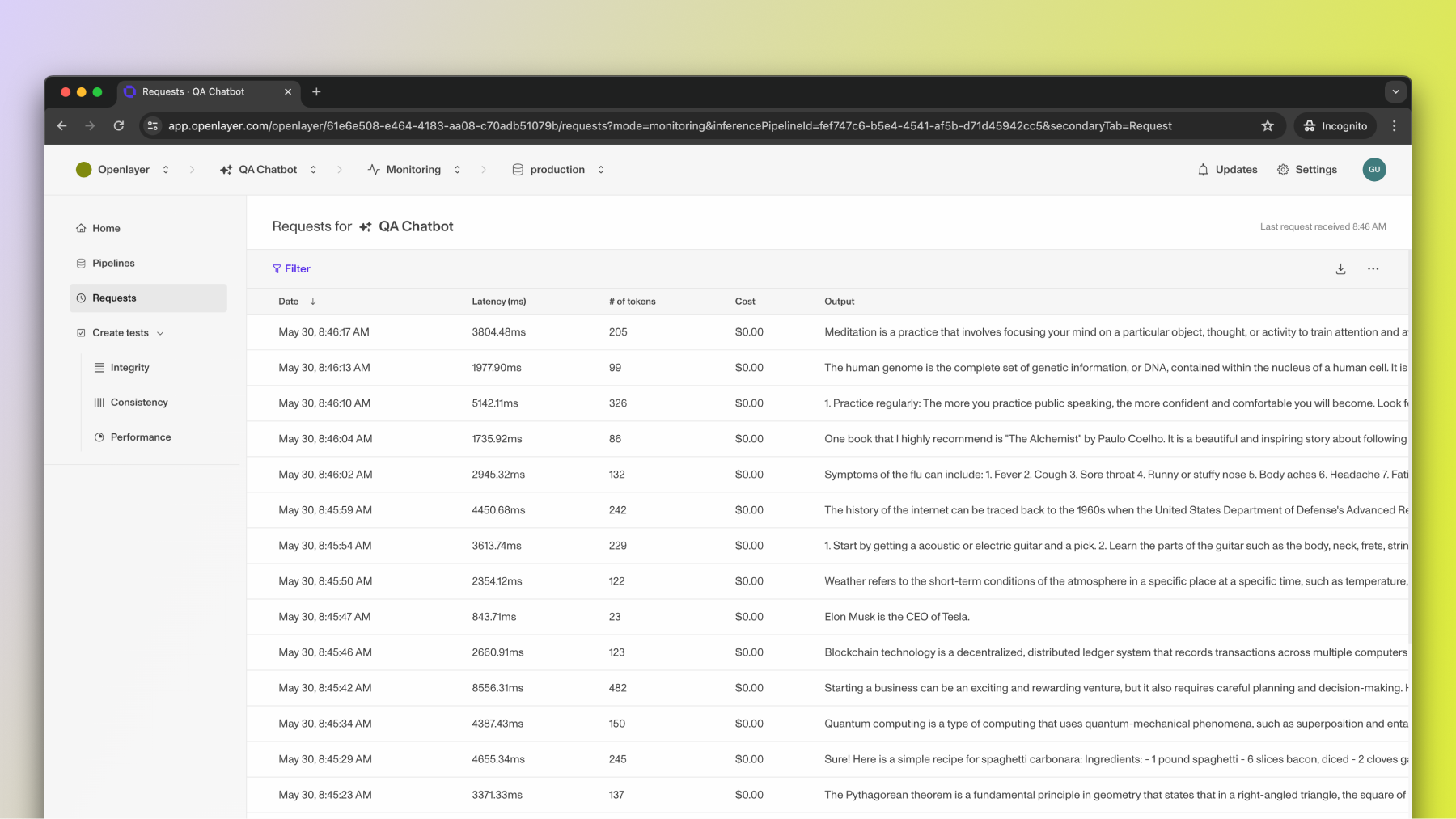 Click on the download icon in the upper right corner of the data table.
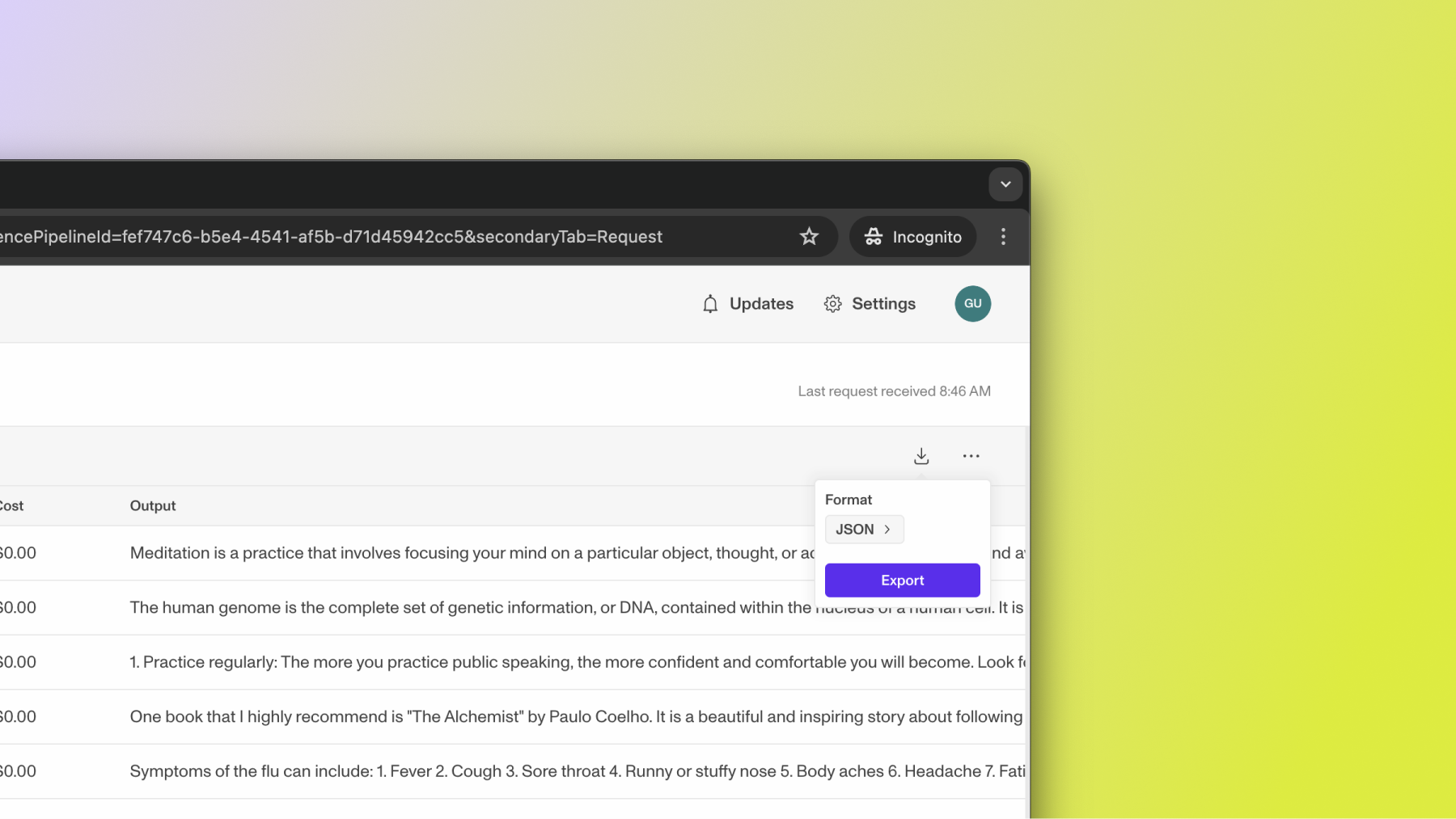 Select JSON as the format and click “Export.” This should export all your data to a
zipped folder. After you unzip the folder, you should see a `dataset.json` file inside it.
In both cases, you end up with a `dataset.json` file with your inference pipeline data.
The `dataset.json` is in a format accepted by Label Studio.
## Import data into Label Studio
To import this data via the Label Studio UI, navigate to your Label Studio project. Click
"Import" and then "Upload files". Select the `dataset.json` file exported from Openlayer.
Select JSON as the format and click “Export.” This should export all your data to a
zipped folder. After you unzip the folder, you should see a `dataset.json` file inside it.
In both cases, you end up with a `dataset.json` file with your inference pipeline data.
The `dataset.json` is in a format accepted by Label Studio.
## Import data into Label Studio
To import this data via the Label Studio UI, navigate to your Label Studio project. Click
"Import" and then "Upload files". Select the `dataset.json` file exported from Openlayer.
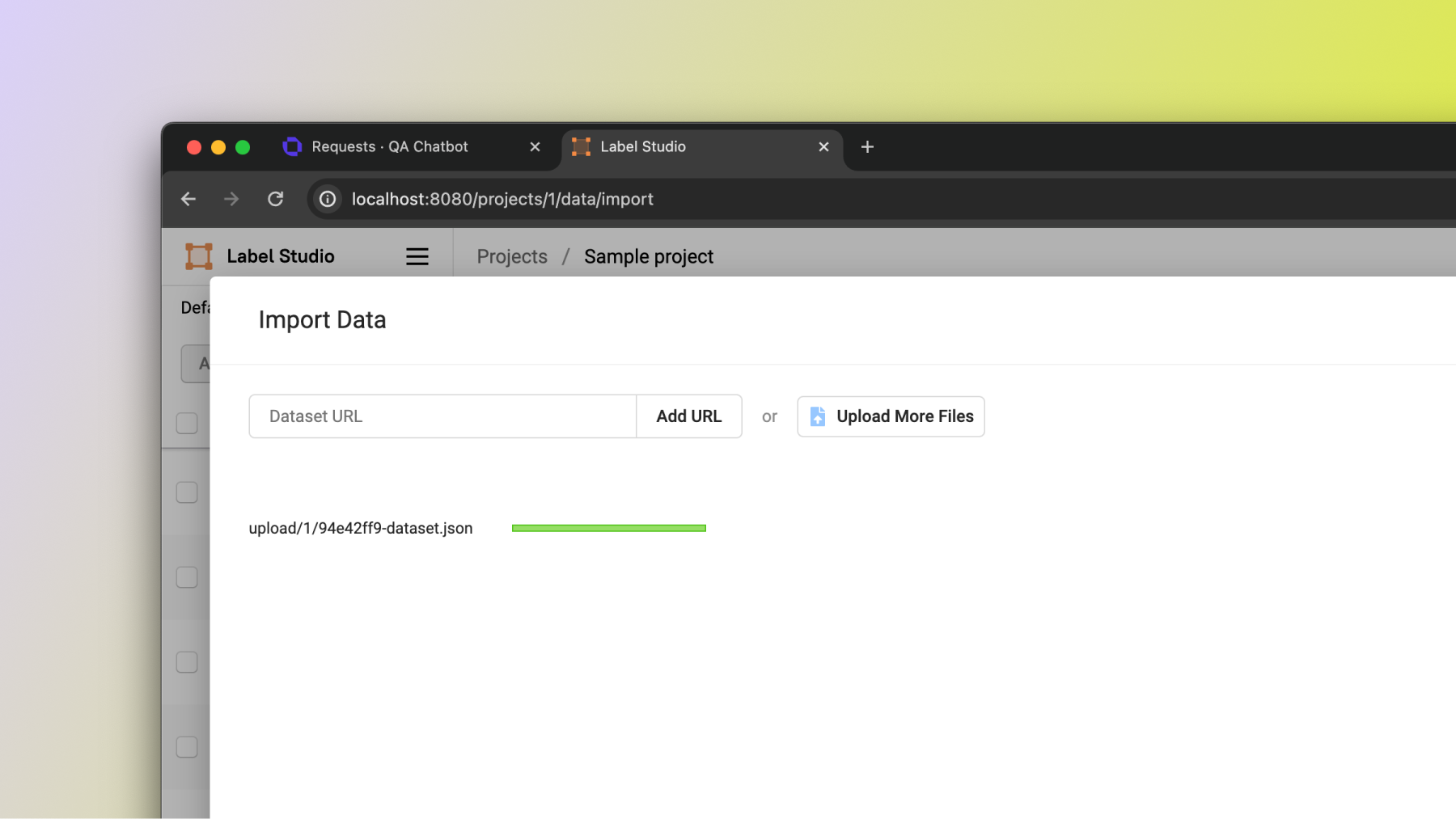 Now, the data is in Label Studio and you can configure how you want to annotate it.