> ## Documentation Index
> Fetch the complete documentation index at: https://docs.openlayer.com/llms.txt
> Use this file to discover all available pages before exploring further.
# Mistral AI
> Learn how to evaluate Mistral AI LLMs with Openlayer
 If you are building an AI system with [Mistral AI](https://mistral.ai/) LLMs and want to evaluate it,
you can use the [SDKs](/api-reference/sdk/overview) to make Openlayer part of your
workflow.
This integration guide shows how you can do it.
## Evaluating Mistral AI LLMs
You can set up Openlayer tests to evaluate your Mistral AI LLMs
in [monitoring](/monitoring/overview) and [development](/development/overview).
### Monitoring
To use the [monitoring mode](/monitoring/overview), you must instrument your code to publish
the requests your AI system receives to the Openlayer platform.
To set it up, you must follow the steps in the code snippet below:
```python Python theme={null}
# 1. Set the environment variables
import os
os.environ["OPENLAYER_API_KEY"] = "YOUR_OPENLAYER_API_KEY_HERE"
os.environ["OPENLAYER_INFERENCE_PIPELINE_ID"] = "YOUR_OPENLAYER_INFERENCE_PIPELINE_ID_HERE"
# 2. Import the `trace_mistral` function and wrap the Mistral client
from mistralai import Mistral
from openlayer.lib import trace_mistral
mistral_client = trace_mistral(Mistral(api_key=os.environ["MISTRAL_API_KEY"]))
# 3. From now on, every chat completion or streaming call with
# the `mistral_client` is traced by Openlayer. E.g.,
completion = mistral_client.chat.complete(
model="mistral-large-latest",
messages = [
{"role": "user", "content": "What is the best French cheese?"},
]
)
```
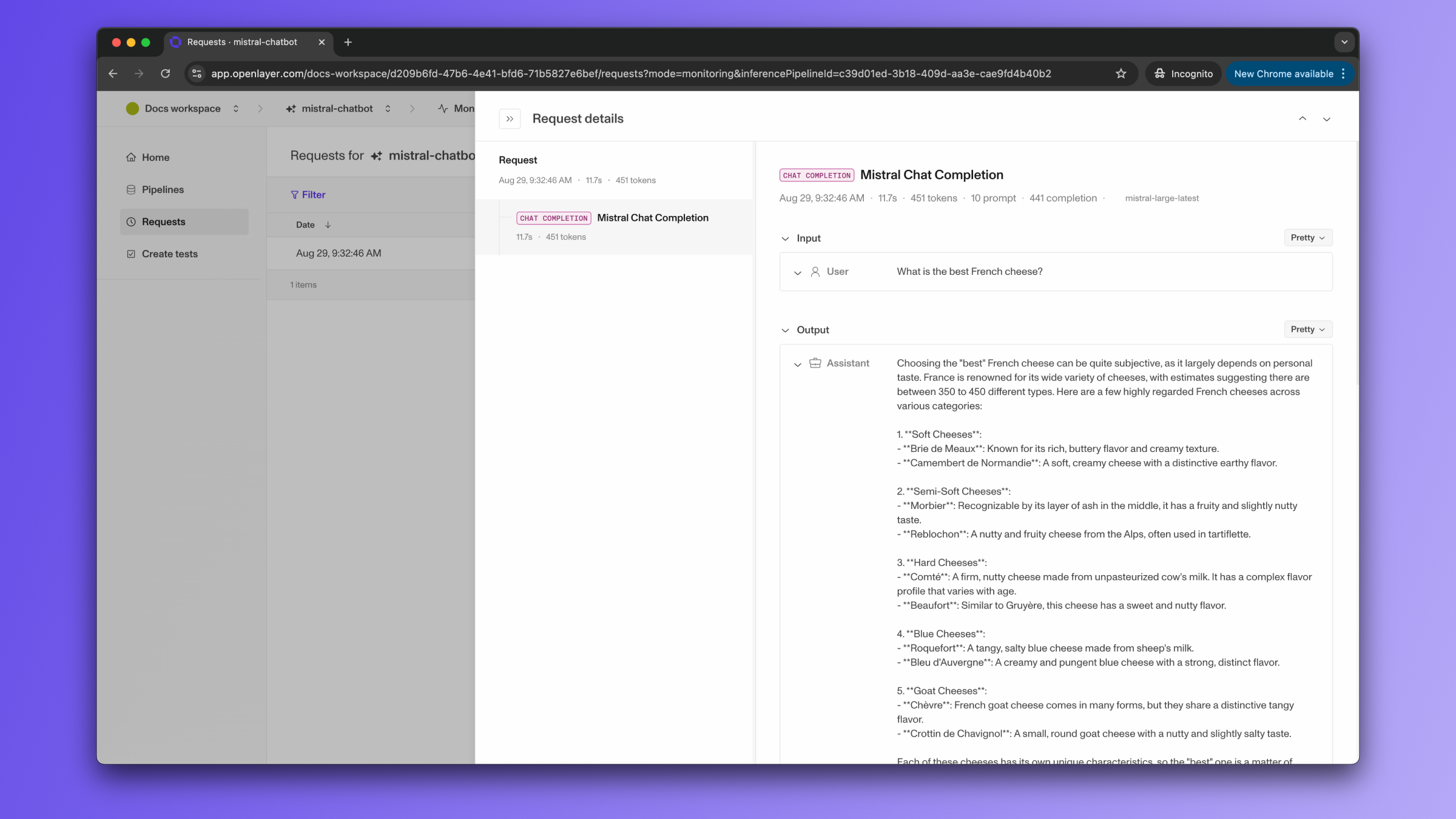
Once the code is instrumented, all your Mistral AI LLM calls are automatically published to Openlayer,
along with metadata, such as latency, number of tokens, cost estimate, and more.
If you navigate to the "Data" page of your Openlayer data source, you can see
the traces for each request.
If you are building an AI system with [Mistral AI](https://mistral.ai/) LLMs and want to evaluate it,
you can use the [SDKs](/api-reference/sdk/overview) to make Openlayer part of your
workflow.
This integration guide shows how you can do it.
## Evaluating Mistral AI LLMs
You can set up Openlayer tests to evaluate your Mistral AI LLMs
in [monitoring](/monitoring/overview) and [development](/development/overview).
### Monitoring
To use the [monitoring mode](/monitoring/overview), you must instrument your code to publish
the requests your AI system receives to the Openlayer platform.
To set it up, you must follow the steps in the code snippet below:
```python Python theme={null}
# 1. Set the environment variables
import os
os.environ["OPENLAYER_API_KEY"] = "YOUR_OPENLAYER_API_KEY_HERE"
os.environ["OPENLAYER_INFERENCE_PIPELINE_ID"] = "YOUR_OPENLAYER_INFERENCE_PIPELINE_ID_HERE"
# 2. Import the `trace_mistral` function and wrap the Mistral client
from mistralai import Mistral
from openlayer.lib import trace_mistral
mistral_client = trace_mistral(Mistral(api_key=os.environ["MISTRAL_API_KEY"]))
# 3. From now on, every chat completion or streaming call with
# the `mistral_client` is traced by Openlayer. E.g.,
completion = mistral_client.chat.complete(
model="mistral-large-latest",
messages = [
{"role": "user", "content": "What is the best French cheese?"},
]
)
```
Once the code is instrumented, all your Mistral AI LLM calls are automatically published to Openlayer,
along with metadata, such as latency, number of tokens, cost estimate, and more.
If you navigate to the "Data" page of your Openlayer data source, you can see
the traces for each request.
 If the Mistral AI LLM call is just one of the steps of your AI system, you can
use the code snippets above together with [tracing](/monitoring/tracing). In
this case, your Mistral LLM calls get added as a step of a larger trace. Refer
to the [Tracing guide](/monitoring/tracing) for details.
After your AI system requests are continuously published and logged by Openlayer, you can
[create tests](/tests/overview) that run at a regular cadence on top of them.
Refer to the [Monitoring overview](/monitoring/overview), for details on Openlayer's
monitoring mode, to the [Publishing data guide](/monitoring/publishing-data), for more
information on setting it up, or to the [Tracing guide](/monitoring/tracing), to
understand how to trace more complex systems.
### Development
In [development mode](/development/overview), Openlayer becomes a step in
your CI/CD pipeline, and your tests get automatically evaluated after being triggered
by some events.
Openlayer tests often rely on your AI system's outputs on a validation
dataset. As discussed in the
[Configuring output generation guide](/development/configuring-output-generation),
you have two options:
1. either provide a way for Openlayer to run your AI system on your datasets, or
2. before pushing, generate the model outputs yourself and push them alongside your
artifacts.
For AI systems built with Mistral AI LLMs, if you are **not** computing
your system's outputs yourself, you must provide your **API credentials**.
To do so, navigate to "**Workspace settings**" -> "**Environment variables**," and click on "Add secret" to
add your `MISTRAL_API_KEY`.
If you don't add the required Mistral API key, you'll encounter a "Missing API key"
error when Openlayer tries to run your AI system to get its outputs.
The Mistral AI client does not read the `MISTRAL_API_KEY` directly from the
environment. Therefore, make sure to manually read it in the script you provide as the `batchCommand` in
the [openlayer.json](/development/openlayer-json) with:
```python theme={null}
import os
api_key = os.environ["MISTRAL_API_KEY"]
client = Mistral(api_key=api_key)
```
If the Mistral AI LLM call is just one of the steps of your AI system, you can
use the code snippets above together with [tracing](/monitoring/tracing). In
this case, your Mistral LLM calls get added as a step of a larger trace. Refer
to the [Tracing guide](/monitoring/tracing) for details.
After your AI system requests are continuously published and logged by Openlayer, you can
[create tests](/tests/overview) that run at a regular cadence on top of them.
Refer to the [Monitoring overview](/monitoring/overview), for details on Openlayer's
monitoring mode, to the [Publishing data guide](/monitoring/publishing-data), for more
information on setting it up, or to the [Tracing guide](/monitoring/tracing), to
understand how to trace more complex systems.
### Development
In [development mode](/development/overview), Openlayer becomes a step in
your CI/CD pipeline, and your tests get automatically evaluated after being triggered
by some events.
Openlayer tests often rely on your AI system's outputs on a validation
dataset. As discussed in the
[Configuring output generation guide](/development/configuring-output-generation),
you have two options:
1. either provide a way for Openlayer to run your AI system on your datasets, or
2. before pushing, generate the model outputs yourself and push them alongside your
artifacts.
For AI systems built with Mistral AI LLMs, if you are **not** computing
your system's outputs yourself, you must provide your **API credentials**.
To do so, navigate to "**Workspace settings**" -> "**Environment variables**," and click on "Add secret" to
add your `MISTRAL_API_KEY`.
If you don't add the required Mistral API key, you'll encounter a "Missing API key"
error when Openlayer tries to run your AI system to get its outputs.
The Mistral AI client does not read the `MISTRAL_API_KEY` directly from the
environment. Therefore, make sure to manually read it in the script you provide as the `batchCommand` in
the [openlayer.json](/development/openlayer-json) with:
```python theme={null}
import os
api_key = os.environ["MISTRAL_API_KEY"]
client = Mistral(api_key=api_key)
```