> ## Documentation Index
> Fetch the complete documentation index at: https://docs.openlayer.com/llms.txt
> Use this file to discover all available pages before exploring further.
# Access groups
> Learn how to manage who can view and edit a project in Openlayer using role-based access control (RBAC).
Access groups let you control **who can access a project** and what they can do inside it.
They are Openlayer's way of providing **role-based access control (RBAC) at the project level**.
Access groups manage **project-level** permissions. For an overview of
**workspace-level** roles and their permissions, see [Roles and
permissions](/security/roles-and-permissions).
By creating access groups, you can:
* Limit access to sensitive projects.
* Assign roles like **Admin**, **Member**, or **Viewer**.
* Ensure only the right people can view or edit traces, tests, and results.
## How it works
* Access groups are defined **per project**.
* Each group has:
* A **name** (to identify the group).
* A **role** (Admin, Member, or Viewer).
* A list of **members** (users in your organization).
Roles determine what permissions group members get:
| Role | Permissions |
| ------ | --------------------------------------------------------------------------- |
| Admin | Full control: manage access groups, edit project settings, create/edit data |
| Member | View and edit project data (but not manage access groups) |
| Viewer | Read-only access to project data and results |
## Create an access group
You can create and manage groups directly from the **project settings**.
In your Project settings, select the project you want to manage access
groups for and click on **Access groups**.
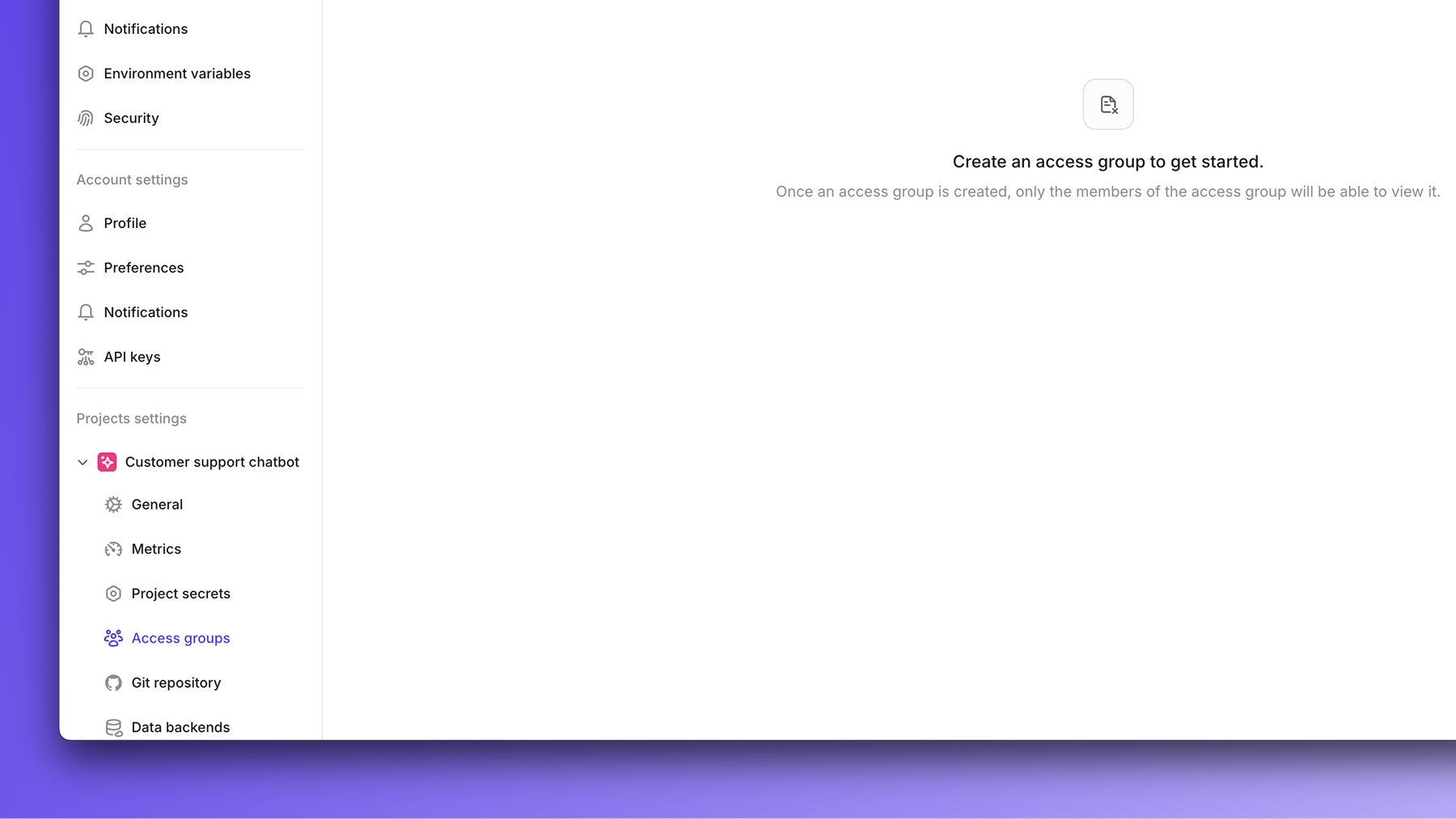 Click **Create access group**.
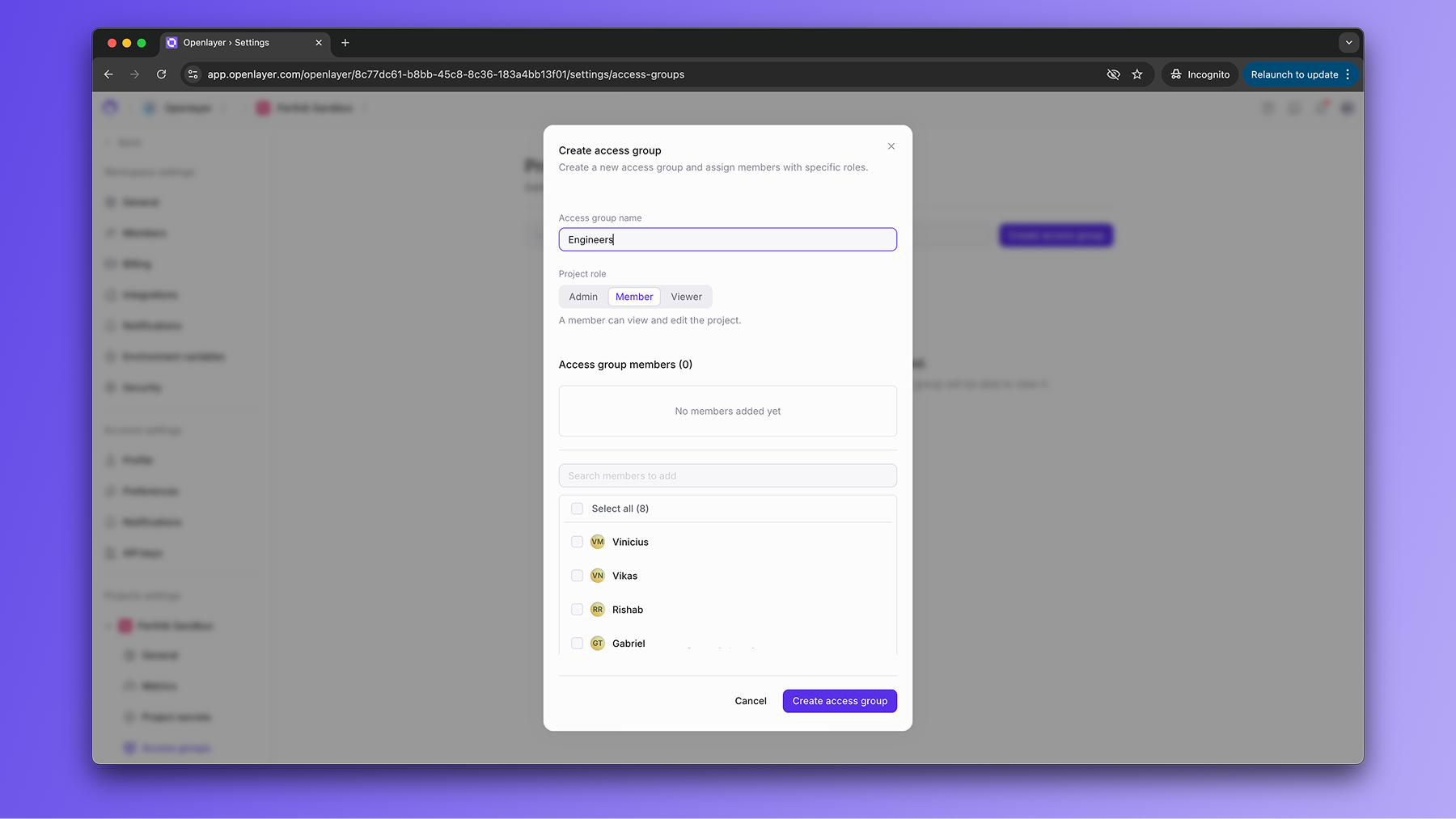 * Give the group a name. - Select a project role (Admin, Member, Viewer). -
Add members from your organization to the group.
## Editing and removing groups
* To edit a group, select it from the list, then update its role or membership.
* To remove a group, click the delete icon next to it.
## Best practices
* **Use Admin groups sparingly**: reserve for team leads or project owners.
* **Create Member groups per function** (e.g., “Evaluation team”, “Data science team”).
* **Add external collaborators as Viewers** to safely share results.
## FAQ
Yes. If a user belongs to multiple groups, the most permissive role applies.
For example, if they are both a Viewer and a Member, they will have Member
permissions.
Access groups are **per project**. You can define different groups for each
project.
No. By default, all workspace members have access. Access groups are only
needed when you want to **restrict access**.
* Give the group a name. - Select a project role (Admin, Member, Viewer). -
Add members from your organization to the group.
## Editing and removing groups
* To edit a group, select it from the list, then update its role or membership.
* To remove a group, click the delete icon next to it.
## Best practices
* **Use Admin groups sparingly**: reserve for team leads or project owners.
* **Create Member groups per function** (e.g., “Evaluation team”, “Data science team”).
* **Add external collaborators as Viewers** to safely share results.
## FAQ
Yes. If a user belongs to multiple groups, the most permissive role applies.
For example, if they are both a Viewer and a Member, they will have Member
permissions.
Access groups are **per project**. You can define different groups for each
project.
No. By default, all workspace members have access. Access groups are only
needed when you want to **restrict access**.