> ## Documentation Index
> Fetch the complete documentation index at: https://docs.openlayer.com/llms.txt
> Use this file to discover all available pages before exploring further.
# Create a project
> Learn how to create a project using the UI, REST API, or CLI
The Openlayer workspace is organized around **projects**. Each project represents an AI
initiative within your organization and provides a structured space to evaluate, observe, and govern
your AI efforts.
This guide walks you through creating a project using both the UI and programmatically.
**Prerequisite**: you need an [Openlayer account](https://app.openlayer.com/)
to follow this guide.
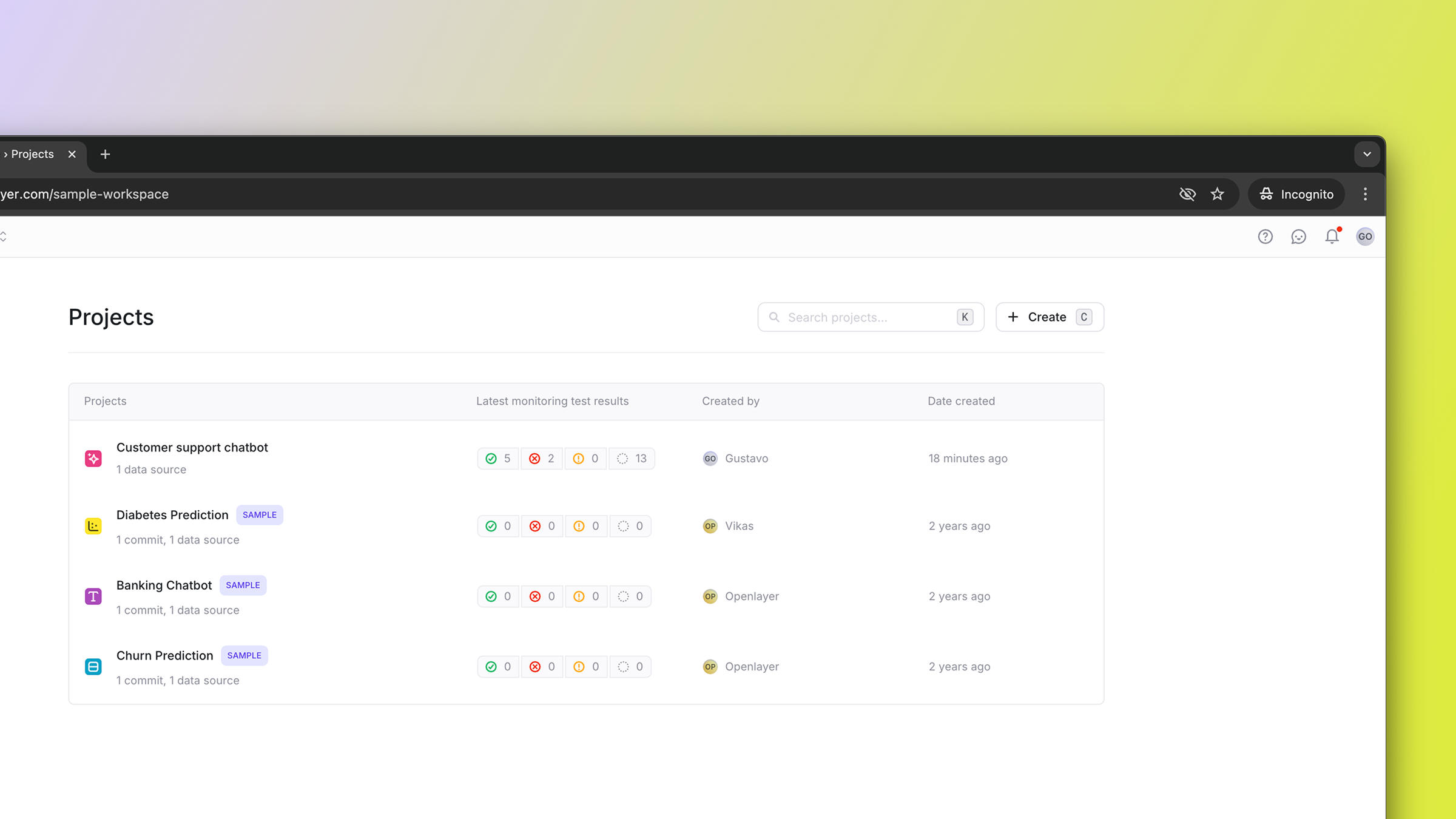 ## Create a project in the UI
The UI is the quickest way to set up a new project.
1. Log into your [Openlayer account](https://app.openlayer.com/)
2. Navigate to the workspace home page.
3. Click the **"Create"** button on the top right.
4. Follow the onboarding prompts to set the project name, type, and mode, and review suggested tests for your use case.
[After the project is created](#next-steps), you are ready to start using it to evaluate your AI system.
## Create a project using the REST API or CLI
You can also create projects using our [REST API](/api-reference/rest/overview) or [CLI tool](/api-reference/cli/overview).
This is particularly useful for automation workflows or CI/CD integration.
To authenticate, you need to [create an API key](/workspace-and-projects/find-your-api-key).
You can create a project by making a POST request to the `/projects` endpoint. Refer
to the [Create project API reference page](/api-reference/rest/projects/create-project) for details.
```bash cURL theme={null}
curl --request POST \
--url https://api.openlayer.com/v1/projects \
--header 'Authorization: Bearer ' \
--header 'Content-Type: application/json' \
--data '{
"name": "My Project",
"description": "My project description.",
"taskType": "llm-base"
}'
```
```python Python theme={null}
from openlayer import Openlayer
client = Openlayer()
project = client.projects.create(
name="My Project",
description="My project description.",
taskType="llm-base"
)
```
```typescript TypeScript theme={null}
import Openlayer from 'openlayer';
const openlayer = new Openlayer();
const project = await openlayer.projects.create({
name: 'My Project',
description: 'My project description.',
taskType: 'llm-base'
});
```
```java Java theme={null}
import com.openlayer.api.client.OpenlayerClient;
import com.openlayer.api.client.okhttp.OpenlayerOkHttpClient;
import com.openlayer.api.models.ProjectCreateParams;
import com.openlayer.api.models.ProjectCreateResponse;
OpenlayerClient client = OpenlayerOkHttpClient.fromEnv();
ProjectCreateParams params = ProjectCreateParams.builder()
.name("My Project")
.description("My project description.")
.taskType(ProjectCreateParams.TaskType.LLM_BASE)
.build();
ProjectCreateResponse project = client.projects().create(params);
```
```go Go theme={null}
package main
import (
"context"
"github.com/openlayer-ai/openlayer-go"
"github.com/openlayer-ai/openlayer-go/option"
)
client := openlayer.NewClient()
project, err := client.Projects.New(context.TODO(), openlayer.ProjectNewParams{
Name: openlayer.F("My Project"),
TaskType: openlayer.F(openlayer.ProjectNewParamsTaskTypeLlmBase),
})
if err != nil {
panic(err.Error())
}
```
First, make sure you have the [CLI installed](/api-reference/cli/overview#installing-the-openlayer-cli).
Then, run the [openlayer login](/api-reference/cli/commands/login) command and use your API key when prompted to authenticate:
```bash theme={null}
openlayer login
```
Finally, run the [openlayer link](/api-reference/cli/commands/link) command to create (or connect to) a project:
```bash theme={null}
openlayer link
```
## Next steps
Once you have created a project, you can immediately start evaluating your AI system. Common
paths are:
* [Monitoring mode overview](/monitoring/overview), to learn how to start observing and testing your live AI system.
* [Development mode overview](/development/overview), to learn how to incorporate Openlayer tests into your CI/CD pipeline.
## FAQ
Yes, Openlayer supports **role-based access control** (RBAC) at the project level.
You can create access groups with different roles, such as "Admin," "Member," "Viewer," and others. Refer to
the [Access groups page](/security/access-groups) for details.
A project on Openlayer has different modes, such as "Development" and "Monitoring."
Each mode has a particular purpose in the AI lifecycle:
* [**Development mode**](/development/overview) is used pre-production and helps you iterate on your AI system, test each version, and track improvements across them.
* [**Monitoring mode**](/monitoring/overview) is used in production and helps you observe and test an AI system that is serving live requests.
## Create a project in the UI
The UI is the quickest way to set up a new project.
1. Log into your [Openlayer account](https://app.openlayer.com/)
2. Navigate to the workspace home page.
3. Click the **"Create"** button on the top right.
4. Follow the onboarding prompts to set the project name, type, and mode, and review suggested tests for your use case.
[After the project is created](#next-steps), you are ready to start using it to evaluate your AI system.
## Create a project using the REST API or CLI
You can also create projects using our [REST API](/api-reference/rest/overview) or [CLI tool](/api-reference/cli/overview).
This is particularly useful for automation workflows or CI/CD integration.
To authenticate, you need to [create an API key](/workspace-and-projects/find-your-api-key).
You can create a project by making a POST request to the `/projects` endpoint. Refer
to the [Create project API reference page](/api-reference/rest/projects/create-project) for details.
```bash cURL theme={null}
curl --request POST \
--url https://api.openlayer.com/v1/projects \
--header 'Authorization: Bearer ' \
--header 'Content-Type: application/json' \
--data '{
"name": "My Project",
"description": "My project description.",
"taskType": "llm-base"
}'
```
```python Python theme={null}
from openlayer import Openlayer
client = Openlayer()
project = client.projects.create(
name="My Project",
description="My project description.",
taskType="llm-base"
)
```
```typescript TypeScript theme={null}
import Openlayer from 'openlayer';
const openlayer = new Openlayer();
const project = await openlayer.projects.create({
name: 'My Project',
description: 'My project description.',
taskType: 'llm-base'
});
```
```java Java theme={null}
import com.openlayer.api.client.OpenlayerClient;
import com.openlayer.api.client.okhttp.OpenlayerOkHttpClient;
import com.openlayer.api.models.ProjectCreateParams;
import com.openlayer.api.models.ProjectCreateResponse;
OpenlayerClient client = OpenlayerOkHttpClient.fromEnv();
ProjectCreateParams params = ProjectCreateParams.builder()
.name("My Project")
.description("My project description.")
.taskType(ProjectCreateParams.TaskType.LLM_BASE)
.build();
ProjectCreateResponse project = client.projects().create(params);
```
```go Go theme={null}
package main
import (
"context"
"github.com/openlayer-ai/openlayer-go"
"github.com/openlayer-ai/openlayer-go/option"
)
client := openlayer.NewClient()
project, err := client.Projects.New(context.TODO(), openlayer.ProjectNewParams{
Name: openlayer.F("My Project"),
TaskType: openlayer.F(openlayer.ProjectNewParamsTaskTypeLlmBase),
})
if err != nil {
panic(err.Error())
}
```
First, make sure you have the [CLI installed](/api-reference/cli/overview#installing-the-openlayer-cli).
Then, run the [openlayer login](/api-reference/cli/commands/login) command and use your API key when prompted to authenticate:
```bash theme={null}
openlayer login
```
Finally, run the [openlayer link](/api-reference/cli/commands/link) command to create (or connect to) a project:
```bash theme={null}
openlayer link
```
## Next steps
Once you have created a project, you can immediately start evaluating your AI system. Common
paths are:
* [Monitoring mode overview](/monitoring/overview), to learn how to start observing and testing your live AI system.
* [Development mode overview](/development/overview), to learn how to incorporate Openlayer tests into your CI/CD pipeline.
## FAQ
Yes, Openlayer supports **role-based access control** (RBAC) at the project level.
You can create access groups with different roles, such as "Admin," "Member," "Viewer," and others. Refer to
the [Access groups page](/security/access-groups) for details.
A project on Openlayer has different modes, such as "Development" and "Monitoring."
Each mode has a particular purpose in the AI lifecycle:
* [**Development mode**](/development/overview) is used pre-production and helps you iterate on your AI system, test each version, and track improvements across them.
* [**Monitoring mode**](/monitoring/overview) is used in production and helps you observe and test an AI system that is serving live requests.