


Microsoft 365 Copilot Chat, Teams, and Office are a separate connector. See
Microsoft 365 Copilot. Do not share the
Entra app between the two.
How it works
Copilot Studio stores conversation transcripts in theConversationTranscript table in Dataverse. Openlayer reads these transcripts and automatically:
- Parses conversations into structured trace data
- Extracts LLM calls, tool executions, and plan steps
- Captures latency, token usage, and cost estimates
- Logs RAG citations and retrieved documents
- Auto-creates projects and pipelines per bot
Prerequisites
Enable enhanced transcripts
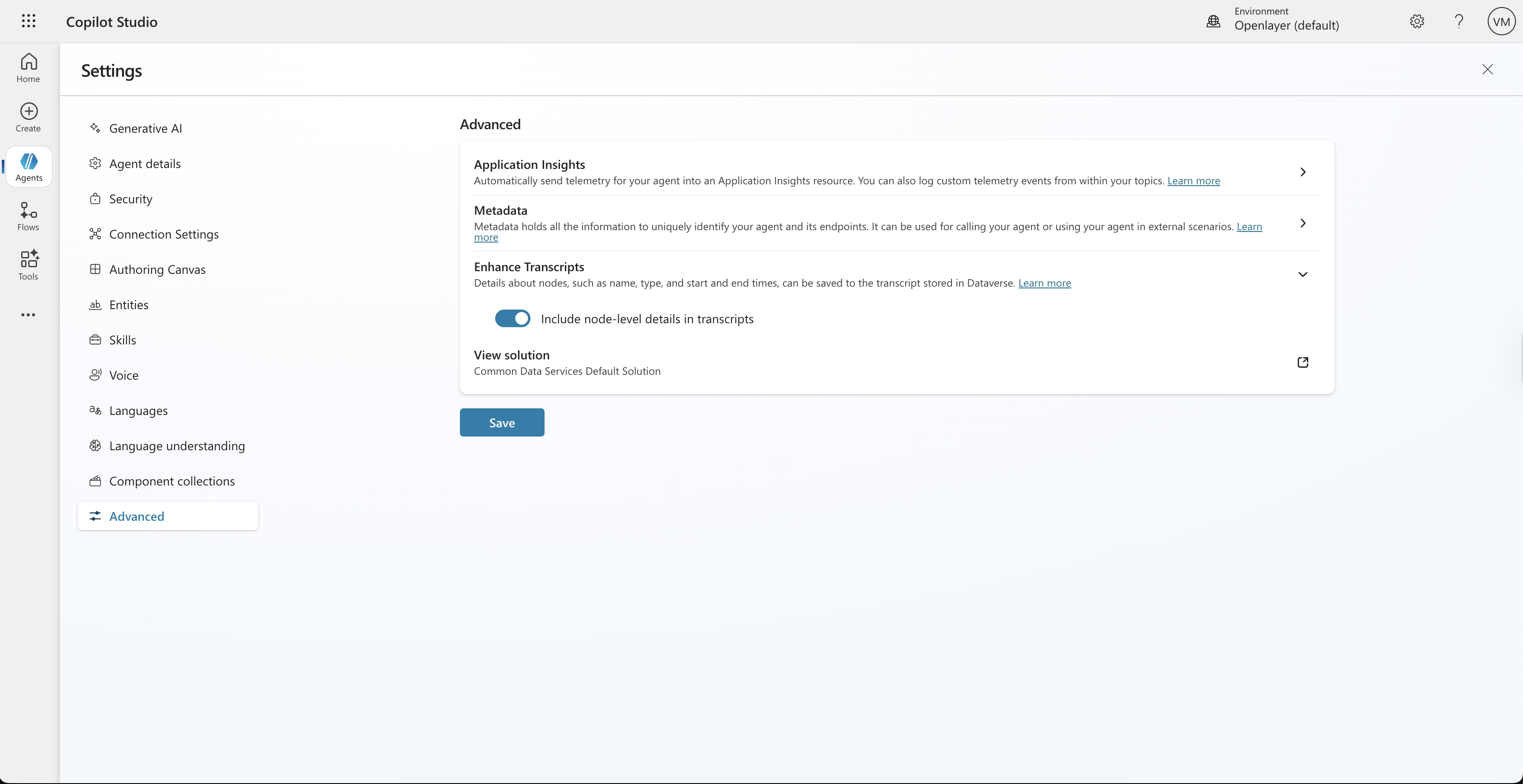
To get the most detailed traces in Openlayer, you must enable Enhanced Transcripts in your Copilot Studio agent settings. This setting allows Openlayer to capture node-level details such as name, type, and start and end times. To enable it:- In Copilot Studio, navigate to Settings → Advanced
- Expand the Enhance Transcripts section
- Toggle on Include node-level details in transcripts
- Click Save
Without this setting enabled, Openlayer will still capture basic conversation
data, but you won’t get the full execution traces showing individual node
executions and timing information.
Register an Azure AD app
The native integration requires an Azure AD (Entra ID) app registration so that Openlayer can read conversation transcripts from Dataverse on your behalf.- In the Azure Portal, go to Microsoft Entra ID → App registrations → New registration.
- Give the app a name (e.g.,
Openlayer Copilot Studio) and register it. - Under Certificates & secrets, create a new Client secret and copy its value.
- Under API permissions, add the following Application permission:
Dataverse→user_impersonation
- Grant admin consent for the permission.
Create a custom security role in Power Platform
By default, Dataverse restricts table access to the owning user or business unit. Openlayer needs Organization-level Read access to theBot and
ConversationTranscript tables so it can discover all agents and pull
transcripts across your entire environment.
To set this up, create a custom security role and assign it to the
application user:
Step 1: Create the security role
- Go to the Power Platform admin center → Environments → select your environment → Settings.
- Under Users + permissions, click Security roles.
- Click New role and give it a name (e.g.,
Openlayer Dataverse Reader). - On the Custom Entities tab, find the following tables and set Read access to Organization (the globe icon) for each:
- Click Save and Close.
The “Organization” access level means the app can read records owned by any
user or business unit in the environment. This is required because
conversation transcripts are owned by the bot’s business unit, not the
application user.
Step 2: Create an application user
- In the Power Platform admin center, go to Environments → your environment → Settings.
- Under Users + permissions, click Application users.
- Click New app user and select the Azure AD app you registered earlier.
- Assign the Business unit for your environment.
- Under Security roles, add the custom role you just created (e.g.,
Openlayer Dataverse Reader). - Click Create.
Integration options
There are three ways to connect Copilot Studio to Openlayer:Option 1: Native integration (Recommended)
The native integration connects Openlayer directly to your Dataverse environment. Openlayer discovers your bots, pulls conversation transcripts on a schedule, and auto-creates projects — all managed from the Openlayer UI.Step 1: Connect your environment
- In Openlayer, navigate to Settings → Integrations.
- Click Microsoft Copilot Studio.
- Fill in your Azure AD credentials:
- Tenant ID
- Client ID
- Client secret
- Environment URL (e.g.
https://yourorg.crm.dynamics.com)
- Click Connect.
Step 2: Discover your agents
Once connected, click Discover agents to scan your Dataverse environment. Openlayer queries thebot table and lists every Copilot Studio agent in
your environment.
Each discovered agent shows:
- Name and schema name
- Status in Dataverse (active or inactive)
- Monitoring status (enabled, disabled, or error)
Step 3: Enable monitoring
For each agent you want to monitor, click Enable. You have two options:- Auto-create a new project — Openlayer creates a project named
Copilot Studio - <agent name>with a default data source. This is the fastest way to get started. - Map to an existing project — Choose an existing Openlayer project and data source. Use this when you already have a project set up for the agent.
Step 4: Configure sync settings
After enabling at least one agent, configure how often Openlayer pulls new transcripts:- Sync enabled — Toggle periodic syncing on or off.
- Sync frequency — How often Openlayer checks for new transcripts (default: every 60 minutes).
- Sync range — Choose between:
- All available data — Sync all historical transcripts.
- Last 7 days — Only sync recent conversations.
- Custom date — Specify a start date.
Backfilling historical data
To re-sync historical data for a specific agent (e.g., after adjusting evaluation tests), click the three-dot menu on the agent row and select Backfill. You can backfill:- All available data — Re-process every transcript for this agent.
- Since a specific date — Only re-process transcripts from the given date onward.
Option 2: Azure Logic App (Deprecated)
Use an Azure Logic App with a Dataverse trigger for near real-time, push-based integration. This option is useful when you want Dataverse to push each transcript to Openlayer as soon as it is written, rather than waiting for Openlayer’s periodic pull.Architecture overview
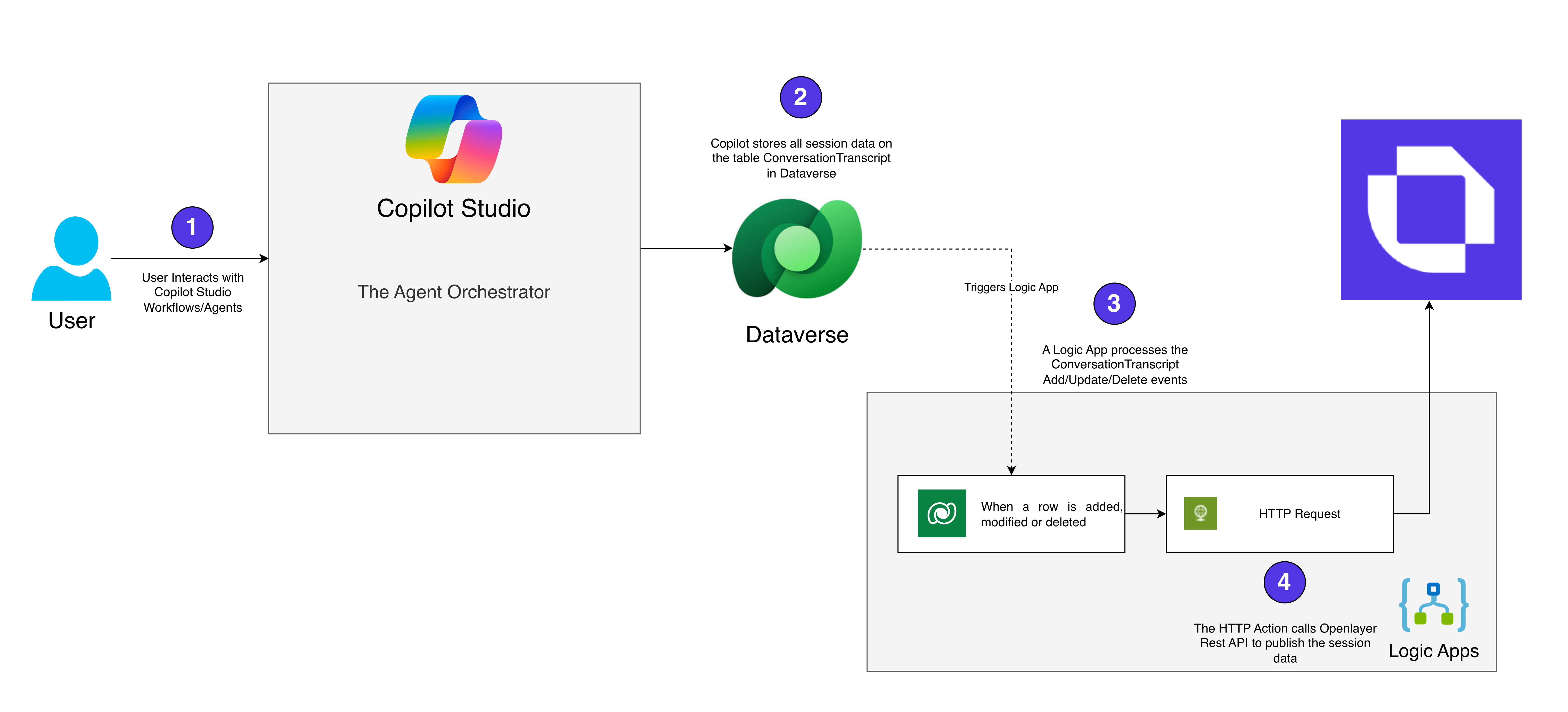
- User interacts with Copilot Studio workflows/agents
- Copilot Studio stores session data in the
ConversationTranscripttable in Dataverse - A Logic App triggers on Add/Update/Delete events in the
ConversationTranscripttable - The Logic App’s HTTP action sends the transcript data to Openlayer’s REST API
Step 1: Create the Logic App
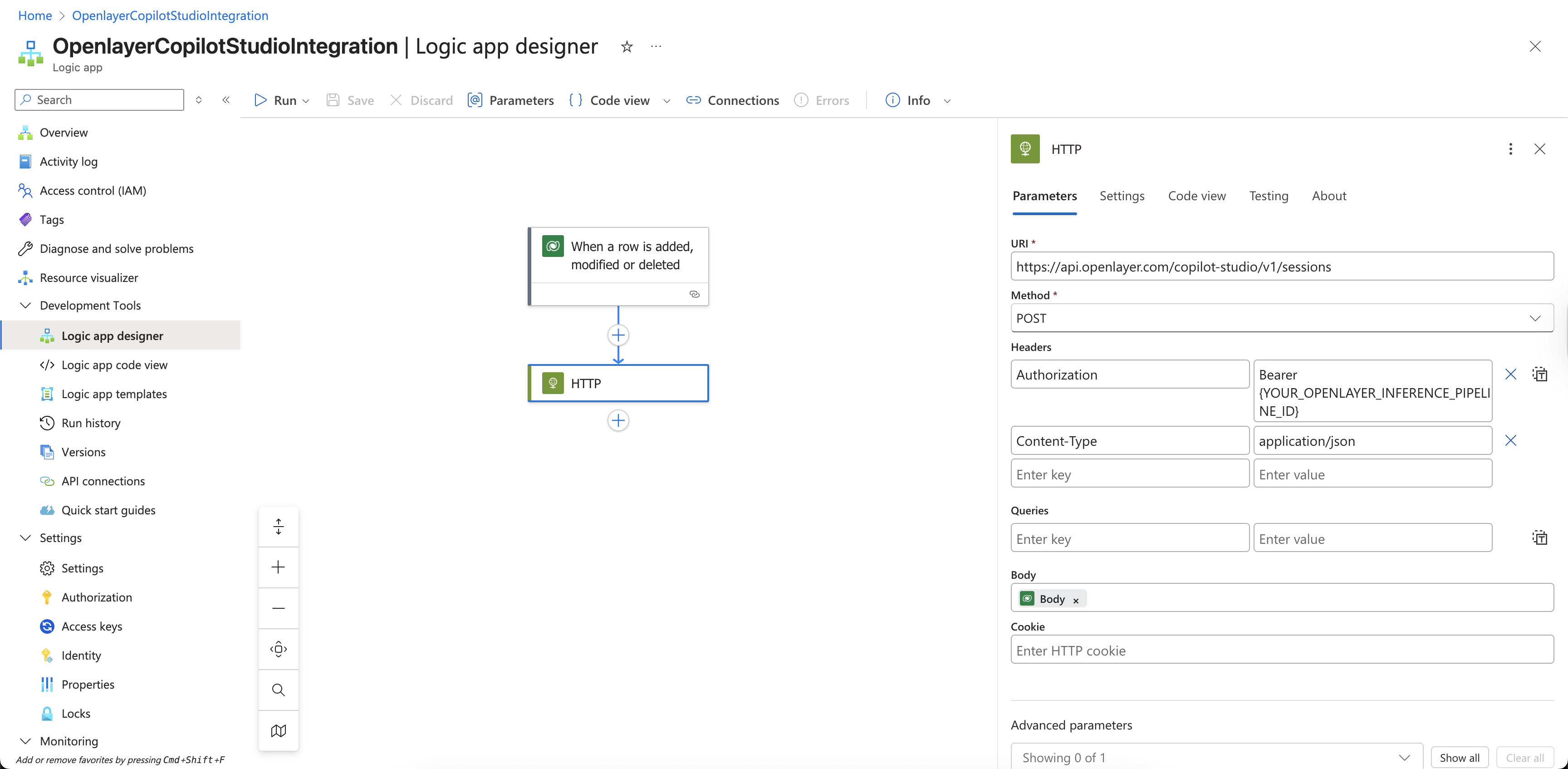
- In the Azure Portal, create a new Logic App (Consumption).
- In the Logic App designer, search for Dataverse in the triggers.
- Select the When a row is added, modified or deleted trigger.
- Configure the trigger:
- Table name:
ConversationTranscript - Scope:
Organization - Filter rows: (Optional) Add filters to exclude test/design mode conversations
- Table name:
Step 2: Configure the HTTP action
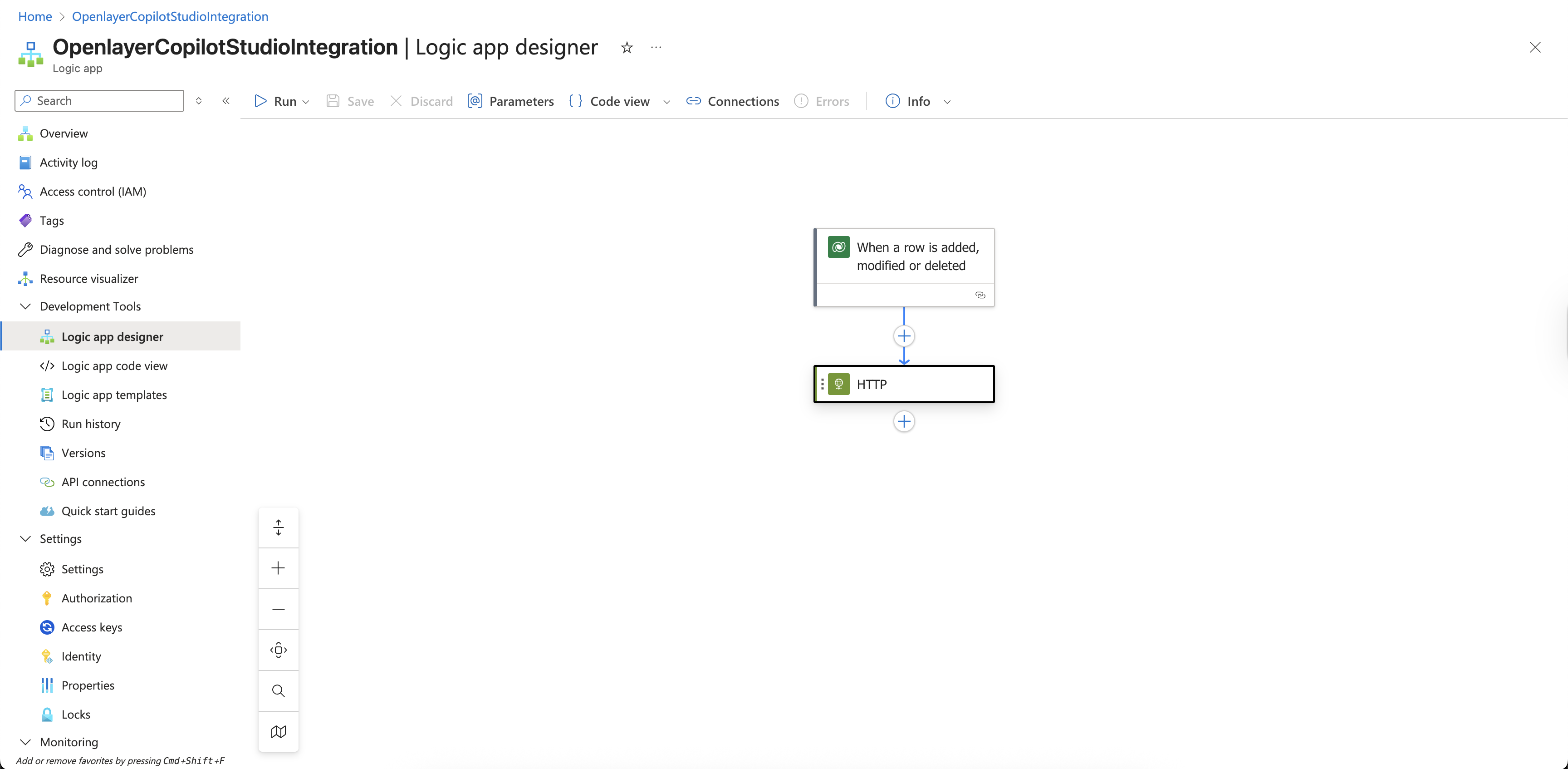
Add an HTTP action after the trigger with the following configuration:- Method:
POST - URI:
https://api.openlayer.com/copilot-studio/sessions - Headers:
Authorization:Bearer <YOUR_OPENLAYER_API_KEY>Content-Type:application/json
- Body:
@{triggerBody()}
On-premise deployments: If you’re using a self-hosted Openlayer instance,
replace
api.openlayer.com with your deployment’s base URL (e.g.,
openlayer.yourcompany.com).Step 3: (Optional) Add error handling
Add a Scope action around the HTTP call and configure Run after settings to handle failures:- Send alerts to a Teams channel or email on failure
- Use a dead-letter queue for failed transcripts
Automatic project creation
When using the Logic App or batch API, Openlayer automatically creates a new project for each unique Copilot Studio agent the first time it receives conversation data. Each unique combination ofBotName + AADTenantId maps
to a dedicated Openlayer project and data source.
You can also pre-create projects by navigating to your workspace and creating
a new project configured for Microsoft Copilot Studio. See
Finding your bot name and tenant ID
below.
Option 3: Batch integration via Python (Deprecated)
For teams that prefer a code-first approach or need scheduled batch syncs.Prerequisites
Example script
Use cases for batch integration
- Nightly or hourly jobs that backfill conversations
- Historical analysis with new evaluation pipelines
- Environments where Logic Apps are restricted
On-premise deployments: If you’re using a self-hosted Openlayer instance,
replace
api.openlayer.com in the script with your deployment’s base URL.Finding your bot name and tenant ID
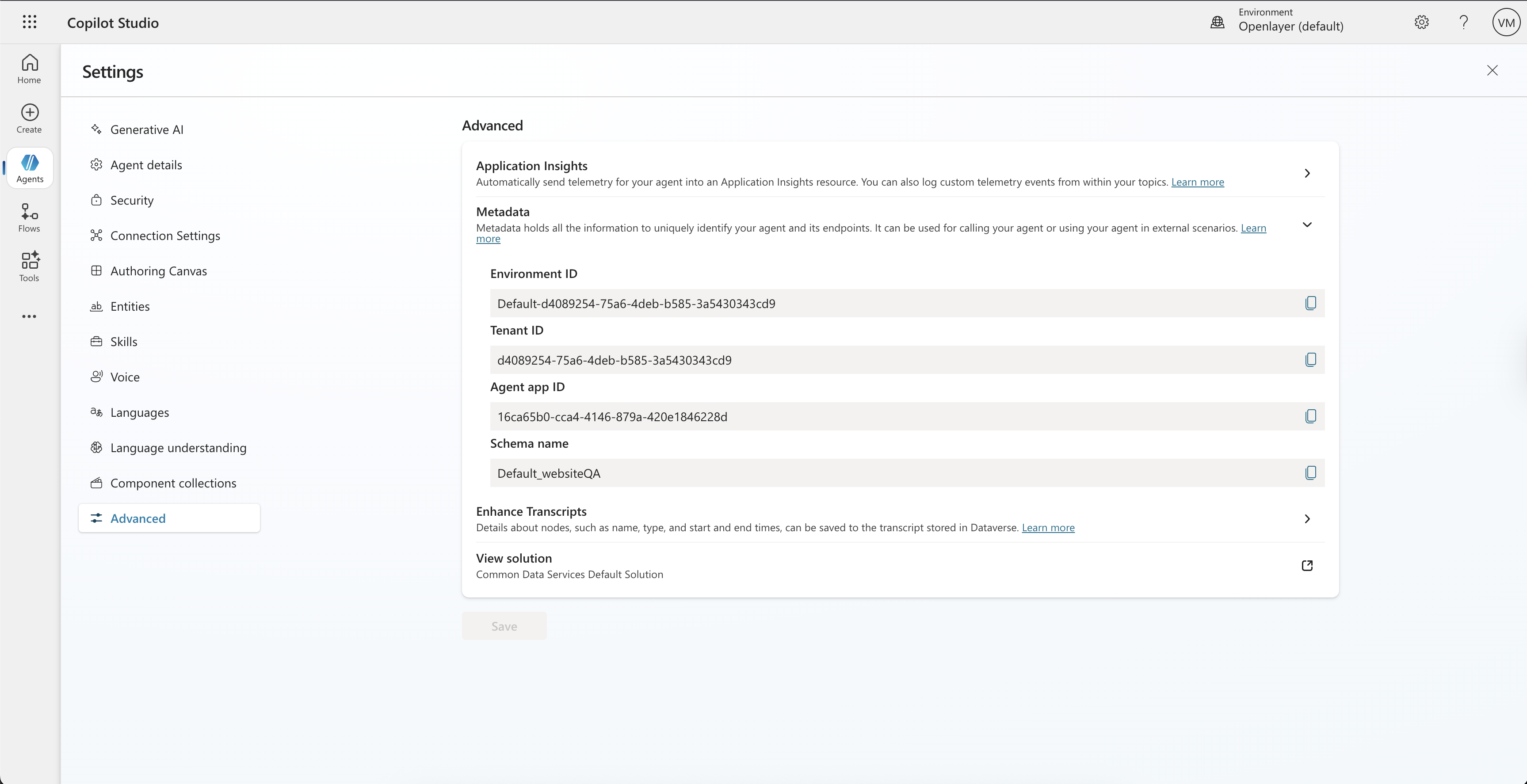
If you are using the Logic App or batch API integration (Options 2 and 3) and want to pre-create projects, you will need the bot’s schema name and tenant ID.- In Copilot Studio, navigate to Settings → Advanced
- Expand the Metadata section
- Copy the Schema name (this is your bot name)
- Copy the Tenant ID
Monitoring in Openlayer
Once integrated, Copilot Studio conversations will automatically appear in your Openlayer project.View conversation traces
Navigate to your project’s Records tab to see detailed conversation traces: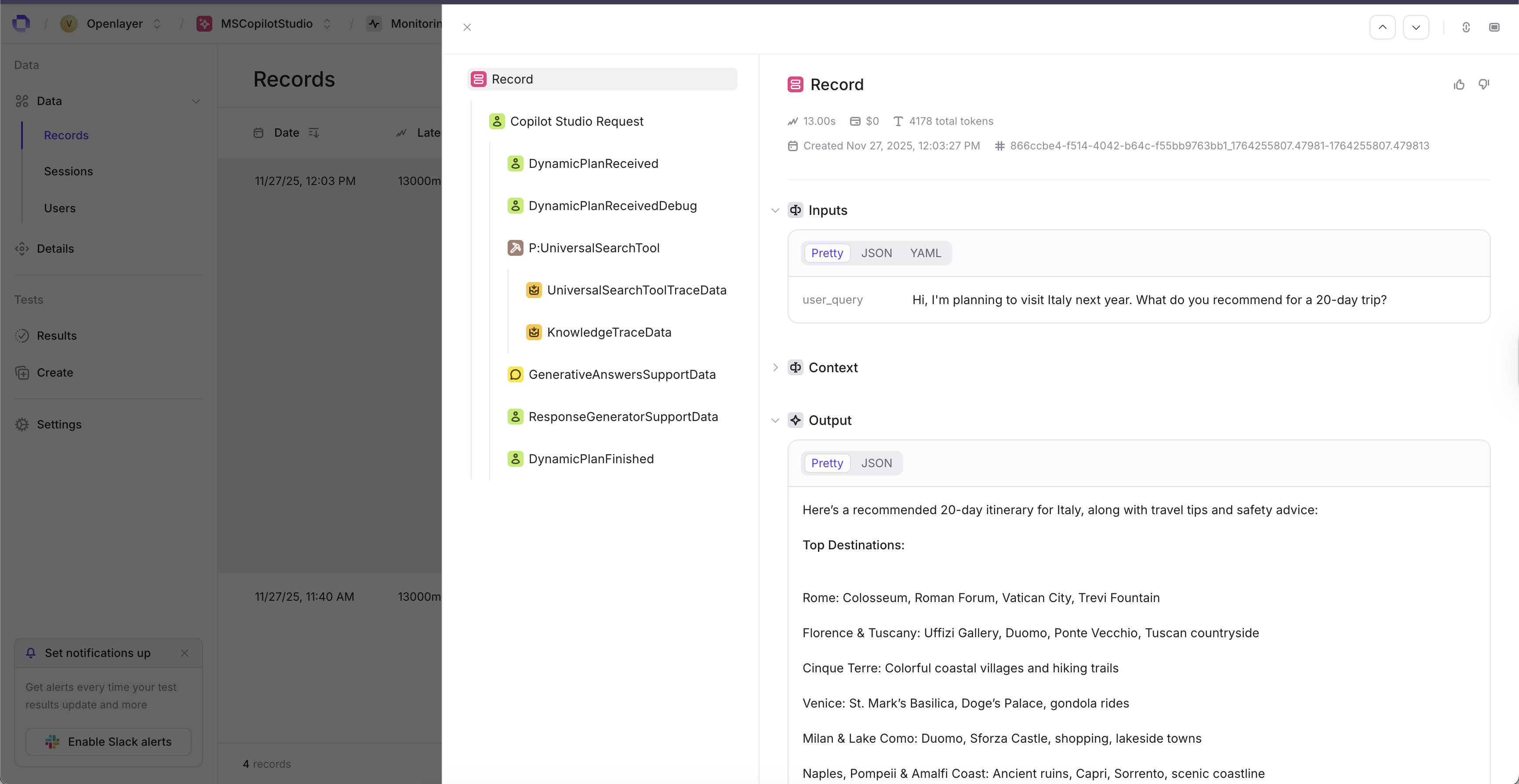
- User queries and bot responses
- Latency and token usage per turn
- Nested execution steps (LLM calls, tool executions, plan steps)
- RAG citations and knowledge source references
Analyze RAG quality
For bots using knowledge sources:- View retrieved citations per response
- Evaluate relevance of retrieved documents
- Track knowledge source utilization
Monitor session outcomes
Track conversation-level metrics:- Resolution rates (
session_outcome) - CSAT scores
- Turn counts and engagement
Run evaluations
Create evaluation pipelines to:- Score response quality
- Detect hallucinations
- Measure citation accuracy
- Track safety and compliance