

Available frameworks
| Framework | Description |
|---|---|
| EU AI Act | Regulation (EU) 2024/1689 — the world’s first comprehensive legal framework for AI |
| ISO 42001 | International standard for AI management systems |
| AIUC-1 | AI agent standard for enterprise governance |
| OSFI E-23 | Model Risk Management guideline for federal financial institutions in Canada |
| TRAIGA | Texas Responsible AI Governance Act (HB 149, Chapter 551) |
| Lei de IA do Brasil | Brazil’s AI governance law (PL 2.338/2023) |
How to activate
Review the framework
Navigate to Governance > Frameworks and click any framework to open its overview.You’ll see a description of the standard, the total number of rules, a breakdown of platform rules vs. evidence-based rules, and current completion metrics across your workspace.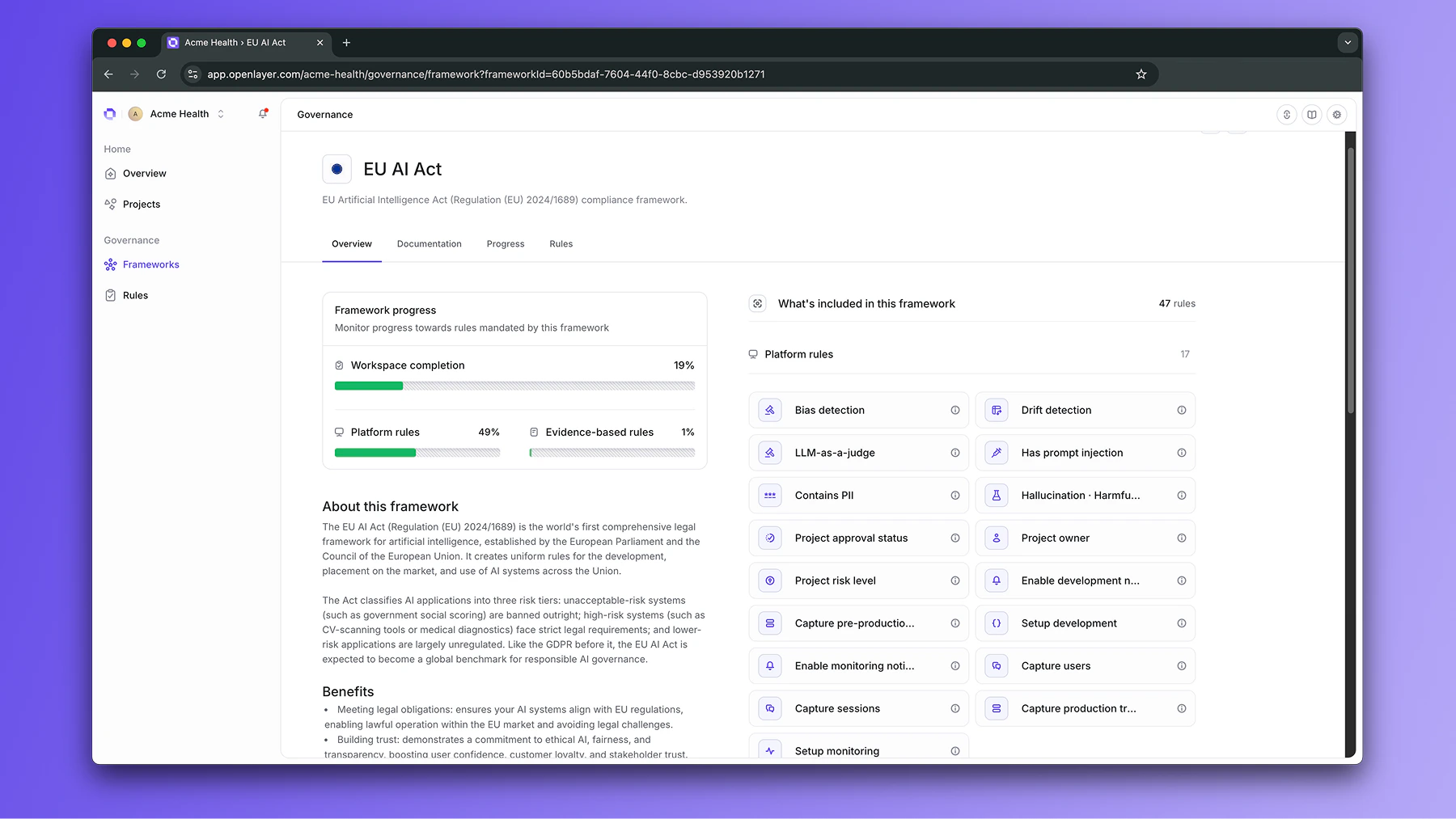
Activate the framework
Click Activate on the framework. A modal opens prompting you to choose
which projects should follow it.
Scope to projects
Select projects individually, or use filters to apply the framework based on:
- Risk level — e.g., apply only to high-risk projects
- Approval status — e.g., apply to projects pending review
- Task type — e.g., Generative AI, Tabular classification