


How it works
Once connected, Openlayer:- Discovers your agents — automatically fetches all active Agentforce agents from your Salesforce org
- Creates projects and data sources — each enabled agent gets its own Openlayer project and data source, with no manual setup required
- Syncs conversations — periodically pulls agent interactions from Data 360 (via the Data 360 API), converting them into structured traces with sessions, requests, and individual steps
- Enriches traces — extracts LLM model names, providers, token counts, and user IDs from GenAI Gateway data
All access is read-only — Openlayer never writes data to your Salesforce
org.
Prerequisites
Before connecting, ensure the following are configured in your Salesforce org:1. Agentforce enabled
You must have at least one active Agentforce agent.- In Salesforce Setup, go to Agentforce Agents
- Turn on Agentforce and create or enable an agent
2. Data 360 provisioned with Agent Analytics
Openlayer reads conversation data from Data 360, which requires Agent Analytics to be enabled.- In Salesforce Setup, go to the Einstein Feedback and Monitoring page
- Turn on Agent Analytics
3. Create a Salesforce Connected App
Openlayer authenticates via OAuth using a Connected App you create in your Salesforce org. This gives you full control over the scopes and access granted.Step-by-step: Create a Connected App
Step-by-step: Create a Connected App
- In Salesforce Setup, search for App Manager and click New Connected App
-
Fill in the basic information:
- Connected App Name:
Openlayer - API Name:
Openlayer - Contact Email: your admin email
- Connected App Name:
- Under API (Enable OAuth Settings), check Enable OAuth Settings
-
Set the Callback URL to:
On-premise deployments: replace
app.openlayer.comwith your deployment’s base URL. -
Add the following OAuth Scopes:
- Click Save, then Continue
- After creation, go to Manage Consumer Details to retrieve the Consumer Key (Client ID) and Consumer Secret (Client Secret)
4. User permissions
System Administrators have all required permissions by default. Non-admin users connecting the integration need:- API Enabled permission
- Data 360 User permission set
- Read access to BotDefinition
- Approve Uninstalled Connected Apps or Use Any API Client permission
Setup guide
Step 1: Navigate to the integration
In your Openlayer workspace, go to Settings → Integrations and find the Salesforce Agentforce card. Click Enable.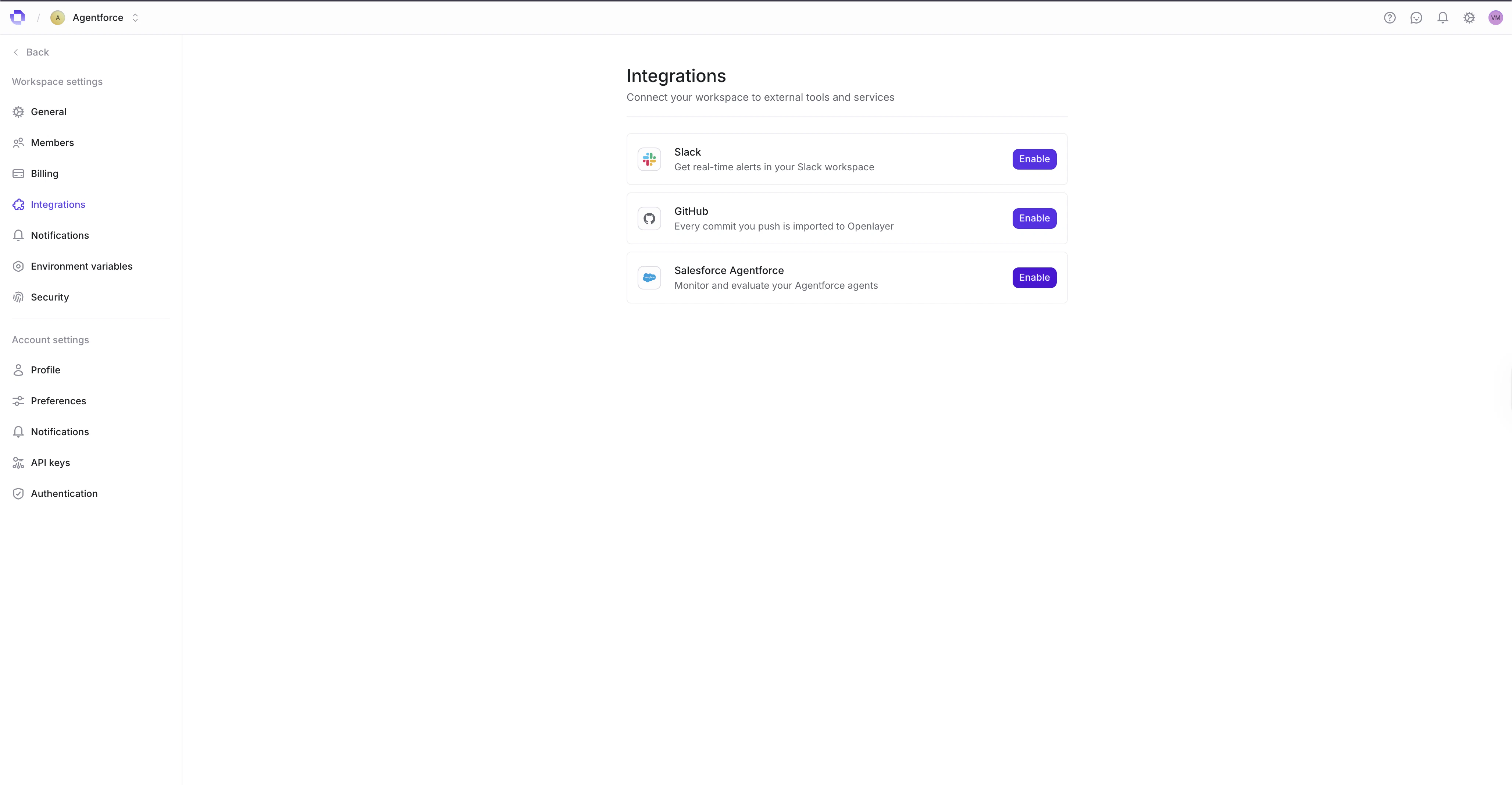
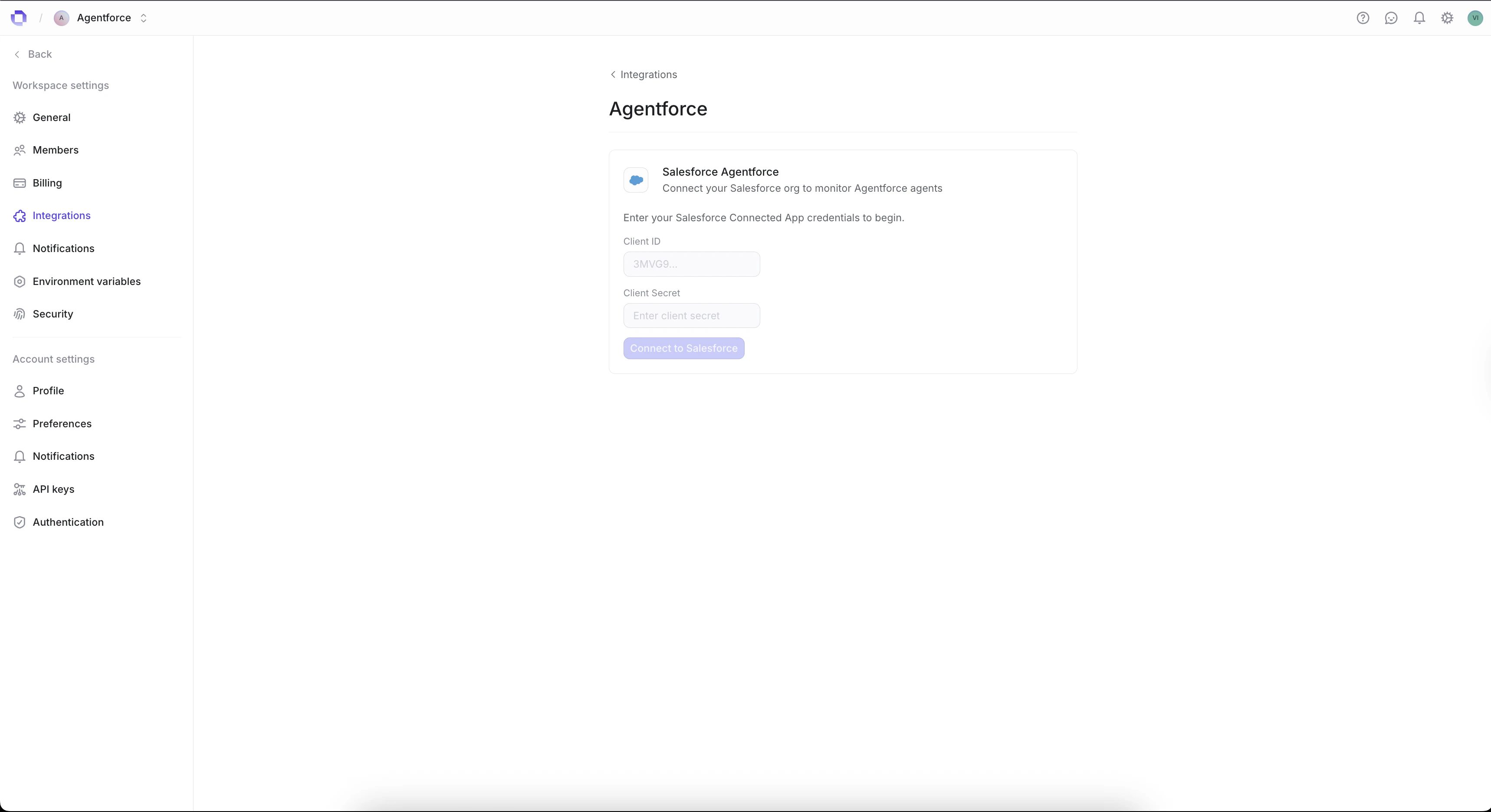
Step 2: Provide your Connected App credentials
Enter the credentials from the Connected App you created in the prerequisites, pick the environment your org logs in through, then click Connect to Salesforce.- Client ID: the Consumer Key from your Connected App
- Client Secret: the Consumer Secret from your Connected App
- Salesforce environment: the Salesforce login domain Openlayer sends you to when you authorize
For Custom My Domain, enter the domain on its own, in the form
mycompany.my.salesforce.com. Openlayer cannot connect until you fill it in.
Step 3: Authorize with Salesforce
After clicking Connect to Salesforce, you will be redirected to Salesforce to log in and authorize Openlayer. Once authorized, you’ll be redirected back to Openlayer and the connection status will show as Connected. The Overview section then reports the Environment you connected through —Sandbox, your custom My Domain, or Production. Check it if you are unsure which org Openlayer is reading from.
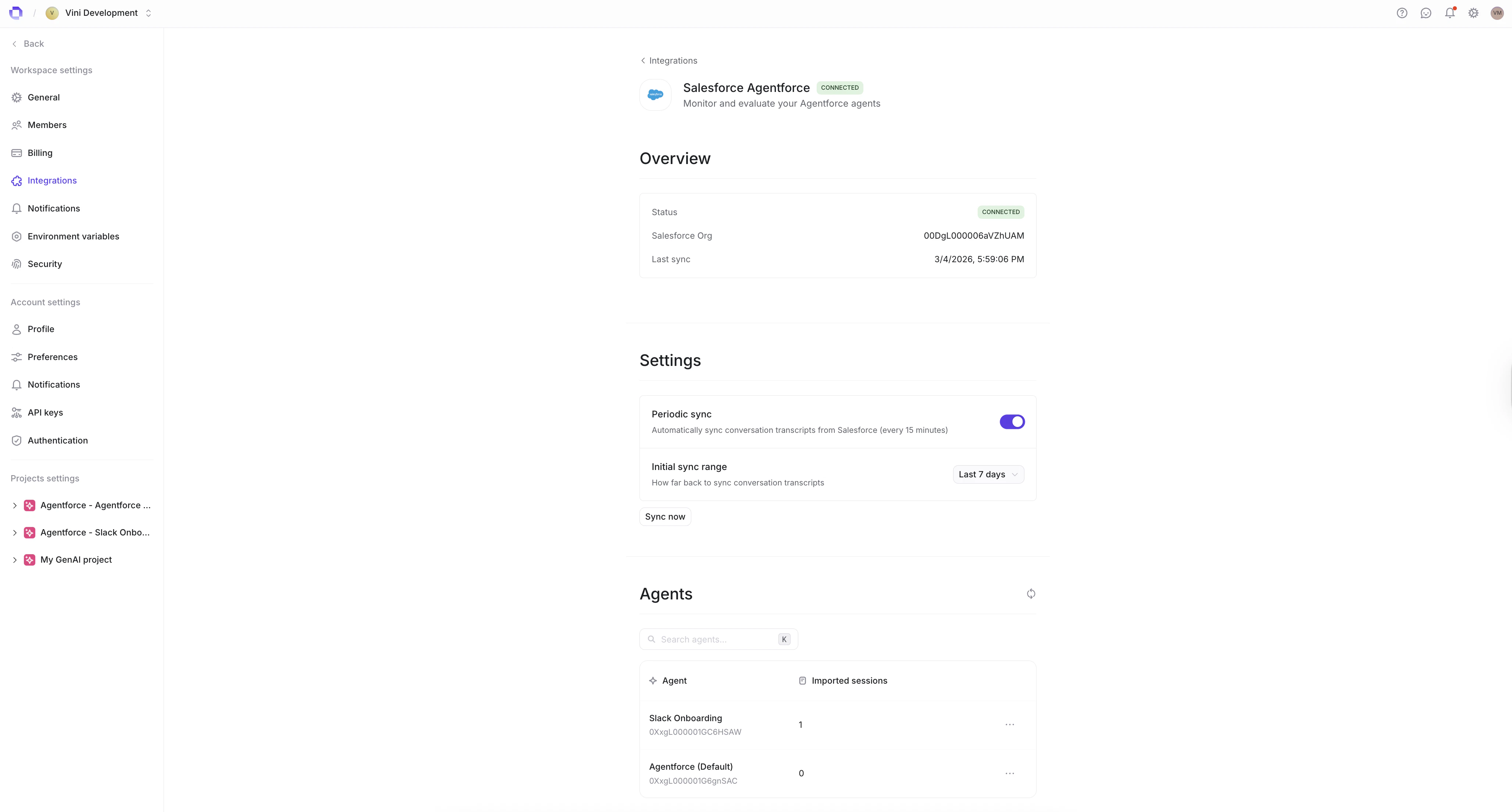
Step 4: Configure sync settings
Once connected, configure automatic syncing under the Sync Settings section:- Periodic sync — toggle on to enable automatic syncing (every 15 minutes)
- Initial sync range — set the start date for the first sync to control how far back Openlayer fetches historical data
- Auto-register new agents — toggle on to automatically create a project and start monitoring when a discovered agent has recent activity
When the activity check cannot run during a refresh, Openlayer skips
auto-registration for that round, tells you so, and retries on the next sync.
Initial conversations may take up to one sync cycle to appear, as they must
first be written to Data 360 by Salesforce before Openlayer can retrieve them.
Step 5: Enable agents
Under the Agents section, Openlayer lists all discovered Agentforce agents. Discovery alone does not start monitoring: for each agent you want to monitor, toggle it on. You can also click Refresh Agents to re-discover agents from your Salesforce org. When an agent is enabled — by you here, or by auto-registration — Openlayer creates a project and data source for it, with no additional configuration needed. The agents table shows:- Agent — agent name and Salesforce ID
- Status — whether the agent is enabled or disabled
- Sessions — number of synced sessions
- Project — link to the auto-created Openlayer project
Monitoring in Openlayer
Once agents are enabled and the first sync completes, conversations automatically appear in their respective Openlayer projects.Conversation traces
Each Agentforce session is converted into a trace that captures user queries, agent responses, LLM model names, latency, and more.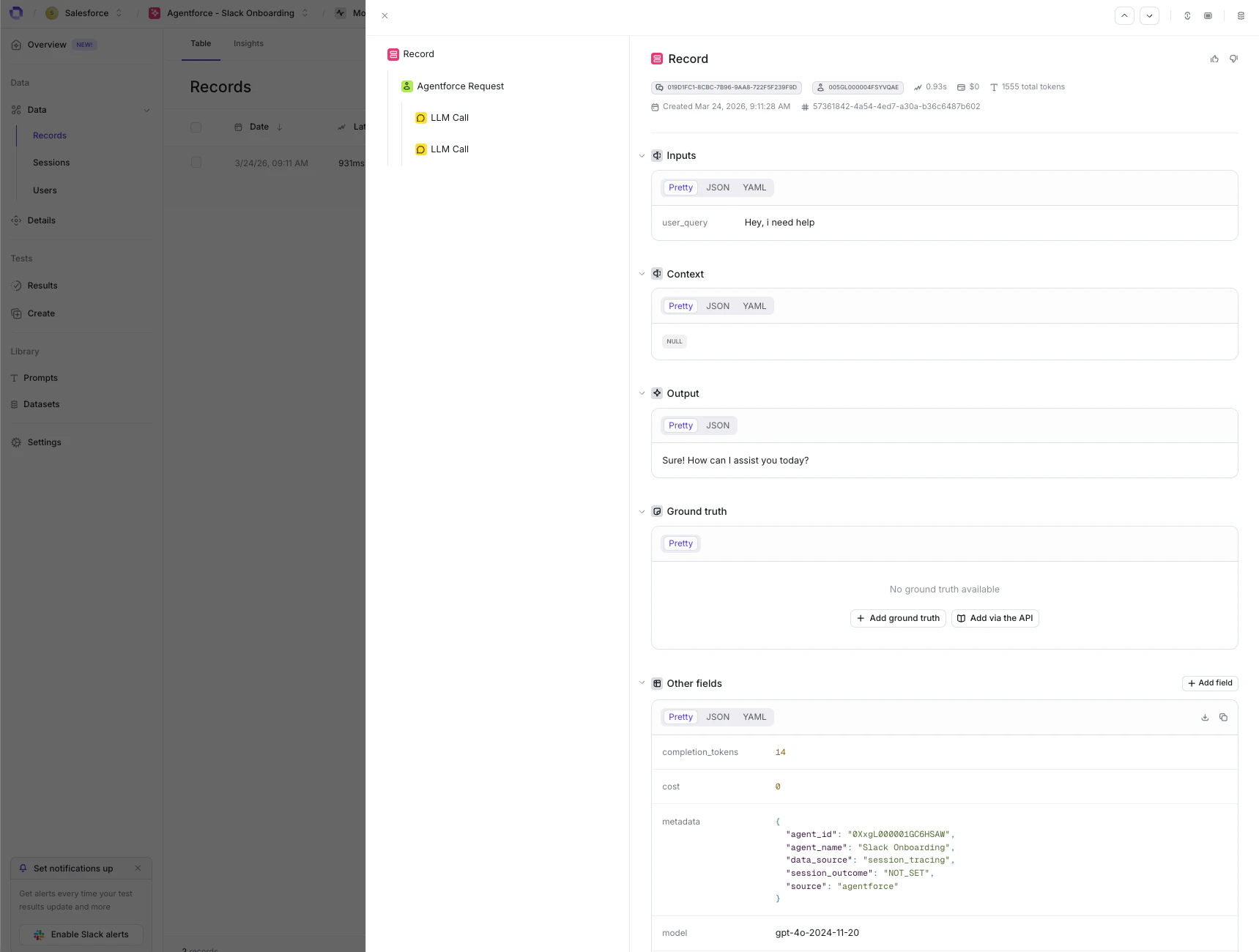
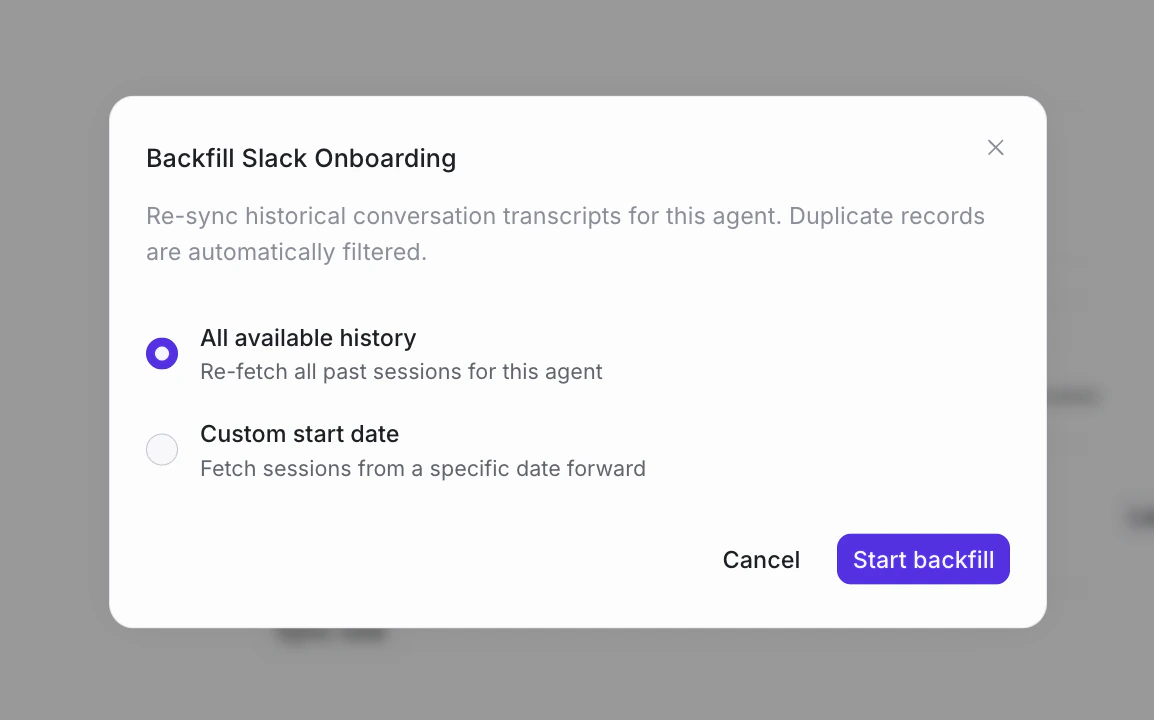
Backfill historical data
To import conversations that occurred before the integration was connected, click the Backfill button next to any agent. In the backfill dialog, choose the date range:- All available history — re-fetch all past sessions
- Custom start date — fetch sessions from a specific date forward
Run evaluations
With conversations flowing into Openlayer, you can:- Create tests to score response quality
- Detect hallucinations and measure faithfulness
- Track safety and compliance metrics
- Monitor latency and cost trends
- Compare agent performance across versions
Disconnecting
To disconnect the Salesforce Agentforce integration:- Go to Settings → Integrations → Salesforce Agentforce
- Click Disconnect
Troubleshooting
- OAuth fails → verify the Callback URL in your Connected App matches
https://app.openlayer.com/integrations/agentforce/callbackexactly, and that the Salesforce environment you selected matches the org holding the Connected App. - No agents discovered → confirm you have at least one active Agentforce agent and that Data 360 with Agent Analytics is enabled.
- Conversations not appearing → Salesforce writes session data to Data 360 with a delay. Wait for the next sync cycle and ensure Agent Analytics is turned on.
- Permission errors → verify the connecting user has the required permissions, including
API EnabledandData 360 User.