


SNOWFLAKE.LOCAL.AI_OBSERVABILITY_EVENTS
so you can inspect every turn in Openlayer.
How it works
Once connected, Openlayer:- Discovers your agents — enumerates Cortex Agents account-wide with
SHOW AGENTS, then reads each one’s specification for its tools and sample questions - Creates projects and data sources — each enabled agent gets its own Openlayer project and data source, with no manual setup required
- Syncs traces — polls the AI observability event table on a schedule, assembling spans into complete traces before they are written
- Enriches traces — extracts model names, token counts (including cache reads and writes), tool calls, SQL statements, and the Snowflake user and role behind each request
All access is read-only — Openlayer never writes to your Snowflake
account, and never runs your agents.
Prerequisites
Before connecting, you need:- A Snowflake account with at least one Cortex Agent.
- Permission to create users and roles (
SECURITYADMIN), and to grant an account-level privilege (ACCOUNTADMIN). - A running warehouse Openlayer can use.
- An Openlayer workspace where you are an admin.
Setup guide
Step 1: Open the integration
In Openlayer, go to Settings → Integrations. This page lists every integration available to your workspace.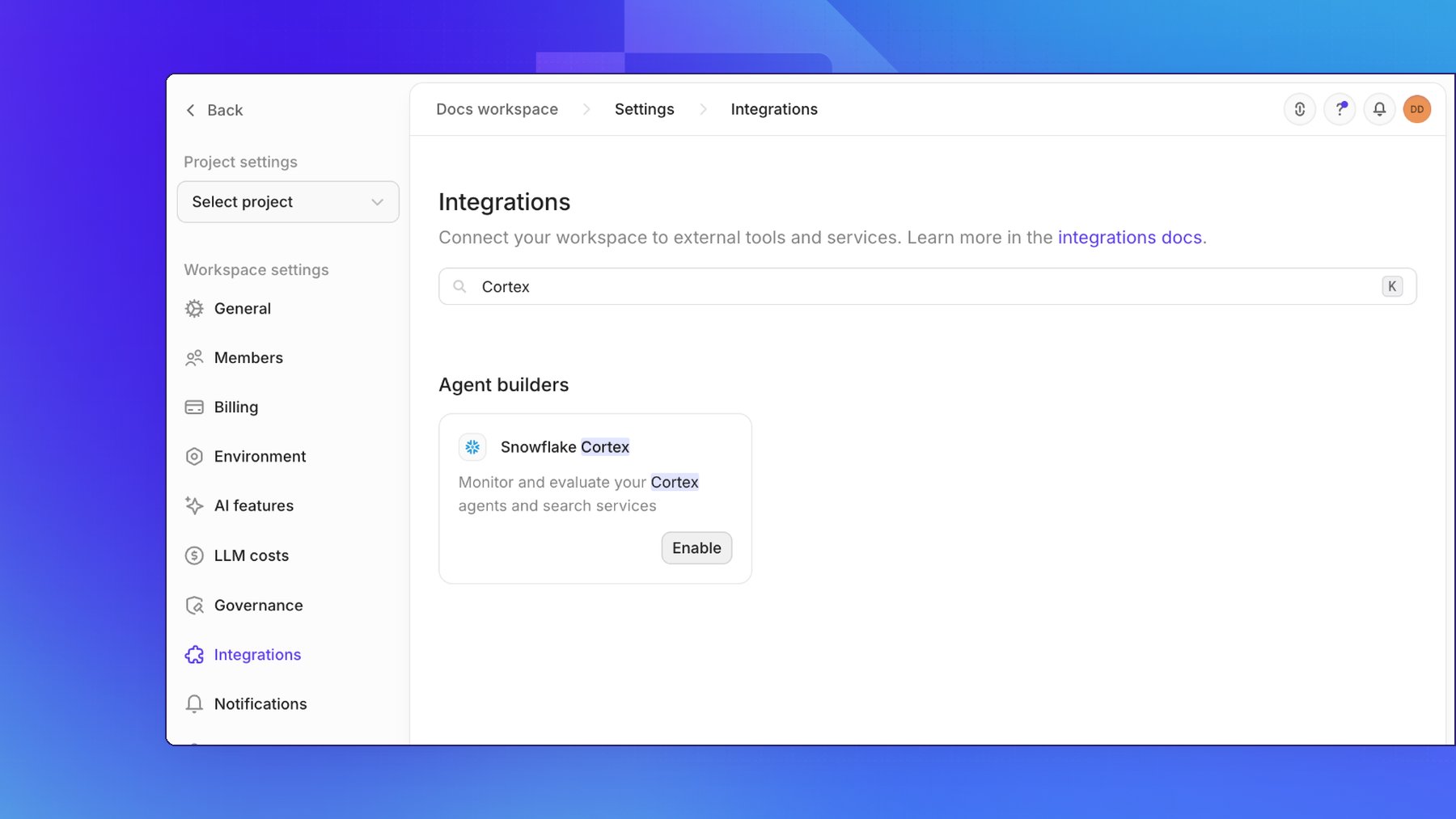
Step 2: Copy your workspace’s public key
The connect page shows your workspace’s RSA public key, along with the four connection fields.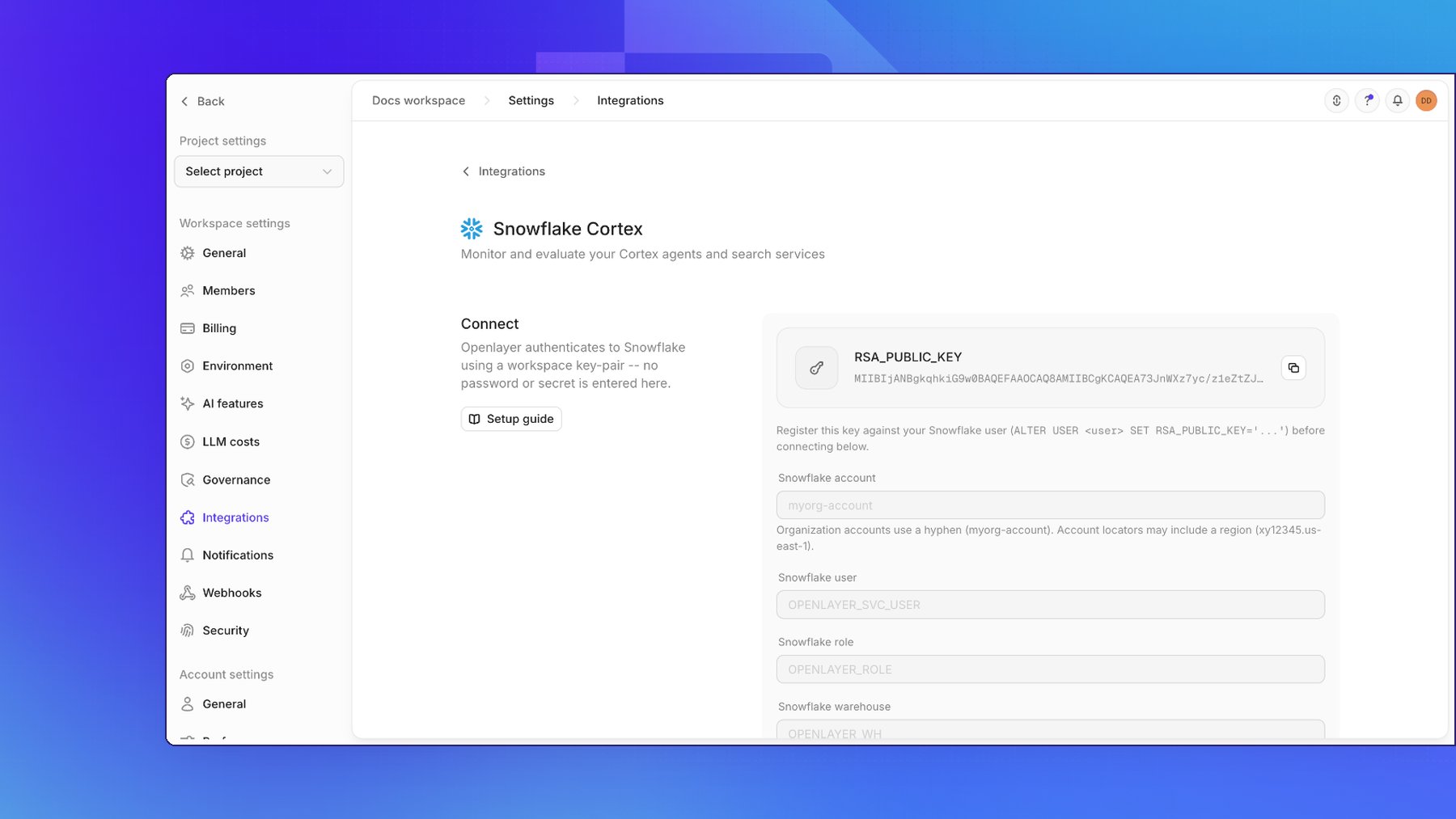
Step 3: Create the role and service user
Run the following in a Snowflake worksheet. Replace theRSA_PUBLIC_KEY value with the key you just
copied, and set agent_database and agent_schema to the database and schema that contain your agents.
agent_database and agent_schema each time.
Granting
MONITOR on future agents means agents created later are picked
up by discovery without another grant. Without it, you must re-run the grant
and re-run discovery each time an agent is added.Step 4: Connect from Openlayer
Back on the connect page, fill in:
Organization accounts use a hyphen (
myorg-account). Account locators may include a region
(xy12345.us-east-1).
Click Connect. Openlayer validates the credentials against Snowflake before saving anything. If the
account, user, role, or warehouse is wrong, Connect fails with an error instead of saving a connection that
would fail later on the first sync.
Step 5: Discover and enable agents
Open the Agents tab and click the refresh button next to the status filter to enumerate the agents your role can see. Each discovered agent appears under Configure agents. Turn on an agent’s switch to start monitoring it. Openlayer creates a project and data source for it, runs the redaction check, and begins syncing. Once connected, the General tab shows the connection’s status, the agents it found, and whether content is readable: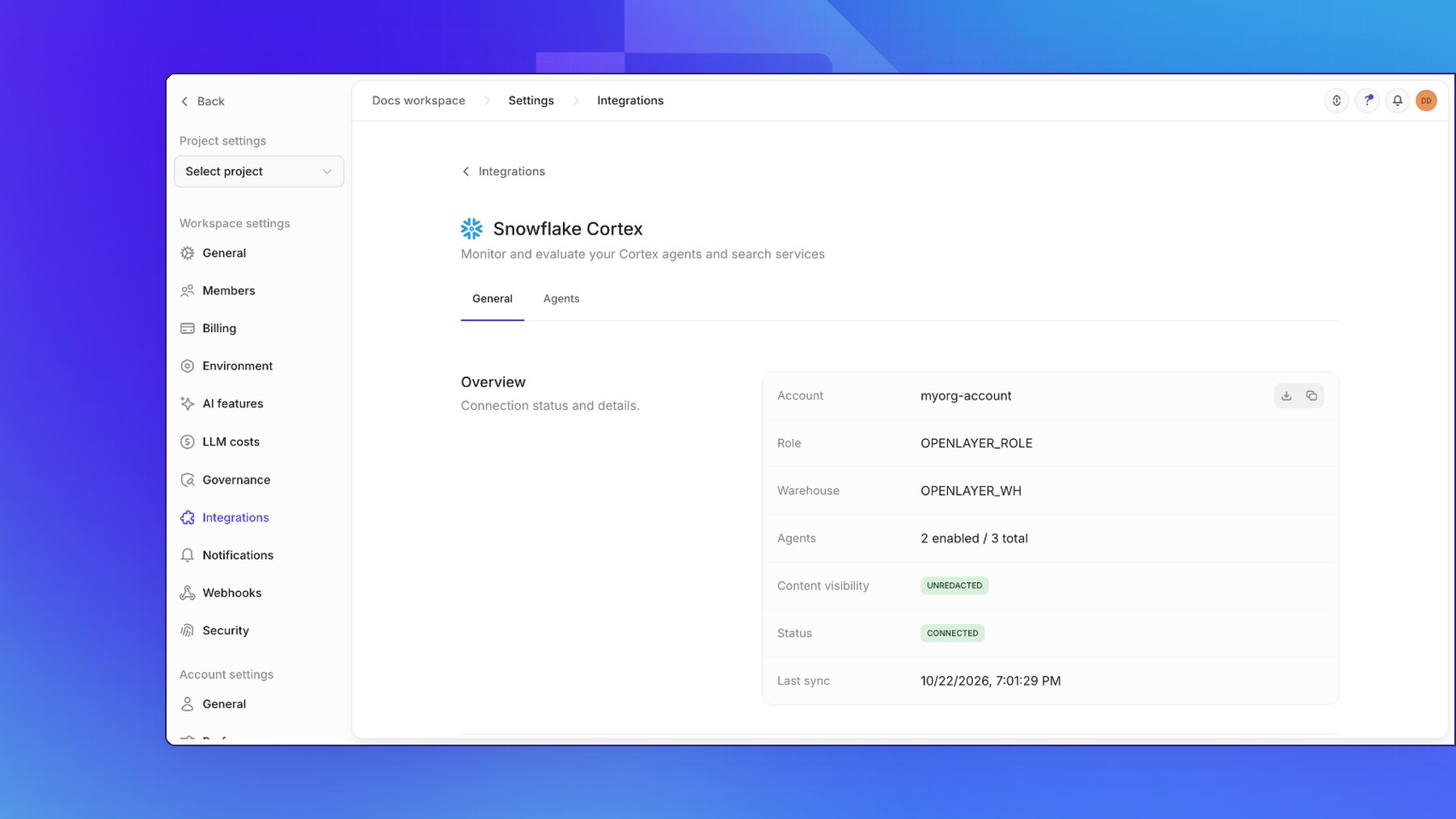
SHOW AGENTS returns only objects your role holds a privilege on, with no
error when the list is incomplete. If an agent you expect is missing, check
the MONITOR grants for its schema. Openlayer surfaces a warning when the
inventory may be partial.What gets synced
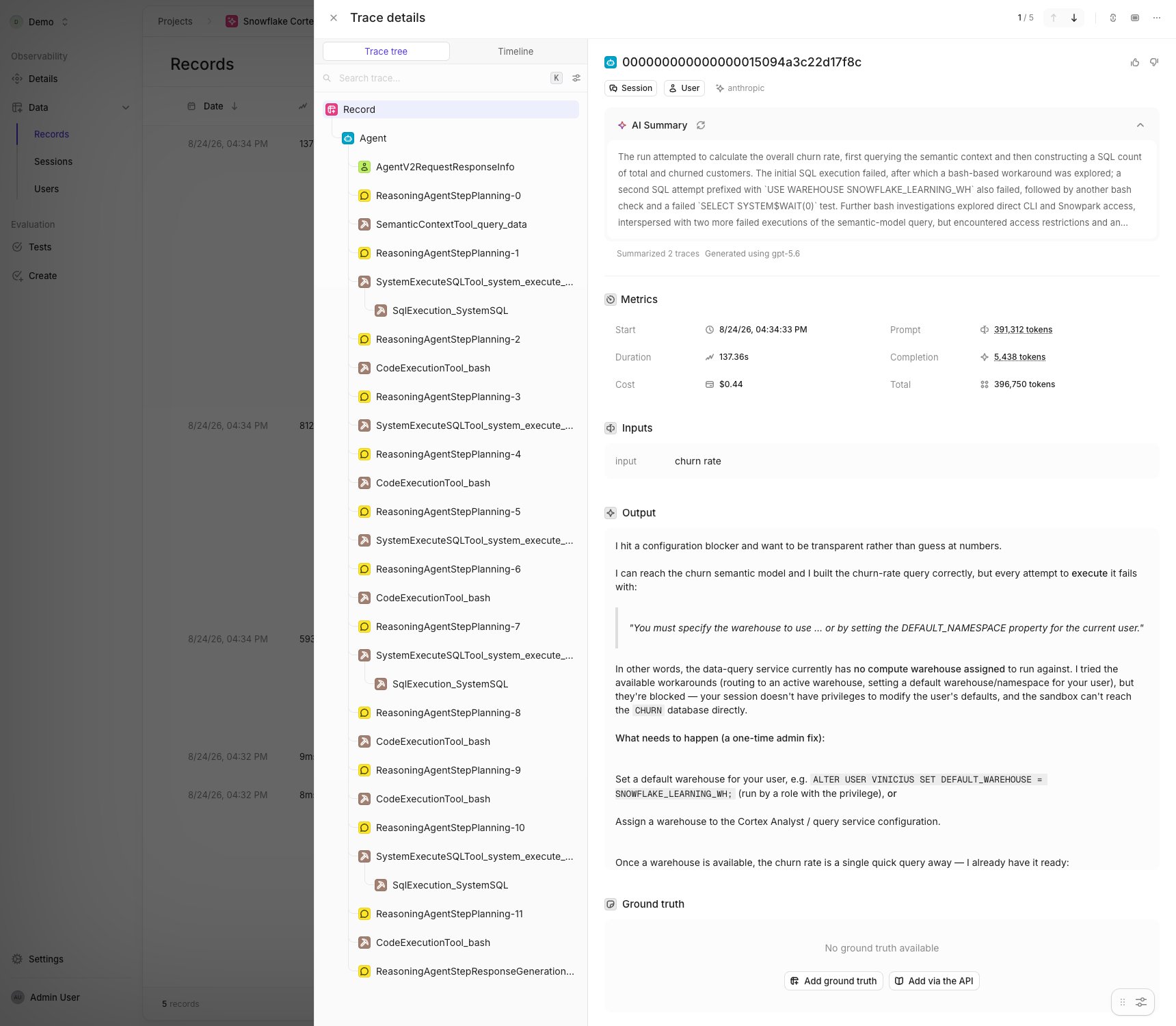
Openlayer maps each Cortex trace onto its own trace format:
Each trace also carries the Snowflake user, session, and role that ran it, so you can filter
and group by who invoked the agent and under what privilege.
Token accounting
Cortex reports prompt tokens inclusive of cache reads and writes. Openlayer breaks them into a non-overlapping set —input_tokens, cached_tokens, cache_creation_tokens, output_tokens — so cost
estimates do not double-count cached input. Multi-turn agents frequently see high cache-hit rates, so any
figure that ignores this is materially wrong.
Settings
Backfilling history
To re-read a window that has already been polled — or one older than your initial sync range — open the ⋯ menu on an agent row and choose Backfill. Backfill runs independently of the ongoing sync: it drains its own window while normal polling continues forward, so recent traces keep arriving while history fills in behind them. Duplicate records are filtered automatically, so re-running a backfill is safe.Backfill drains in windows rather than in one query, so a large range takes
several sync cycles to complete. Progress is shown on the agent’s row.
Troubleshooting
Connect fails or times out with an organization account. Organization accounts use a hyphen (myorg-account), not a dot (myorg.account).
Connect times out before Snowflake responds.
Resume the warehouse if it is suspended. If the Snowflake user has a network policy, allowlist Openlayer’s
NAT IPs.
No agents appear after clicking Discover.
Your role likely lacks MONITOR on the schema containing them. SHOW AGENTS silently omits objects the
role cannot see. Re-run the grant monitor on all agents in schema ... statement for each relevant schema.
Traces sync but contain no prompts or responses.
The READ UNREDACTED AI OBSERVABILITY EVENTS TABLE privilege is missing. Openlayer shows content
visibility on the integration page — if it reads redacted, grant the privilege as ACCOUNTADMIN and
re-sync.
The connection status shows an error after a sync.
Openlayer distinguishes credential failures, which stop the whole connection, from per-agent failures,
which skip that agent and continue. The error message on the integration page names the most recent
failure. A dropped or renamed agent in Snowflake is skipped rather than treated as a credential problem;
the next discovery marks it as removed.
An agent shows zero synced traces.
Confirm the agent has activity inside your configured sync range. Cortex writes traces only when an agent
actually runs, and the initial range defaults to the last 7 days — use Backfill to reach further back.