


How it works
Openlayer connects to your ElevenLabs account and automatically:- Discovers your agents: finds every ElevenAgents agent visible to your API key, on connect and on each sync.
- Creates projects and data sources: each enabled agent gets its own Openlayer project and inference pipeline, with no manual setup required.
- Syncs conversations: periodically pulls new conversations. Each agent turn becomes a row (so per-response tests work out of the box), and the turns of one call are grouped into a session.
- Attaches the recording: the whole-call audio and ElevenLabs’ call analysis are attached to the session, powering the session page’s Audio view.
All access is read-only. Openlayer lists conversations, reads their
transcripts and analysis, and downloads recordings. It never modifies your
ElevenLabs agents or data.
Prerequisites
One thing: an ElevenLabs API key.- In ElevenLabs, go to your profile → API keys.
- Create a key. If you restrict its permissions, it needs read access to Conversational AI (conversations and audio).
- Copy the key — you’ll paste it into Openlayer below.
Setup guide
Step 1: Navigate to the integration
In your Openlayer workspace, go to Settings → Integrations and find the ElevenLabs Agents card. Click Enable.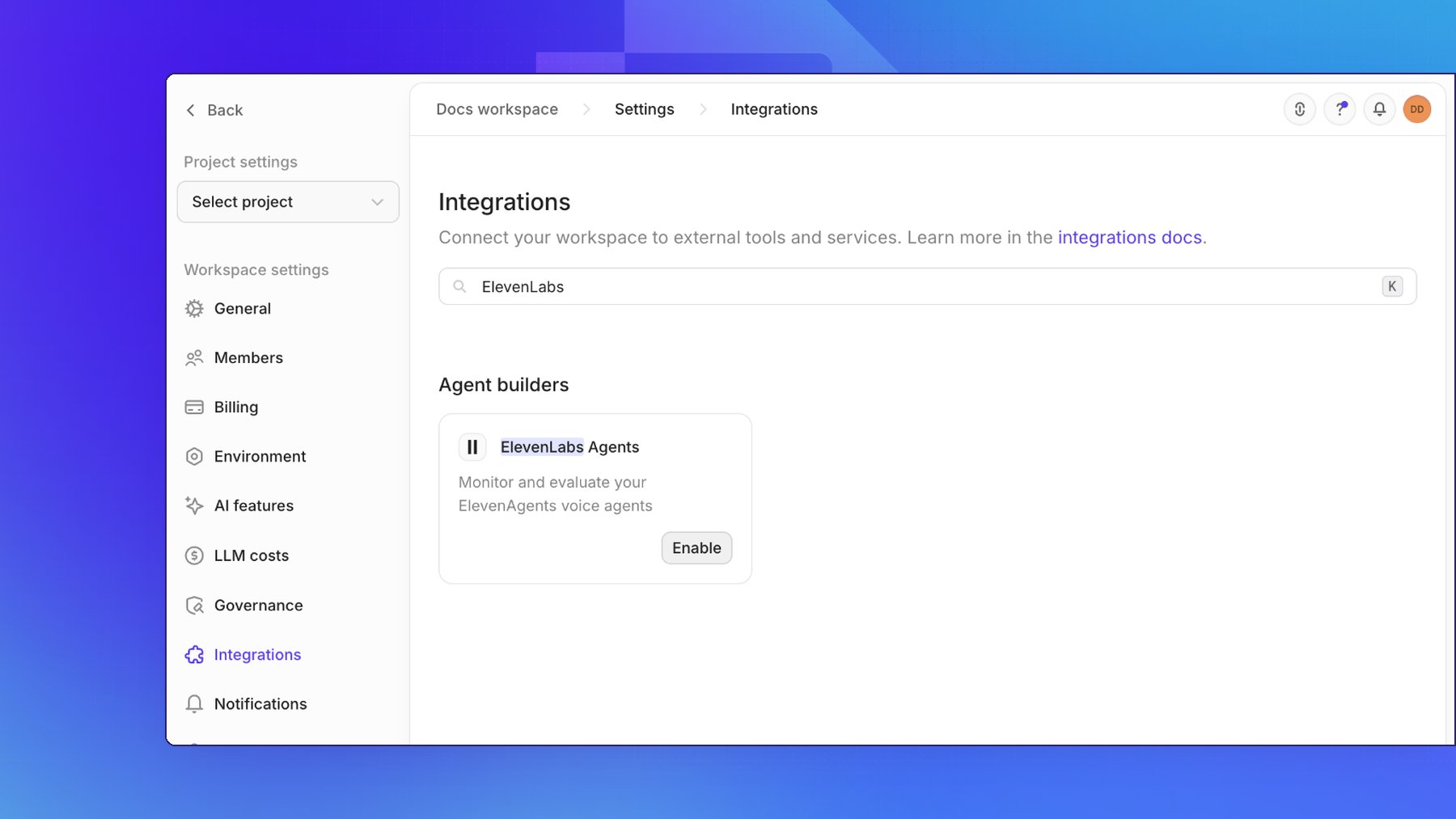
Step 2: Connect your account
Paste your ElevenLabs API key into the connect form. If your workspace uses data residency, select its Region:- Global (default)
- EU data residency
- India data residency
- Singapore data residency
Step 3: Configure sync settings
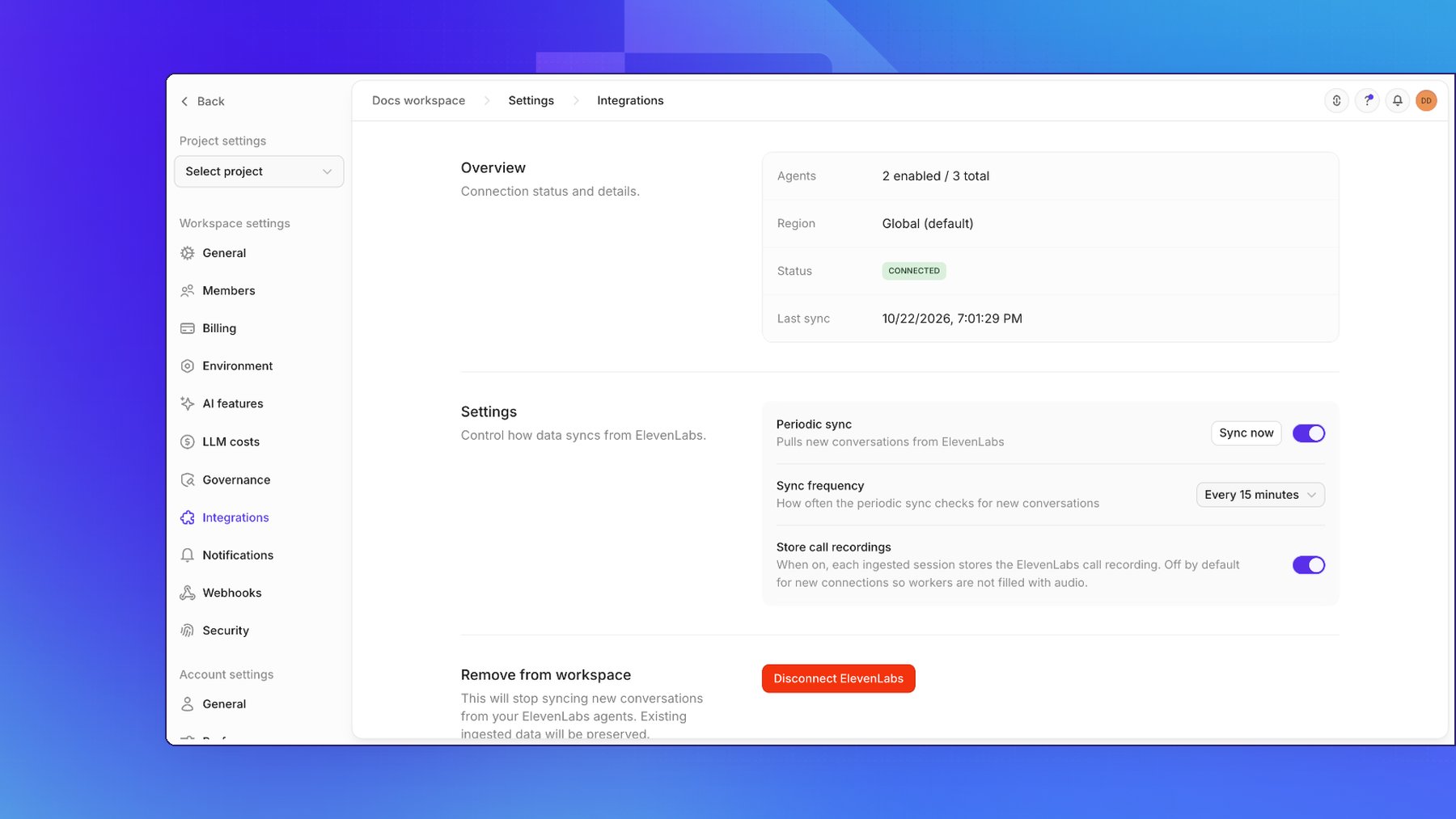
Once connected, the Overview shows the region for the connection. To switch regions, disconnect and reconnect with the matching region and API key. Your existing imported projects, pipelines, and data are preserved. Control how data flows:- Periodic sync: toggle automatic syncing on or off. You can also click Sync now at any time.
- Sync frequency: every 15 minutes, every 30 minutes, or hourly.
- Store call recordings: when on (the default), the conversation audio is attached to each session. Turn it off for transcript-only ingestion — see Audio storage and privacy.
Step 4: Enable agents
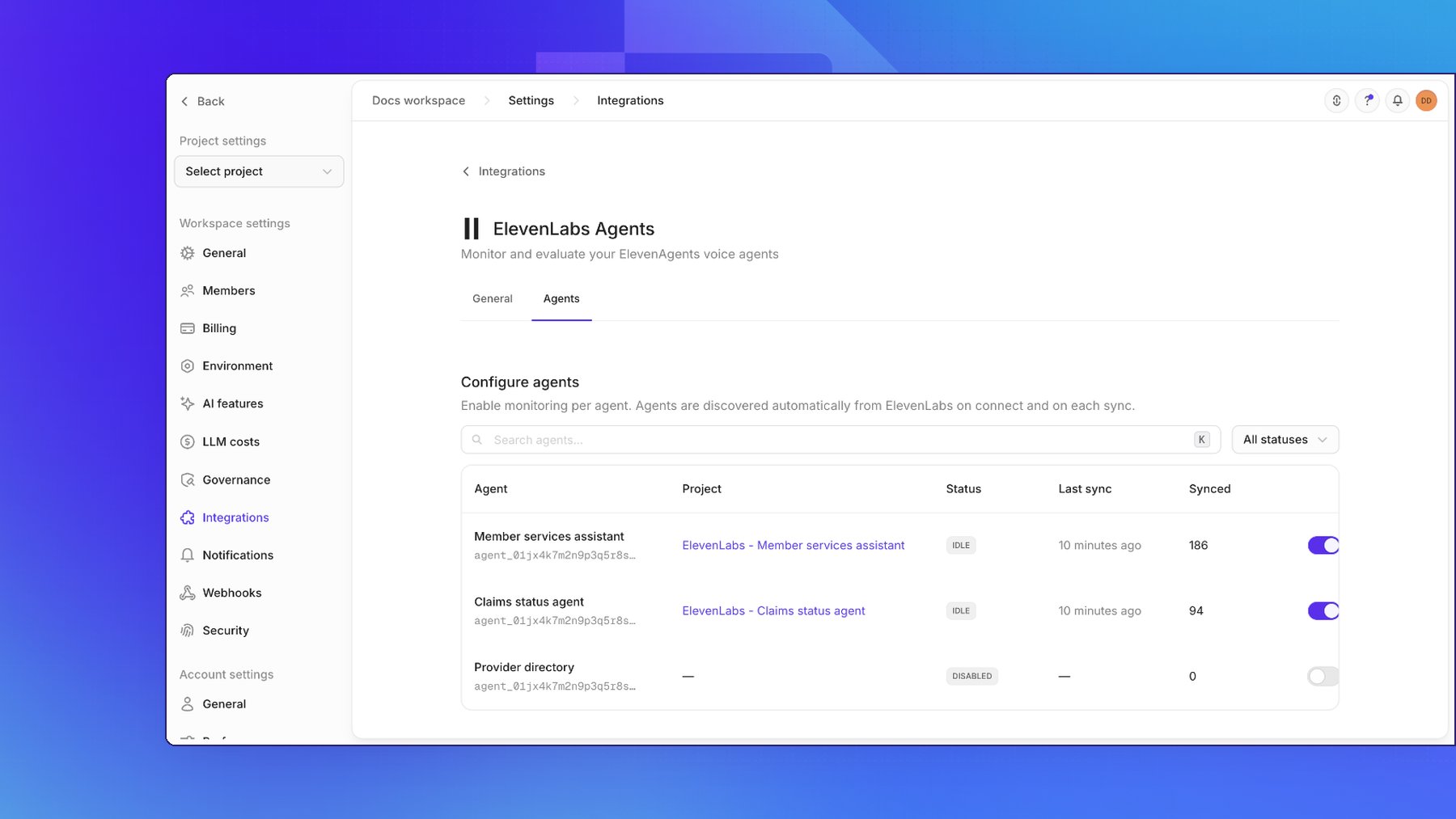
On the Agents tab, turn on the switch for each agent you want to monitor. The Enable dialog lets you choose between:- Create new project (default): Openlayer creates a project named
ElevenLabs - <agent name>with a default inference pipeline linked to the agent. - Map to existing project: route the agent’s conversations into a project you already have.
Monitoring in Openlayer
Every synced conversation appears in the agent’s project as a session whose rows are the agent’s turns. Each turn carries the user’s utterance, the agent’s reply, latency, token usage, per-turn LLM cost, and any tool calls or knowledge-base retrievals as trace steps.The Audio view
Sessions with a recording open in the Audio view. The main pane contains the recording, call analysis, and call metadata, with the transcript alongside: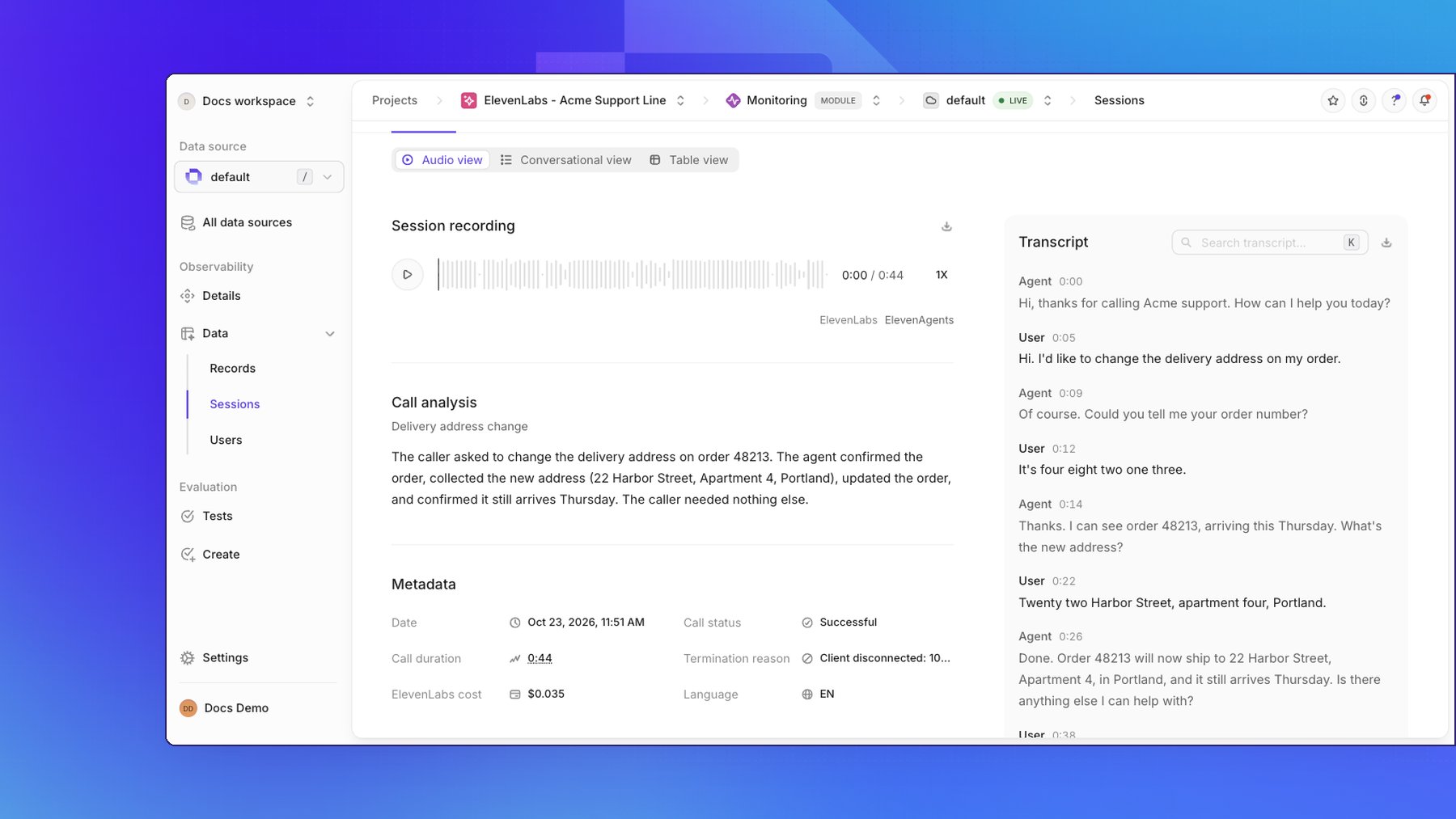
- Session recording: seek by clicking or dragging the waveform, press Space to play or pause, choose a playback speed, and download the recording from the section header.
- Call analysis: ElevenLabs’ own summary and evaluation of the call.
- Metadata: beneath call analysis, view the call’s Date, Call duration, Call status, Termination reason, Language, and ElevenLabs cost.
- Transcript: follow the conversation by speaker and timestamp, search it, and download it as plain text. When audio is present, click a timestamped line to seek the recording to that point.
Backfill historical data
To import conversations that occurred before the integration was connected (or before an agent was enabled), open the agent’s options menu and click Backfill. Choose:- All available history: re-sync every conversation ElevenLabs still retains for the agent.
- Custom start date: sync conversations from a specific date forward.
Run evaluations
With conversations flowing in, you can:- Create tests to score response quality per turn or per session
- Track safety and compliance metrics on transcripts
- Monitor latency, token-usage, and cost trends
- Compare agent behavior across versions
Audio storage and privacy
Transcripts pass through your workspace’s standard PII redaction before they are stored, including ElevenLabs’ free-text call analysis. Audio cannot be redacted: recordings are stored exactly as ElevenLabs provides them. If storing raw call audio doesn’t fit your data policies, turn Store call recordings off in the integration settings — conversations then ingest with transcripts and analysis only, and the Audio view simply omits the player. Data imported into Openlayer is retained until you delete it in Openlayer; deleting a conversation on the ElevenLabs side does not remove the copy already ingested.Disconnecting
To disconnect the ElevenLabs integration:- Go to Settings → Integrations → ElevenLabs Agents
- Click Remove ElevenLabs from workspace