

How it works
Once connected, Openlayer:- Registers targets — discover or register AIP Chatbots, and register AIP Logic functions by function RID or Query API name.
- Links Openlayer projects — enabling an agent or function links it to an Openlayer project and inference pipeline. These projects display a Foundry mark in the projects list, project header, sidebars, command menu, and configured integrations.
- Syncs executions — polls the Chatbot Studio session-log stream for agents and one or more OpenTelemetry telemetry streams for AIP Logic functions.
- Builds traces — maps each completed production execution into an Openlayer trace.
Cron sync uses the Chatbot Studio session-log dataset rather than AIP Agents
v2
listSessions. That API only returns sessions for the calling user and
originating client, so it does not expose Studio traffic from other users.Prerequisites
Before connecting, you need:- A Foundry enrollment with at least one AIP Chatbot or AIP Logic function.
- OAuth2 client credentials for a third-party application or a bearer token. The application or token must be allowed to use the Foundry APIs below.
- The appropriate log export created by a Foundry Org Admin:
- For AIP Agents, a Chatbot Studio session-log export using the Palantir JSON schema.
- For AIP Logic, a log export using the OpenTelemetry schema that covers the projects containing the functions you want to monitor.
- An Openlayer workspace where you are an admin.
https://example.palantirfoundry.com, with no path.
For a restricted Developer Console application, allow the matching
api:use-*
operations and resources in Application
restrictions.
Openlayer does not request specific scopes when exchanging client credentials,
so the application’s Foundry restrictions and service-user permissions
determine what the token can access. A bearer token must carry equivalent API
access. Functions and Ontologies access are optional for AIP Logic: without
them, a target registered by RID keeps its RID as a placeholder name. To name
a Logic file, the service user also needs at least Viewer access to the
project that contains it.Create the log exports
In Control Panel, a Foundry Org Admin selects the organization and opens Log observability settings. Create an export that covers the relevant projects, then copy its streaming dataset RID. Use the Palantir JSON schema for the AIP Agent session-log export. Use the OpenTelemetry schema for the AIP Logic telemetry export. These are separate streams; do not use the Palantir JSON schema for AIP Logic. Allow up to five minutes for rows to appear.Set up the integration
Step 1: Connect your enrollment
- In Openlayer, go to Settings → Integrations.
- Select Palantir Foundry.
- Under Connect, enter:
- Enrollment URL — your HTTPS Foundry enrollment hostname with no path.
- Authentication — select OAuth2 client credentials or Bearer token.
- For OAuth2 client credentials, enter your Client ID and Client secret.
- For Bearer token, enter your Bearer token.
- Session-log dataset RID (optional) — the RID from your Org Admin’s log export.
- Stream branch — the dataset branch, which defaults to
master.
- Click Connect.
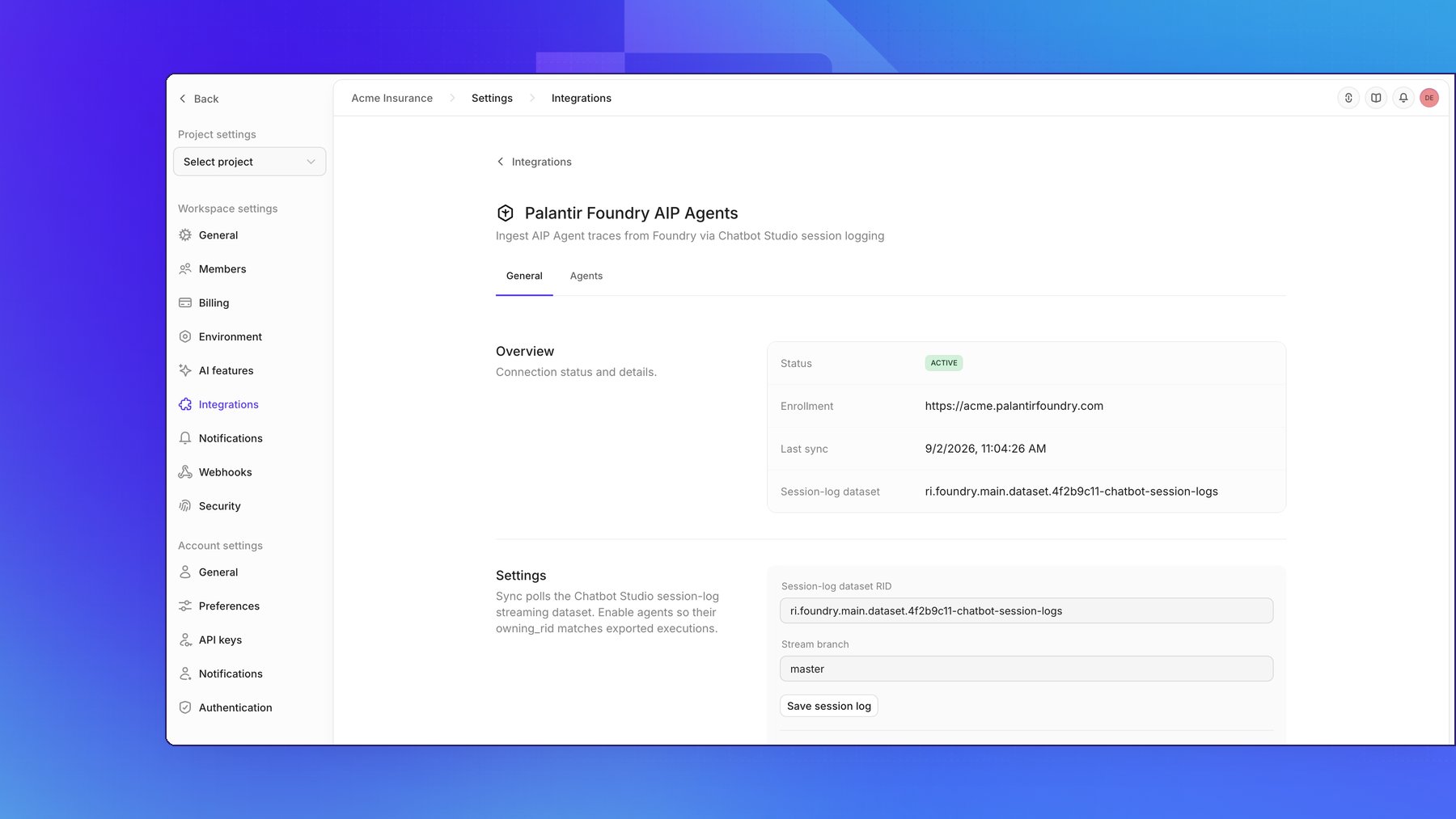
You can connect without entering a dataset RID. Ingestion for each target type
remains inactive until you configure its corresponding stream under
Settings.
Step 2: Discover or register AIP Agents
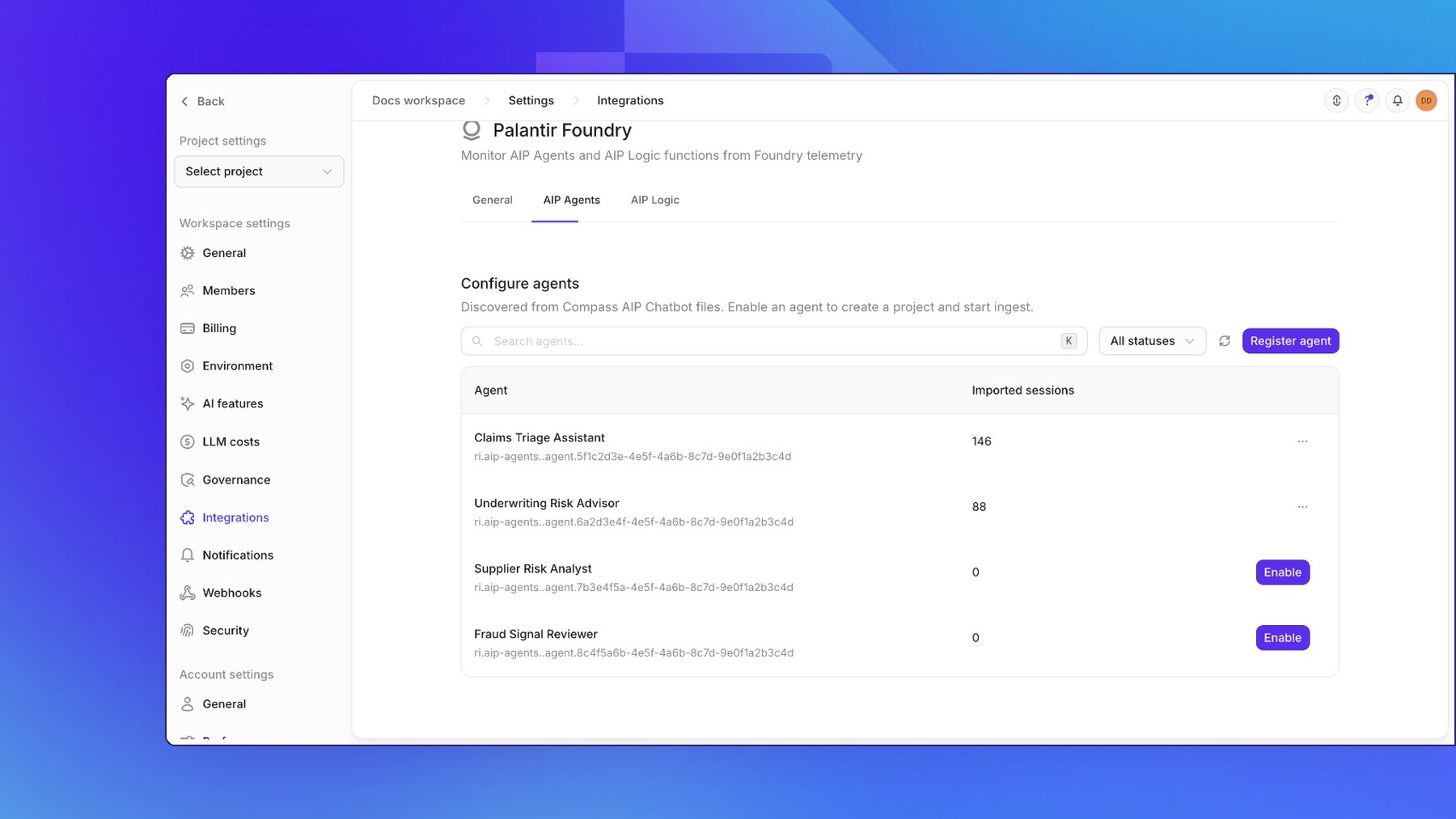
On the AIP Agents tab, click Discover agents (the refresh button once agents are listed) to walk the Compass folders visible to your credentials for AIP Chatbot files. You can also click Register agent and provide either:- The agent RID from the Chatbot Studio URL.
- A Foundry filesystem path, such as
/Org/Project/My Agent.
AIP_AGENTS_AGENT type.
Step 3: Enable chatbots
Click Enable for each chatbot you want to monitor. Openlayer links a project and inference pipeline, then starts ingesting matching executions. The AIP Agents tab shows each chatbot and its number of imported sessions. To stop ingesting future traces for a chatbot, open its Agent options menu and select Disable. Existing traces remain available.Step 4: Configure log streams
On the General tab under Settings, enter the Session-log dataset RID for AIP Agents, then click Save session-log stream. For AIP Logic, add each OpenTelemetry export under Telemetry streams with Add stream. A connection can read several exports. Each stream is synced and backfilled on its own and shows its own status, so a failing stream does not stop session-log sync or the other streams. Every stream feeds every enabled AIP Logic function on the connection, and executions already stored are skipped, so overlapping exports do not create duplicate runs. Openlayer reads a stream once before adding it to check access. The add is rejected if the dataset RID is invalid, the stream is already added, or Openlayer cannot read it. Reading requires Streams API access (api:streams-read) and Viewer access to the dataset. The stream’s first sync is queued when it is
added. Remove stream stops reading a stream and keeps registered functions, projects, and stored runs.
Connections that had a single telemetry dataset RID keep it as their first telemetry stream, continuing
from where it left off.
Turn on Periodic sync to poll the session-log stream and every telemetry stream every 15 minutes, or
click Sync now to queue a manual sync. Periodic sync requires at least one dataset RID and access to
the Streams API.
Under Connection health, click Test connection to check your stored credentials. Openlayer reports
invalid credentials, missing API access, missing resource permissions, or Foundry availability
problems separately.
Monitor AIP Logic query functions
Before registering a function, configure the OpenTelemetry log export in Foundry and add it under Telemetry streams on the General tab. AIP Logic ingestion remains inactive until you add at least one telemetry stream. On the AIP Logic tab, select Register function and identify the function by Function RID or Query API name. Registering by function RID is recommended and works for functions that are not published as Queries. Registering by Query API name requires access to the Functions API to resolve the RID. When you register by function RID, Openlayer uses the Functions API, if allowed, only to fetch the function’s Foundry display name and description. You can also register a Logic file RID (ri.eddie.…) or an action type RID (ri.actions.…).
When Foundry cannot name a target registered by RID, Openlayer still registers it and shows the RID as a
placeholder name:
- A function takes its name from its next synced execution, with no extra access. Backfill history also names it from executions that are already stored. A project Openlayer created for the function is renamed with it while the project still has its generated name.
- A Logic file or action type needs the access listed under Prerequisites. After you grant it, register the target again.
Ingest a single session
The session-log stream is the primary sync source. If you have a gateway-originated session’s three identifiers, you can ingest that session directly:- Open the chatbot row’s Agent options menu and select Ingest.
- Enter the Session RID and Session trace ID. The agent RID is already known from the chatbot row.
- Click Ingest.
getSessionTrace and only works when you have the IDs from the originating client.
Palantir documents that these sessions expire after approximately 24 hours.
Trace mapping
AIP Chatbots
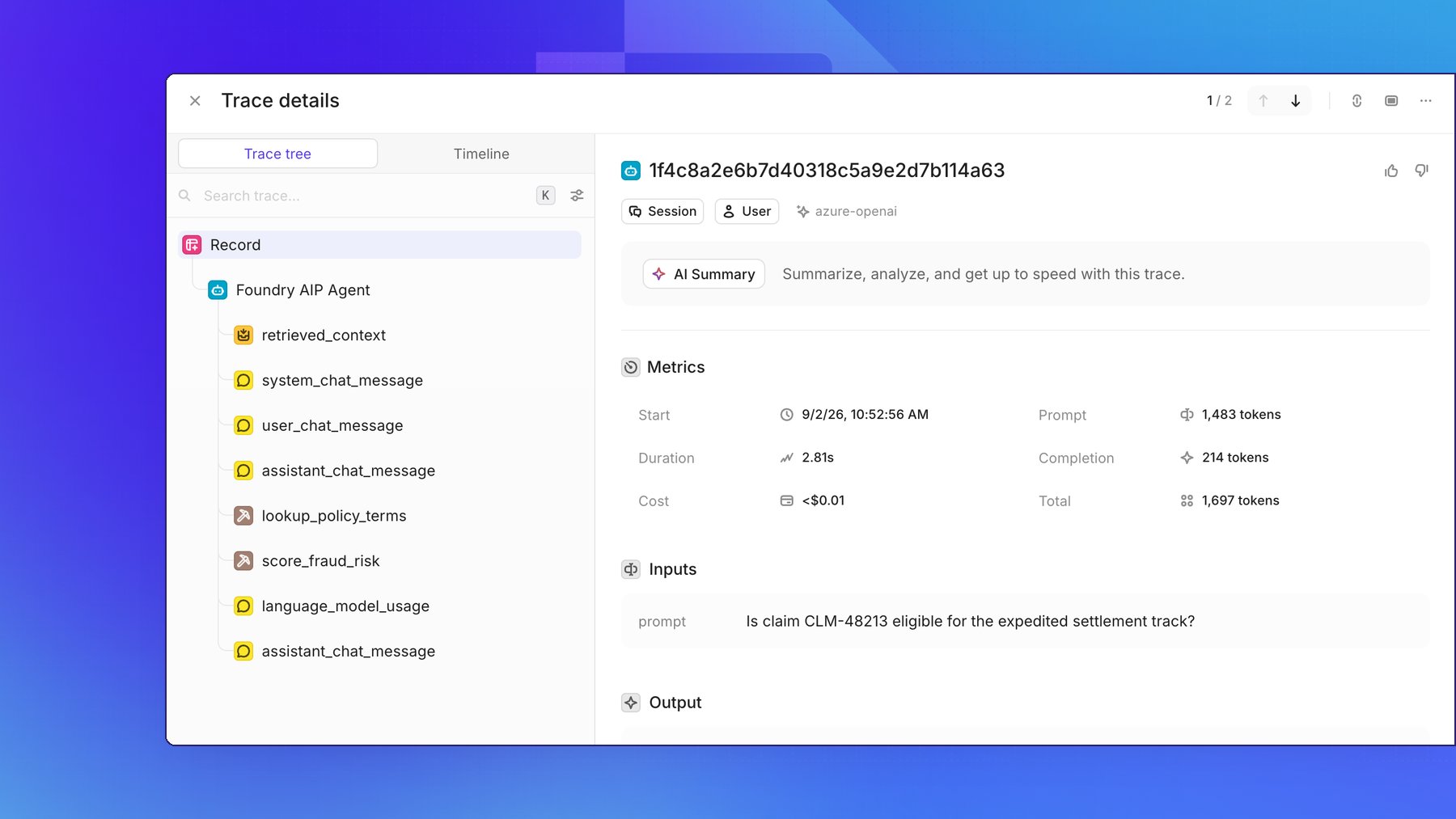
Openlayer maps Palantir JSON session-log events as follows:
Model, token, and cost data appear only when sibling language-model usage events share the same
traceId.
Chatbot events do not always include these usage events.
AIP Logic functions
Each call to a registered function becomes its own run, rooted at that function’s execution. When an AIP Chatbot or another function calls a registered function, each call counts as a separate run, and the caller’s own steps are not included in the function’s trace.
Other spans appear as regular steps. Chat completion steps include the prompt, completion, and token data
when those fields are present in the telemetry export. Because Foundry does not export the provider or
cost, Openlayer infers it for OpenAI (
gpt-, chatgpt-, and o-series), Anthropic (claude), Google
(gemini), Mistral (mistral, mixtral, codestral, and ministral), and xAI (grok) model families.
Cost is estimated at the model family’s list price. Other model families show no provider or cost.
Every other field Foundry exports for a step is kept in the step’s metadata under a single nested
foundryExport value, grouped by the part of the export it came from, such as logAttributes,
resource, or request. Because the value is nested, these fields are not separate filterable metadata
columns.
Disconnecting
To disconnect, open Settings → Integrations → Palantir Foundry and click Disconnect. Disconnecting stops syncing and deletes registered AIP Agent and AIP Logic function records. Existing Openlayer traces are preserved.Troubleshooting
Sync fails with a missing dataset RID. Configure the stream for the target type under Settings: the session-log dataset RID for AIP Agents, or a telemetry stream for AIP Logic. AIP Agent session logs use the Palantir JSON schema; AIP Logic telemetry uses the OpenTelemetry schema. No chatbots appear after discovery. Discovery only findsAIP_AGENTS_AGENT Compass files. Confirm that the application is allowed to use the
AIP Agents and Filesystem APIs and that its service user can see the folders containing your chatbots. You
can also register a chatbot by RID or filesystem path.
Test connection reports “Foundry rejected these credentials.”
For OAuth2 client credentials, confirm the Client ID and Client secret. For bearer token
authentication, confirm the Bearer token.
Test connection reports “Foundry accepted these credentials but the application is not allowed to use
the Filesystem API.”
Allow the named API for the application in Foundry, then reconnect. For a restricted Developer Console
application, update its operation restrictions. For a legacy OAuth client, add the corresponding
api:* scope.
Test connection reports “Missing resource permissions.”
Confirm that the Foundry service user can access the requested chatbot, filesystem, or session-log
resource.
Foundry denies an API call.
The error names the denied call. Confirm that the application is allowed to use that API and that its
service user can see the requested resource.
Test connection reports “Could not reach Foundry.”
Confirm that the enrollment URL is an available HTTPS hostname with no path, then try again.
An enabled chatbot has zero traces.
Confirm that the session-log export covers the chatbot’s project, uses the Palantir JSON schema, and has
started receiving rows. The chatbot must be enabled, and executions remain pending until they include a
final_response or execution_error.
An enabled AIP Logic function has zero runs.
Confirm that a telemetry stream’s export uses the OpenTelemetry schema, covers the function’s project,
and has started receiving rows. If a stream under Telemetry streams shows error, hover the status
to see its last error. Confirm that you registered the function’s RID; registering by RID is the recommended
path. Executions appear on the next sync after they reach the export. For executions that ran before
you registered the function, use Backfill history on the AIP Logic tab. Openlayer waits for a
run’s top-level span before writing the run, so a run whose top-level span arrives after its steps, which
is common during backfill, can take up to about 30 minutes to appear.
An AIP Logic chat completion step has no cost.
Openlayer estimates cost only when the model name matches its price list. An unrecognized model family
shows neither a provider nor cost; a recognized family can show a provider without cost when its model
name does not match the price list. Existing stored runs are not repriced, and Backfill history skips
runs that are already stored.
Adding a telemetry stream is rejected.
Confirm that the dataset RID is the export’s streaming dataset RID and is not already added. The
application needs Streams API access (api:streams-read), and its service user needs Viewer access to the
dataset.
An AIP Logic function or project shows a RID instead of a name.
Foundry could not name the target when you registered it, so Openlayer kept the RID as a placeholder. A
function is named on the next sync that reads one of its executions; use Backfill history if it has
no new executions. For a Logic file or action type, grant the access listed under
Prerequisites, then register the target again. See
Monitor AIP Logic query functions.
A single-session ingest is not ready.
Confirm that getSessionTrace reports a complete session and that you entered the correct session trace
ID. Path A sessions expire after approximately 24 hours.