

How it works
Once connected, Openlayer:- Discovers AI apps. Each app Island reports appears as a product, such as Claude AI, Gemini, or Island Chat.
- Maps each app to one project. By default, a discovered app gets an
Island · <app>project. You can instead map it to an existing project and pipeline. Every connection that sees the app writes to that same project. - Pulls on a schedule. The first sync reads the previous 7 days. Later syncs bring in new conversations.
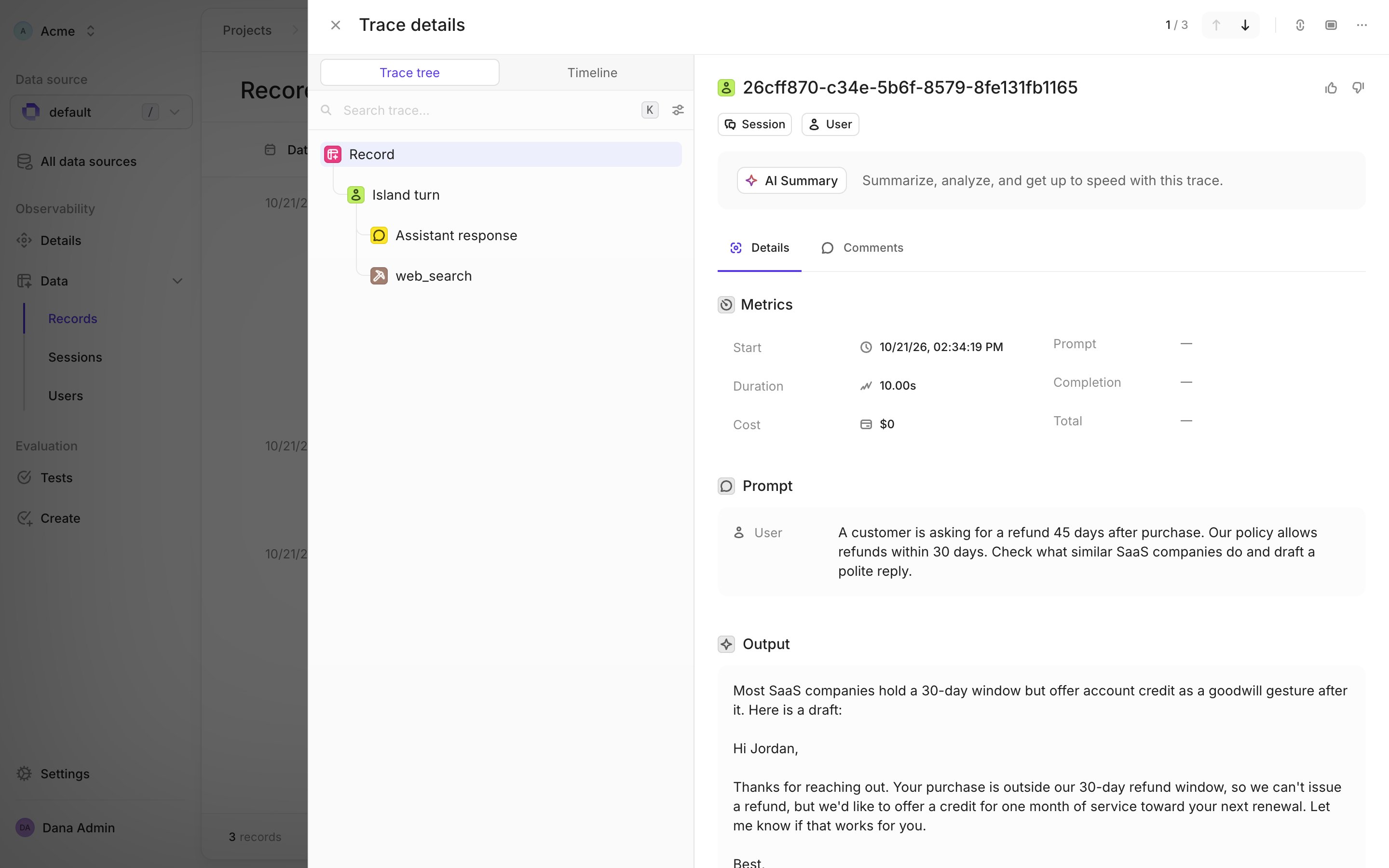
- Preserves conversations and turns. Each Island conversation becomes one Openlayer session, and each user turn becomes one trace.
Prerequisites
- An Island tenant with AI Protect capturing AI conversations.
- An Island API key with the Security Admin role, the smallest built-in role that can both view AI events and read their conversation content. Full Admin also works. Read Only and AI Protection Admin do not: Read Only cannot read conversation content, and AI Protection Admin cannot view AI events.
- An Openlayer workspace where you are an admin. Connecting and configuring Island are admin-only actions.
Create the Island API key
In the Island Management Console, go to System Settings → Integrations → API → Create. Create the key with the Security Admin role, then copy the key.Openlayer only reads from Island: AI events and their conversation content.
Island lets a role open conversation content only when that role can also edit
Content Monitoring, which is why a read-only role is not enough.
Setup guide
Step 1: Connect
A workspace can have several Island connections, for example several Island accounts or API keys. In Openlayer, go to Settings → Integrations, open Island in the AI Usage & Security section, and click Add connection. Name the connection, enter the API key, click Test connection to check both that Island accepts the key and that it can read AI conversation content, then click Connect. The first sync starts immediately. The integrations catalog card shows the connection count, for example Connected · 1 connection or Connected · 2 connections.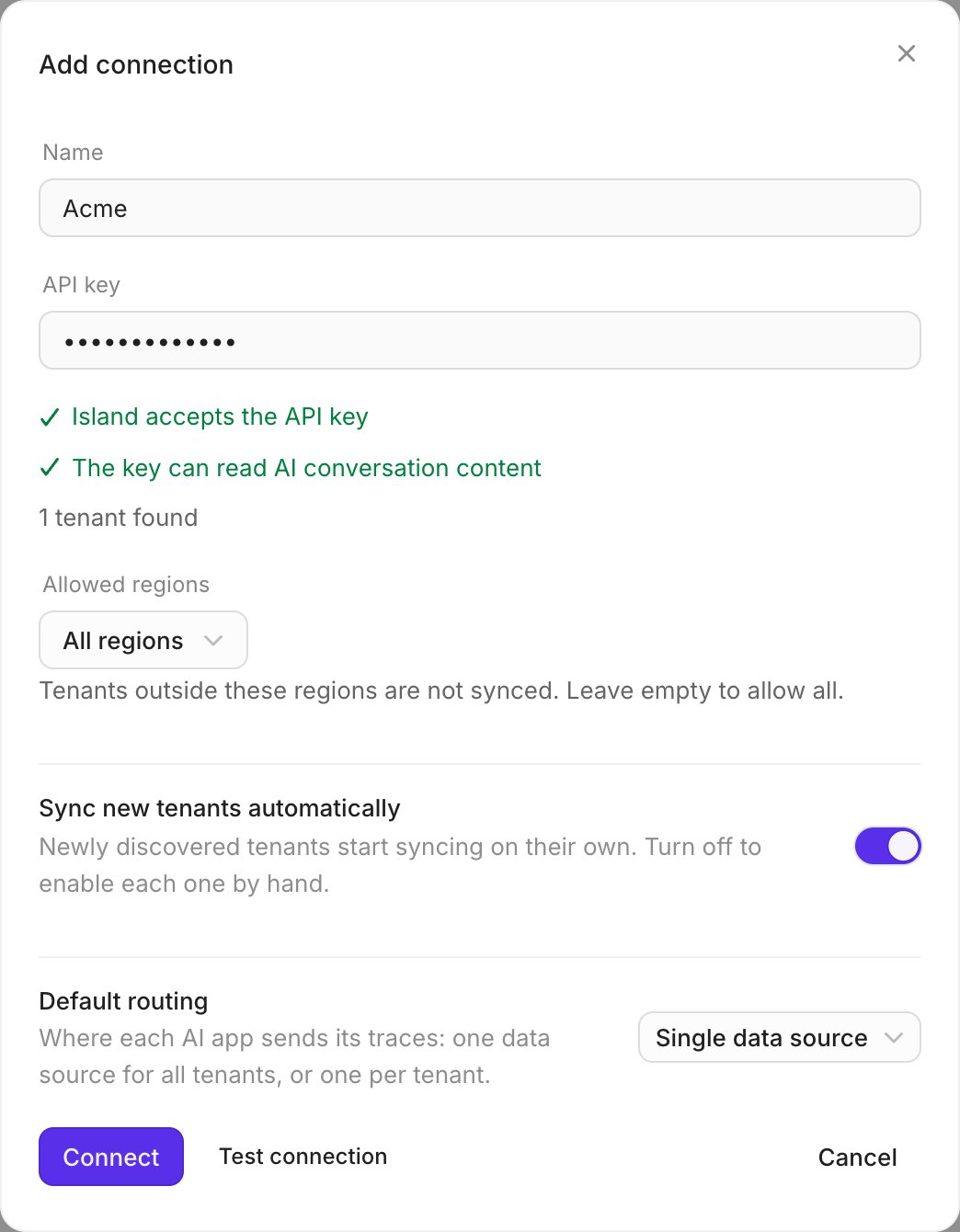
Step 2: Review the sync settings
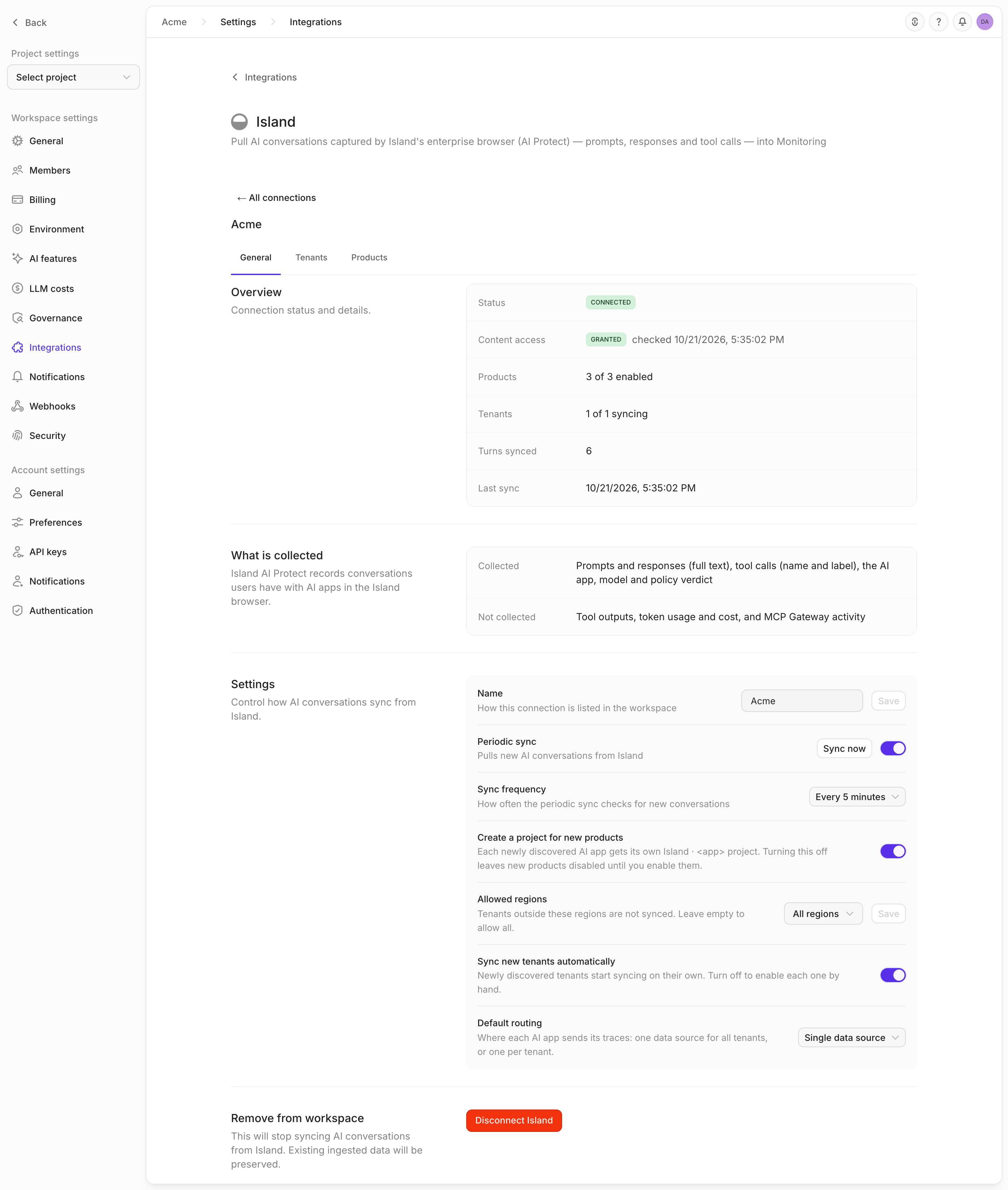
Open the connection’s General tab. Periodic sync is on by default and runs every 5 minutes. You can change the frequency to every 10 minutes, 30 minutes, or hour, pause periodic sync without disconnecting, or click Sync now. The first sync reads conversations from the previous 7 days. There is no earlier backfill. Create a project for new products is on by default. Each newly discovered AI app is enabled into its ownIsland · <app> project. When another connection already syncs that app, this
connection uses the same project. Turn it off to leave newly discovered apps disabled until you map
them yourself.
The overview reports the connection status, Content access, enabled products, tenants syncing,
turns synced, last sync, and the last error.
Products and projects
On a connection, the Products tab lists each AI app Island has reported, the Openlayer project it writes to, its status, imported turns, and when activity was last seen.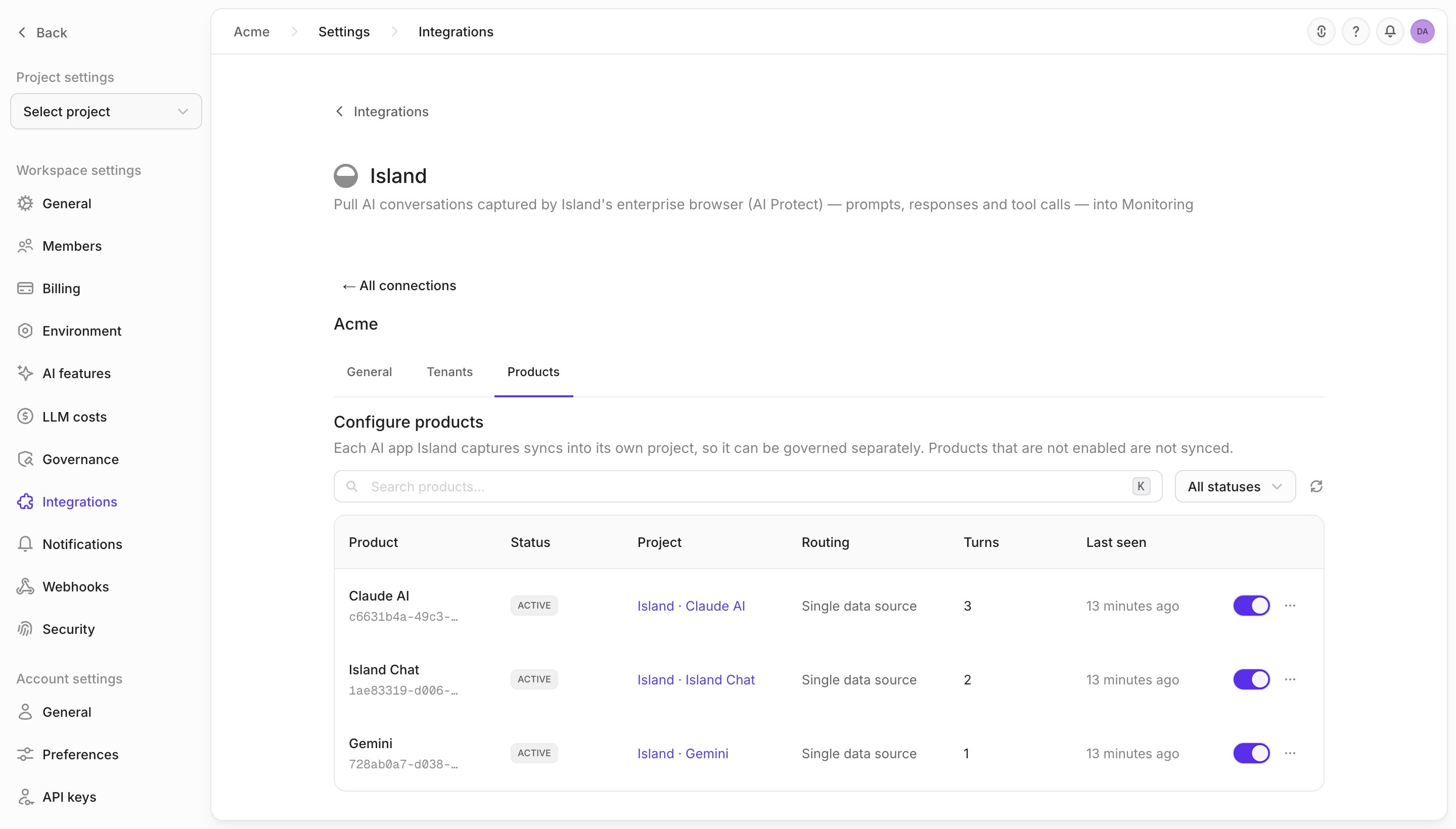
- Create new project — create an
Island · <app>project and pipeline - Map to existing project — choose an existing project and pipeline that uses Openlayer’s default storage
What lands in Openlayer
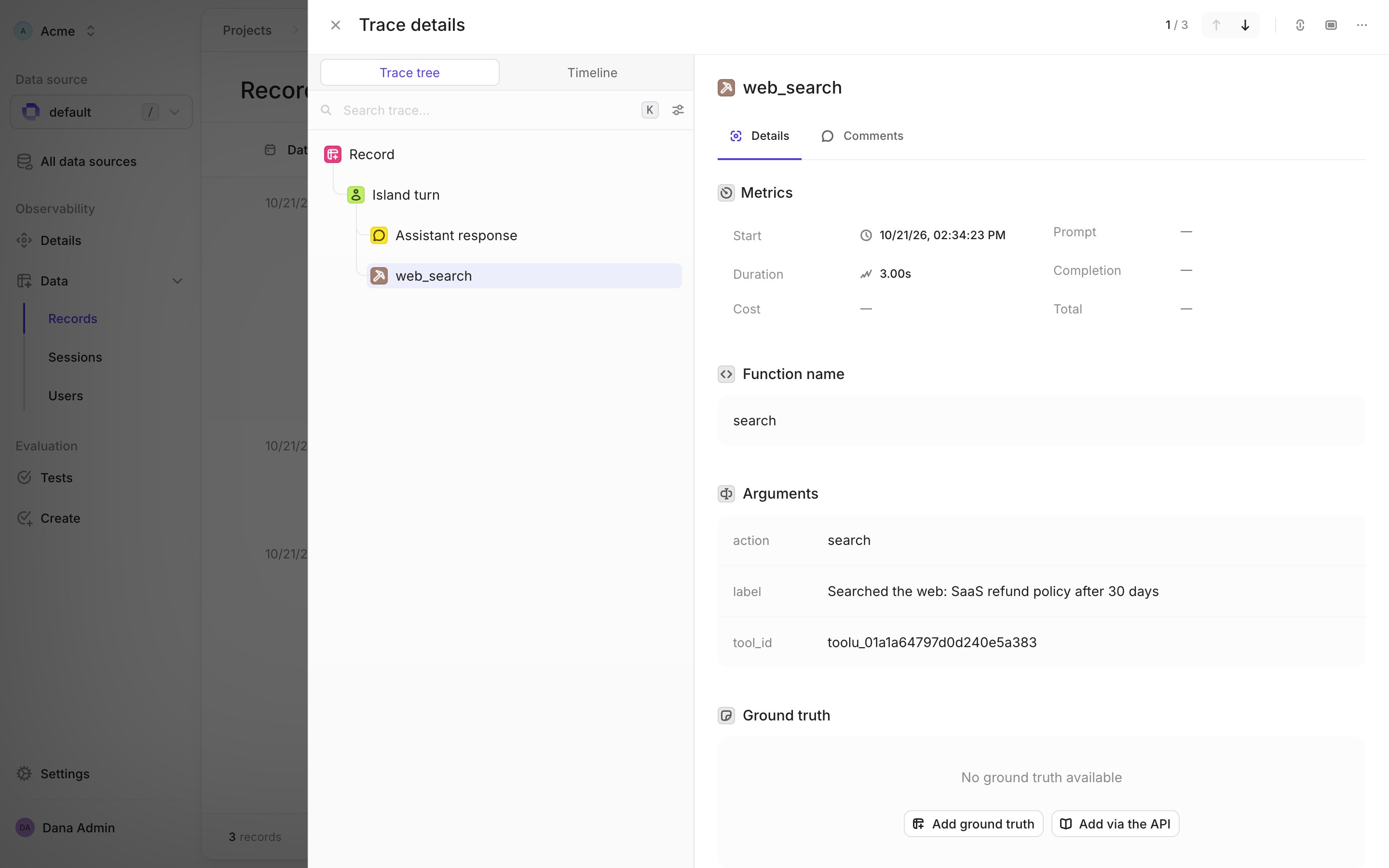
Each Island conversation becomes one Openlayer session. Each user turn becomes a trace containing:- The full prompt and assistant response
- An Assistant response step with the app, provider, and model Island reported
- One tool step per tool call, including its name, label, action, and identifiers
- The conversation title, Island app, user, policy rule, and verdict when Island provides them
Evaluating the ingested data
Once traces are flowing, evaluate Island-captured AI usage the same way you evaluate application traffic:- Create tests to score response quality, safety, or tone
- Detect PII or toxicity in prompts and replies
- Use governance frameworks to evidence AI-usage controls with real traffic
Disconnecting
On the connection’s General tab, click Disconnect Island and confirm Remove Island. Disconnecting stops syncing for that connection and deletes its stored API key and sync state. Other connections keep syncing. Projects, pipelines, and traces already ingested are kept. If you connect again with Create a project for new products on, an app that no other connection syncs gets a newIsland · <app> project. To keep using the previous projects, turn that setting
off and map each app to its existing project.