

How it works
Once connected, Openlayer:- Discovers your agents: reads the agent blueprints from the Parloa Agent Management API
- Creates projects and data sources: each agent you enable gets its own Openlayer project and data source, or routes to an existing one you pick
- Syncs conversations: reads settled conversations from the Parloa Conversation Store API and turns each conversation turn into a trace
All access is read-only. Openlayer never writes data to your Parloa
tenant.
Prerequisites
1. Workspace admin role
Only workspace admins can connect Parloa, change its settings, enable, disable, or backfill agents, and disconnect it. Other members can see the connection and its agents.2. Create an API client in Parloa AMP Studio
Openlayer authenticates with an API client you create in AMP Studio under API clients. Parloa support may need to provision it for you. Give the client these scopes:
One API client can hold all of these scopes. If your tenant gives agent discovery to a separate
client with the Agent reader permission set, create both and enter the second one as the Agent
Management client in Step 2.
Setup guide
Step 1: Navigate to the integration
In your Openlayer workspace, go to Settings → Integrations and find the Parloa card under Agent builders. Click Enable.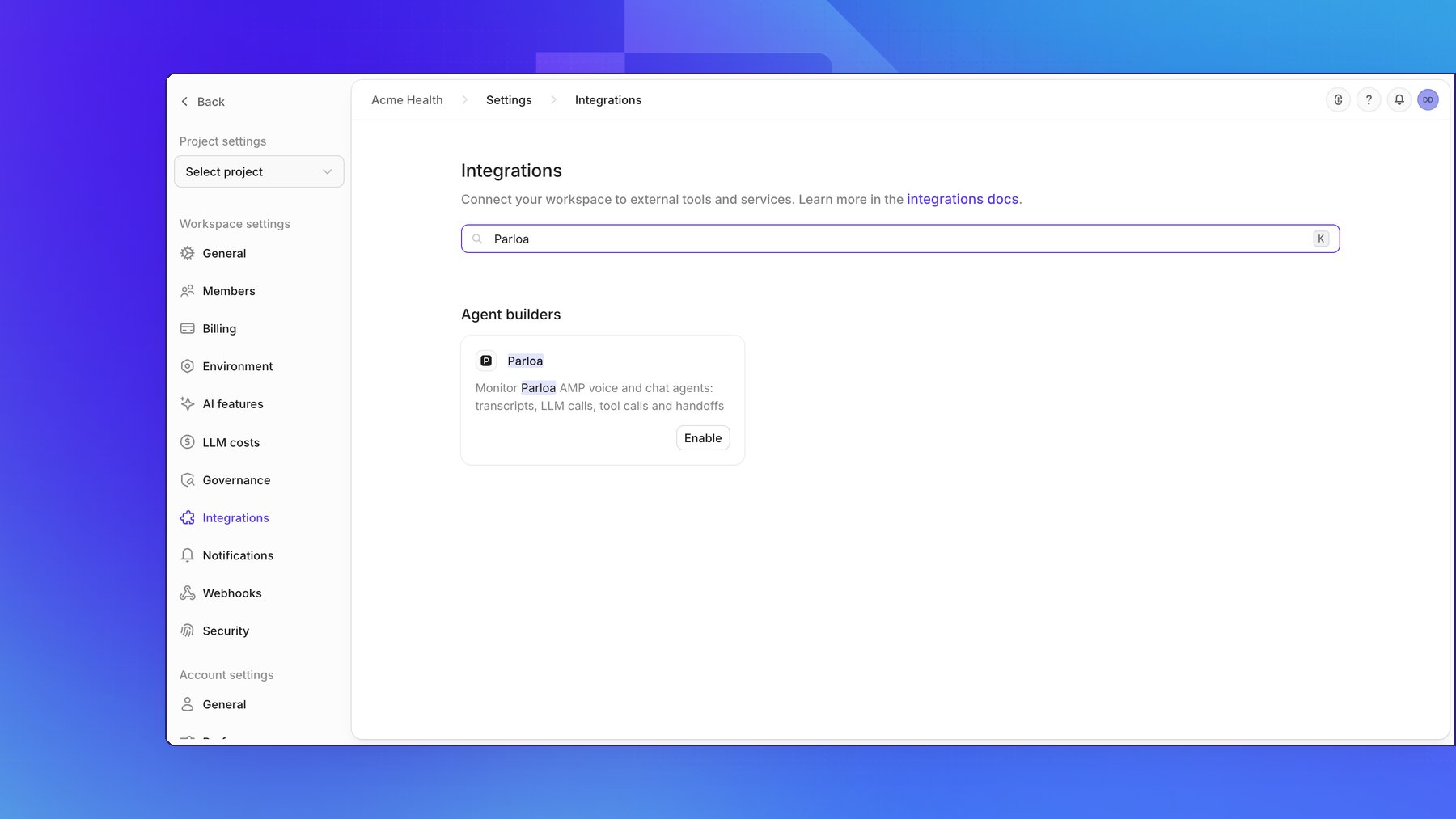
Step 2: Provide your API client credentials
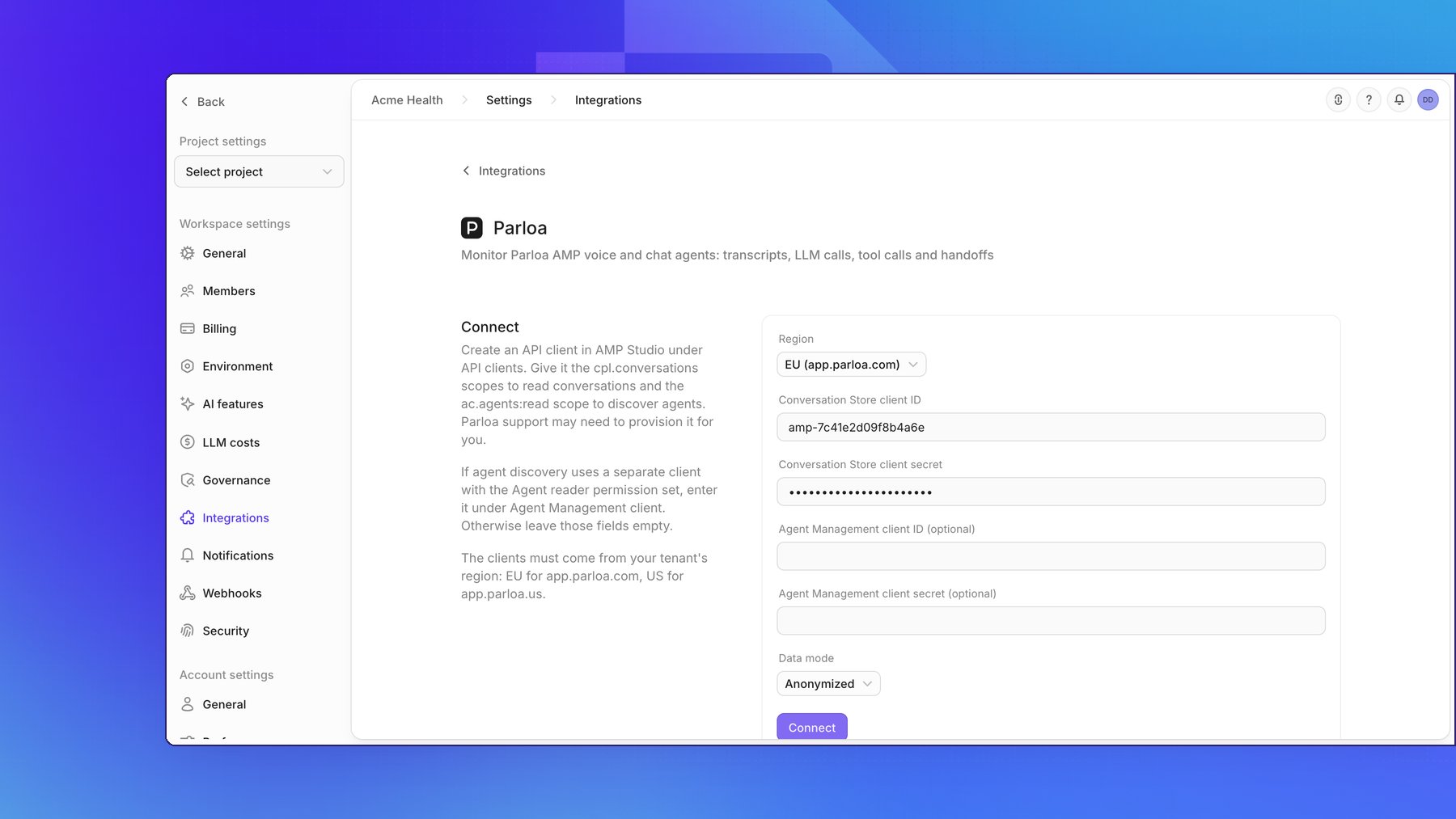
Fill in the connect form, then click Connect:- Region:
EU (app.parloa.com)orUS (app.parloa.us), matching your tenant - Conversation Store client ID and Conversation Store client secret: the API client from the prerequisites
- Agent Management client ID and Agent Management client secret (optional): only when agent discovery uses a separate client. Fill in both or neither.
- Data mode: Anonymized (the default) reads the transcripts Parloa anonymizes. Raw reads
the original transcripts and needs the
cpl.conversations:read-allscope.
Client secrets are write-only. Openlayer stores them encrypted and never
returns them.
Step 3: Configure sync settings
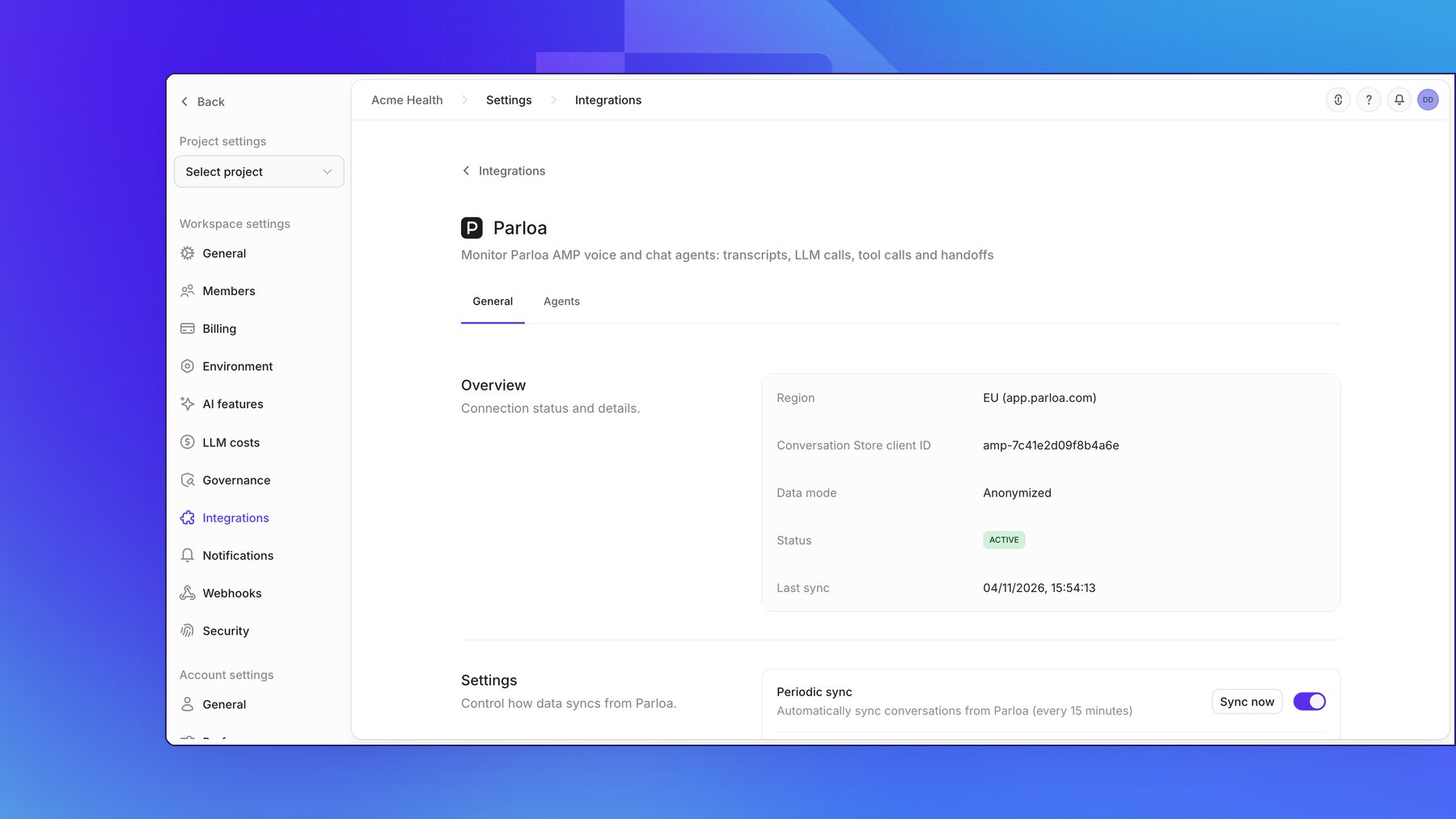
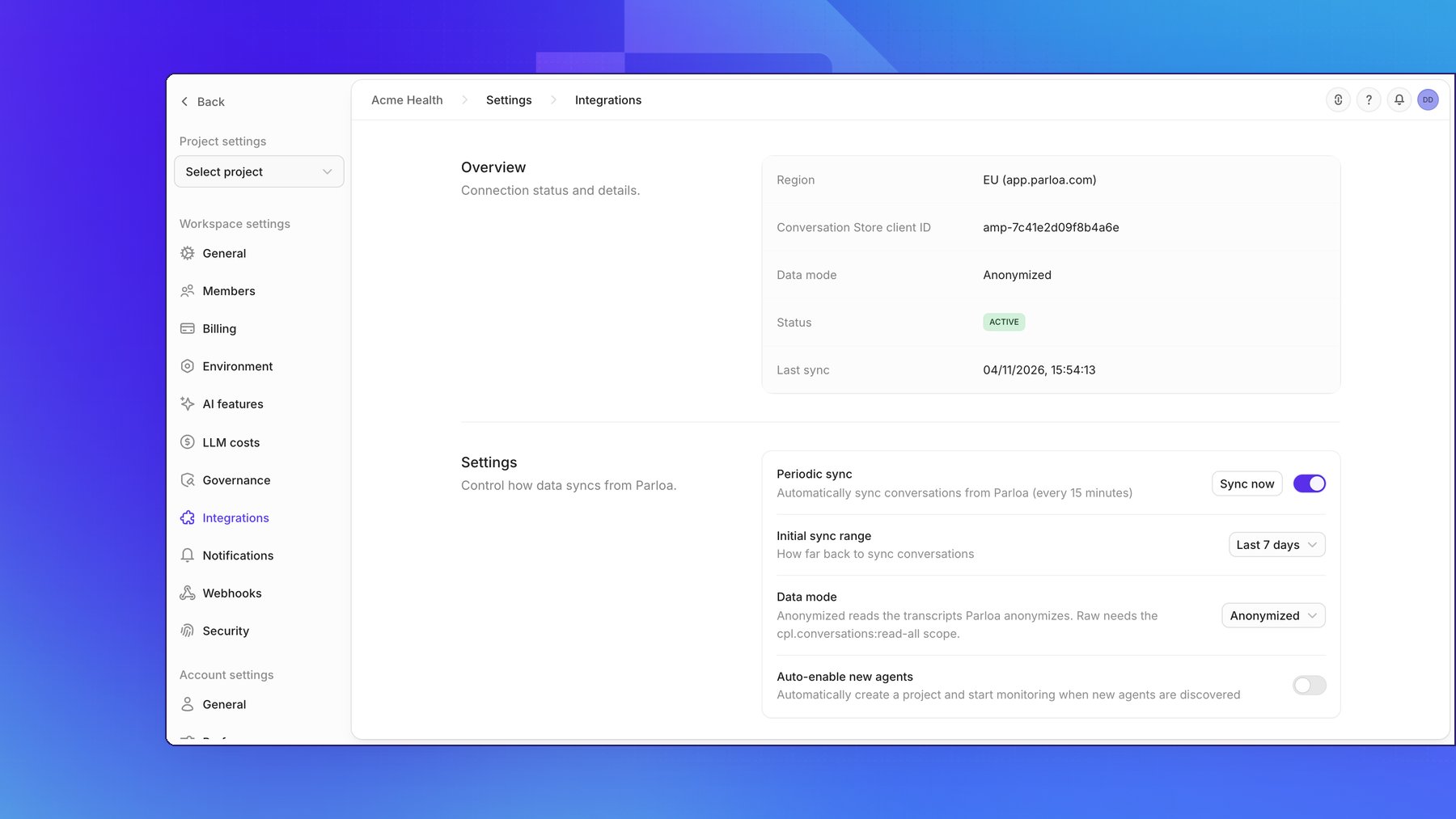
Once connected, the General tab shows the connection Overview (region, client IDs, data mode, status, and last sync) and its Settings:- Periodic sync: on by default; syncs every 15 minutes. Turn it off to pause syncing without disconnecting, or click Sync now to queue a sync right away.
- Initial sync range: how far back the first sync reads. Choose All available data, Last 7 days, or a Custom start date. Without a start date, the first sync reads the last 7 days.
- Data mode: switch between Anonymized and Raw. The change applies from the next sync.
- Auto-enable new agents: off by default. When on, Openlayer creates a project and starts monitoring for every agent it discovers for the first time. An agent you disable is never re-enabled automatically.
Step 4: Enable agents
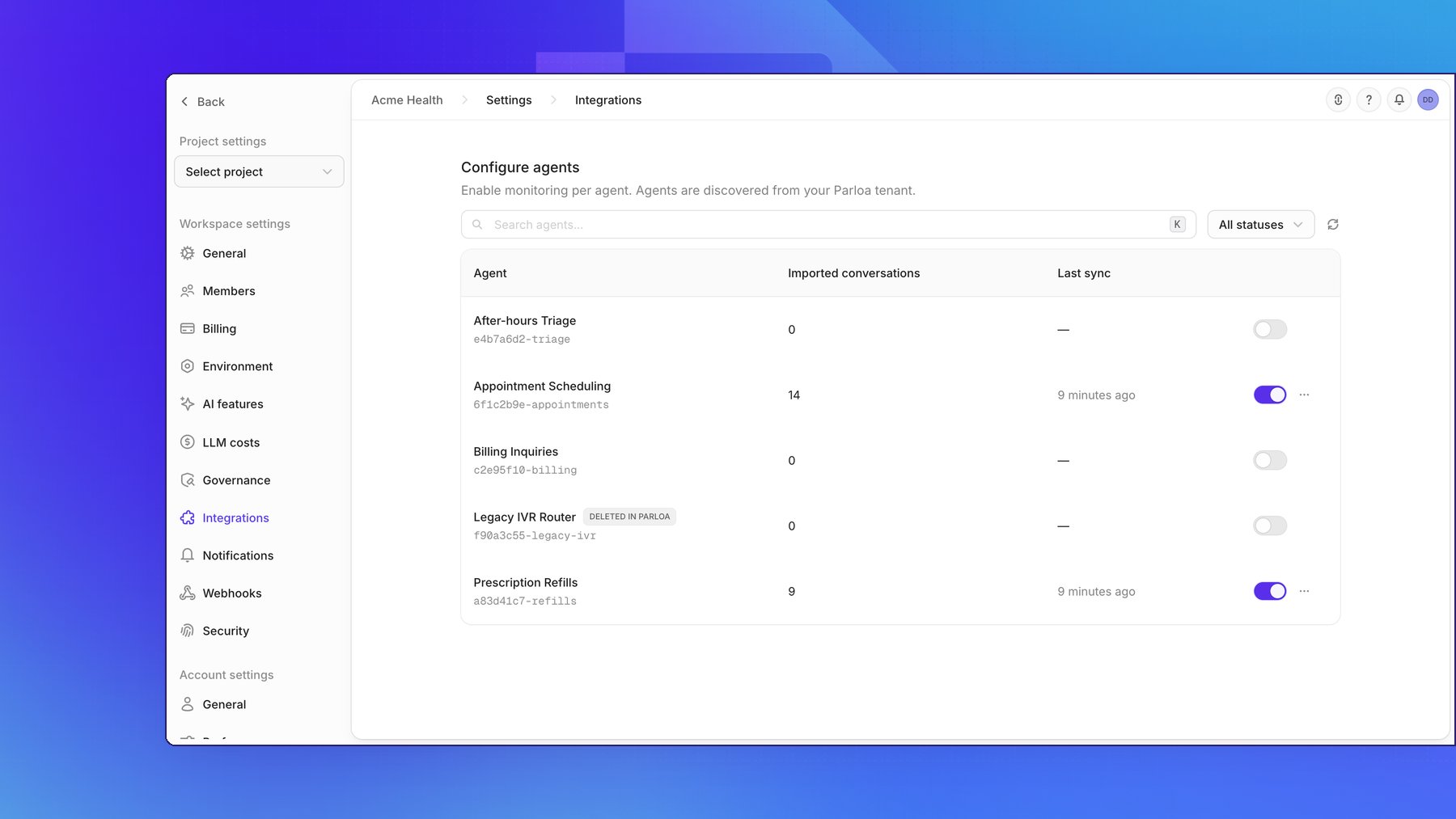
The Agents tab lists every discovered agent. Discovery alone does not start monitoring: turn on the switch of each agent you want to monitor. The table shows:- Agent: the agent name and its Parloa agent ID
- Imported conversations: the number of conversations synced so far
- Last sync: when the agent was last synced
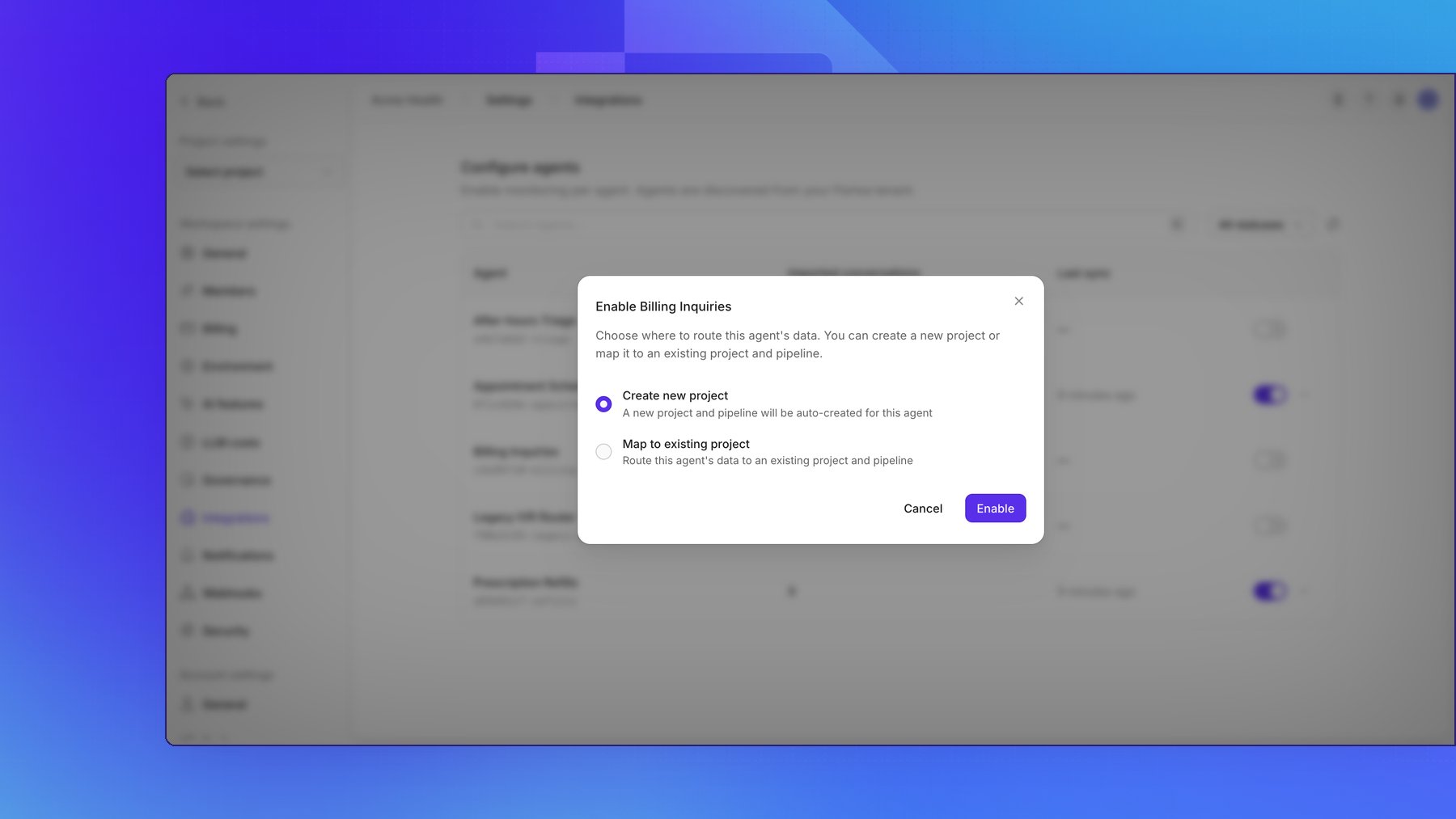
- Create new project: Openlayer creates a project named
Parloa - <agent name>and a data source for it - Map to existing project: route the agent’s data to a project and data source you already have
Monitoring in Openlayer
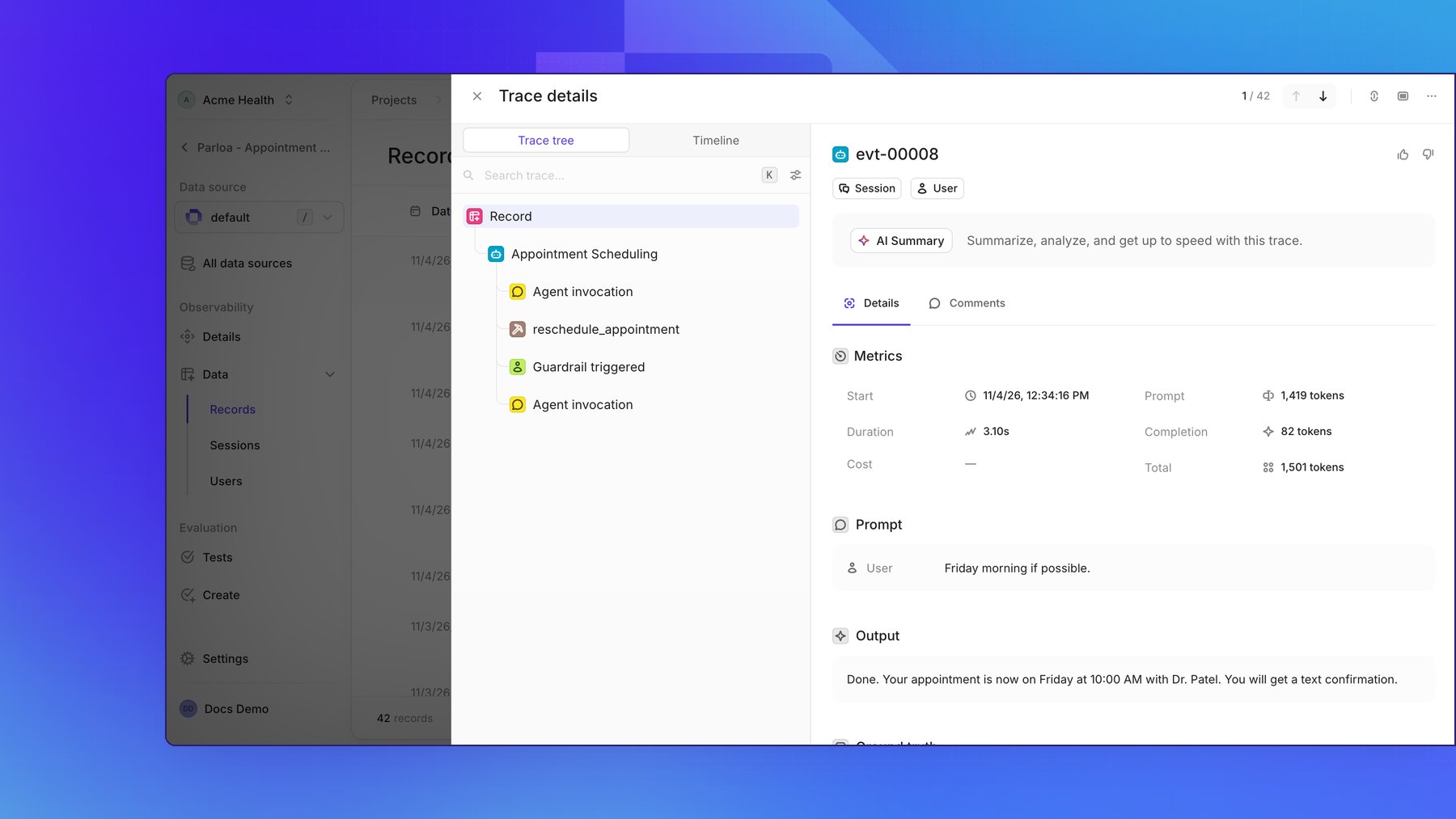
Once an agent is enabled and the first sync completes, its conversations appear in its project.Conversation traces
Each conversation turn (a caller message and the agent’s reply) becomes one trace. The Parloa conversation is the trace’s session and the caller is its user, so the Sessions and Users views group turns back into whole conversations. Inside a trace, the agent-side events of the turn become steps:
The trace also carries the turn’s latency (from the caller’s message to the agent’s first reply)
and metadata such as the conversation ID, platform, environment, and deployment.
Sync timing
Openlayer reads a conversation only after it has settled, about two hours after it starts. Parloa recommends reading conversations at least an hour after they start, so a conversation in progress appears in a later sync. Turns already imported are skipped, so re-reading a conversation never duplicates traces.Parloa does not expose call recordings through its API, so Parloa traces have
no audio view.
Backfill historical data
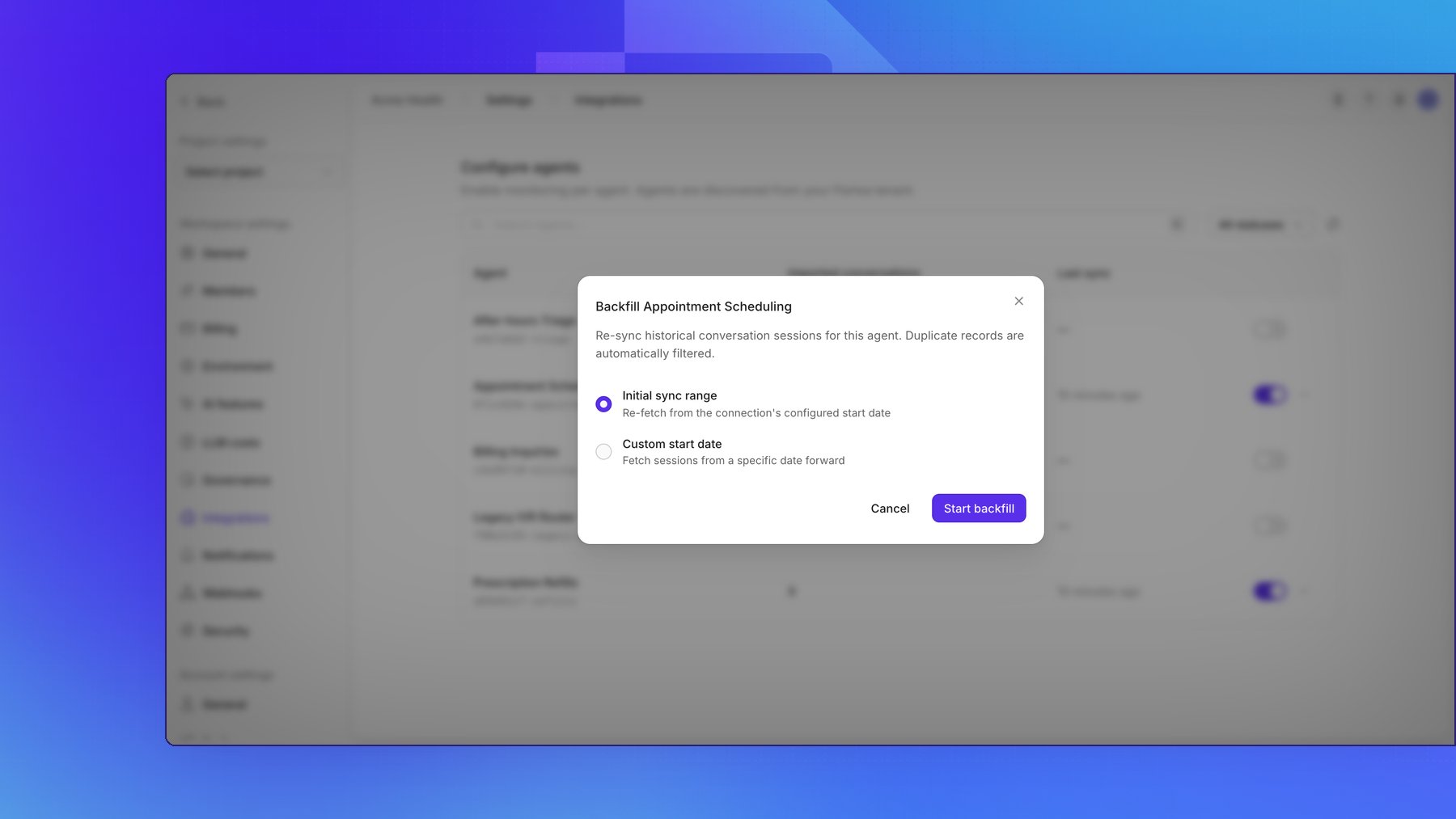
To import conversations from before the agent was enabled, open the menu (the three dots) next to an enabled agent and click Backfill. Choose where the backfill starts:- Initial sync range: re-read from the connection’s start date, or the last 7 days if it has none
- Custom start date: re-read from a specific date forward
Run evaluations
With conversations flowing into Openlayer, you can:- Create tests to score response quality
- Detect PII in agent responses
- Monitor latency and token trends per agent
- Evidence AI controls with real conversations in governance frameworks